> For the complete documentation index, see [llms.txt](https://help.usejimo.com/docs/llms.txt). Markdown versions of documentation pages are available by appending `.md` to page URLs; this page is available as [Markdown](https://help.usejimo.com/docs/experiences/agent/knowledge/sources.md).
# Sources
Sources are the foundation of your Agent's knowledge. Every URL, text snippet, and file you add here is processed and indexed so the Agent can generate accurate, contextual answers for your users.
## Overview
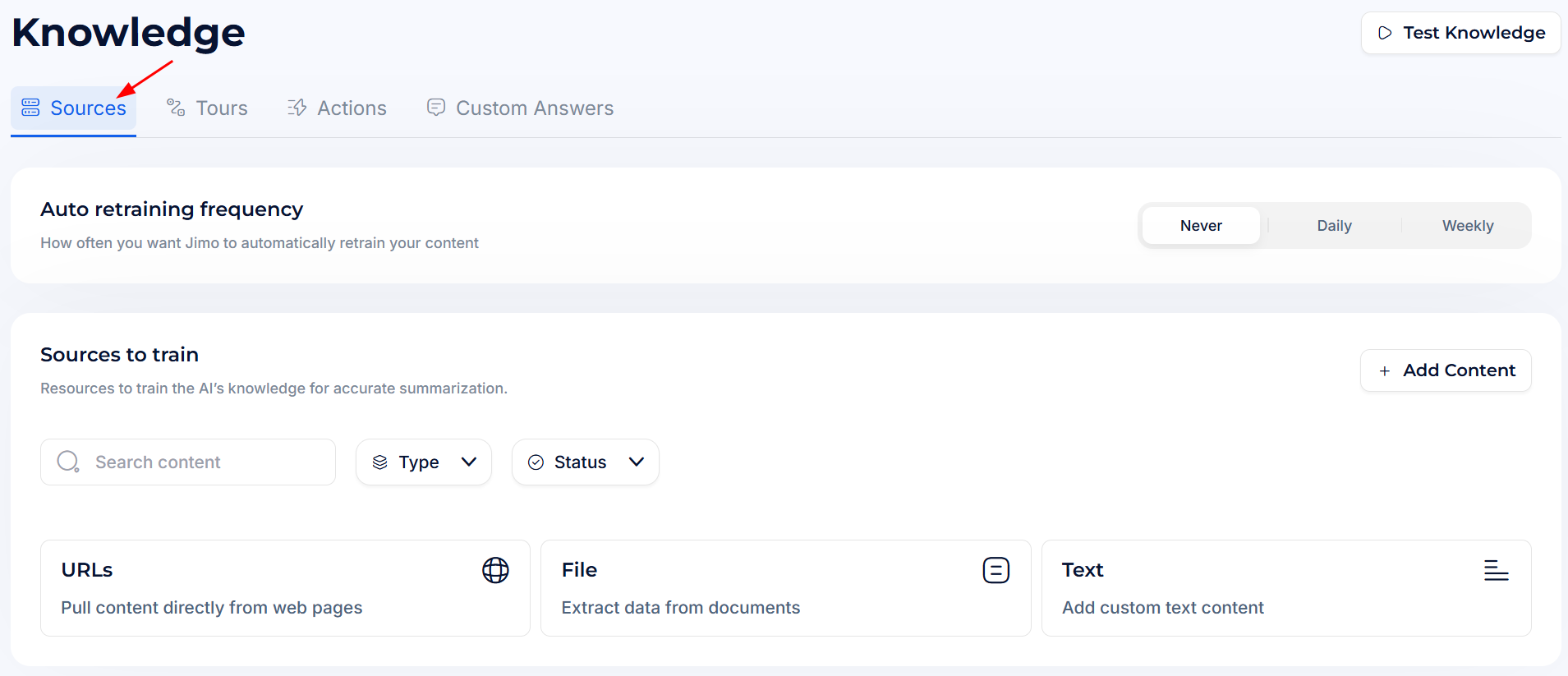
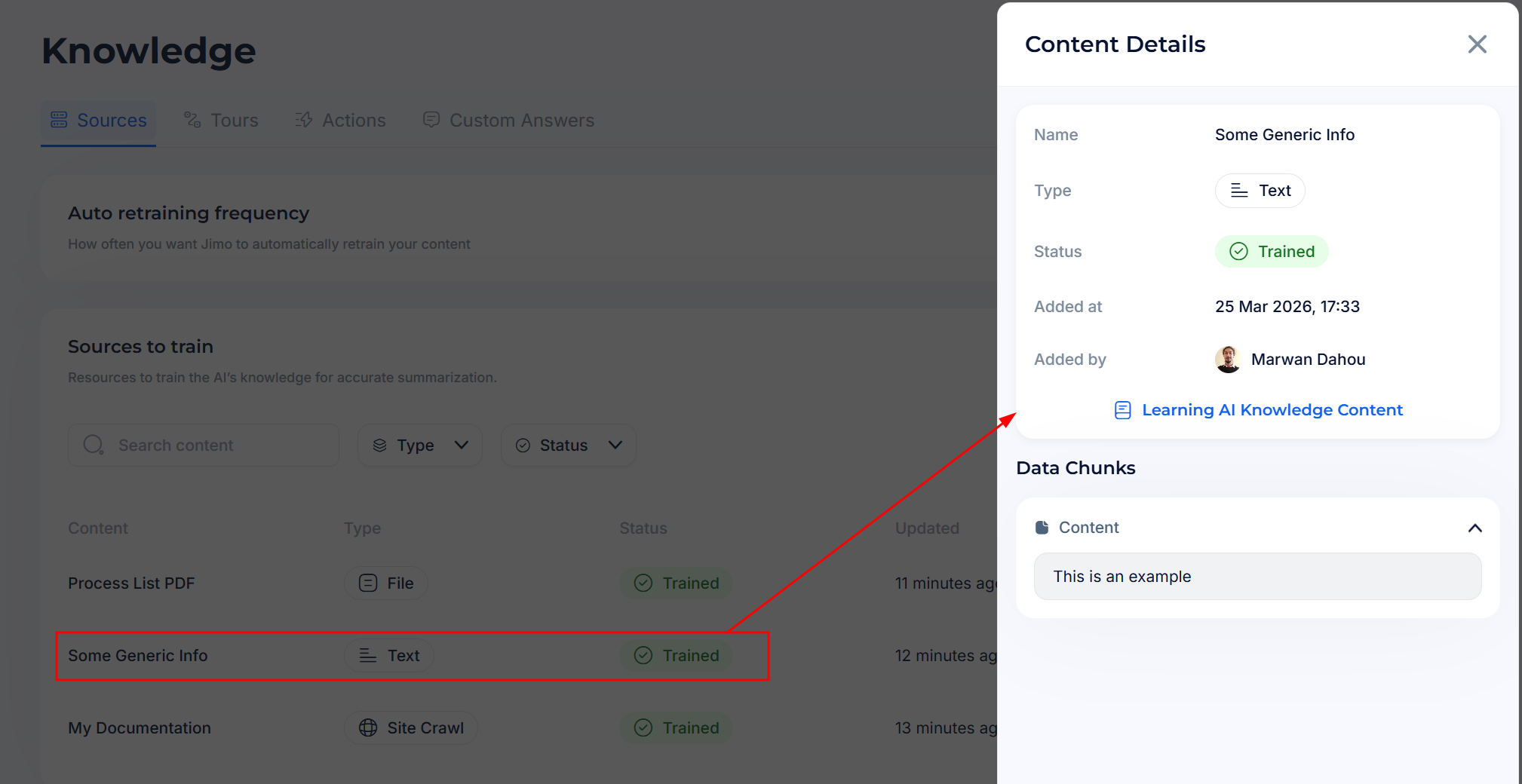
The Sources tab has two sections: **Auto retraining frequency** at the top and the **Sources to train** list below.
**Dashboard path:** [Agent > Train > Knowledge > Sources](https://i.usejimo.com/agent/knowledge/sources)
***
## Auto retraining frequency
Controls how often Jimo automatically re-indexes all your content sources. This keeps the Agent's answers in sync with changes to your documentation.
Choose between three options:
* **Never**: Sources are only retrained when you manually trigger a refresh. Best for stable content that rarely changes.
* **Daily**: Jimo re-indexes all sources every day. Recommended during active product development or when your docs change frequently.
* **Weekly**: A good balance for most teams. Sources are re-indexed once a week.
You can always trigger a one-off retrain for any individual source using the refresh icon (⟳) in the source list.
***
## Sources to train
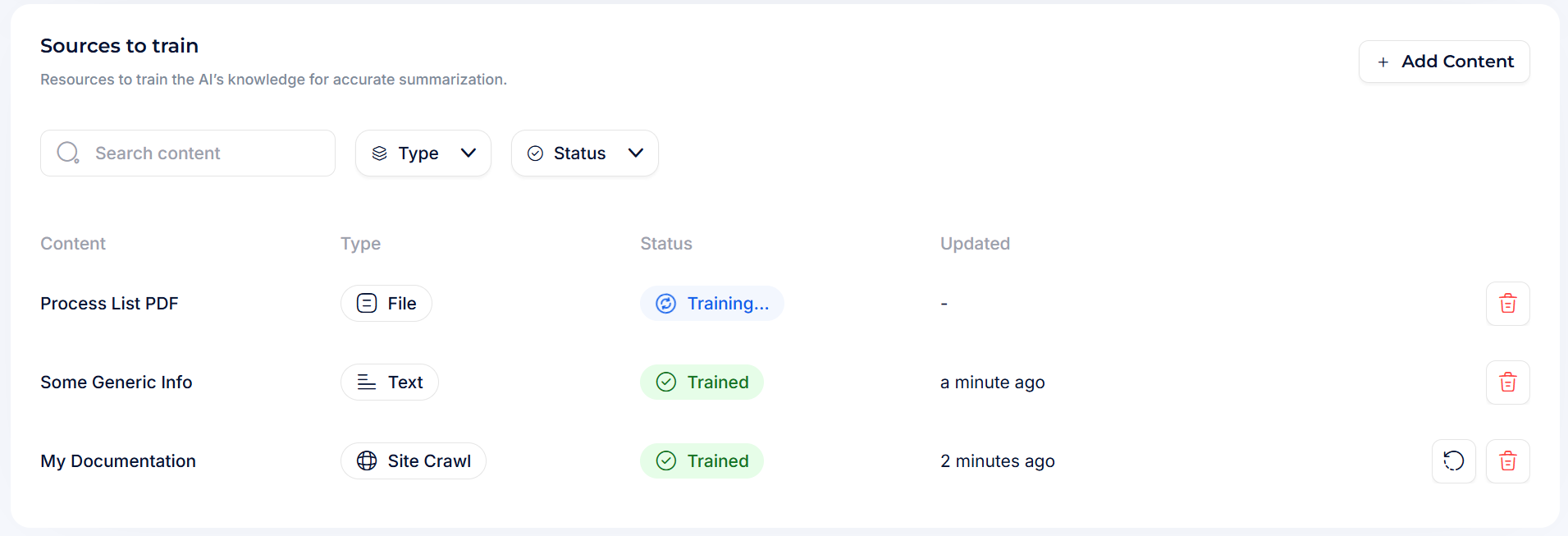
The main table lists every source you have added. Use the search bar, **Type** filter, and **Status** filter to find specific sources quickly.
| Column | Description |
| ----------- | ------------------------------------------------------------------------- |
| **Content** | The name you gave the source (or the URL/filename if no name was set). |
| **Type** | The source type: `Site Crawl`, `Individual URLs`, `Text`, or `File`. |
| **Status** | Current training state (see [Status reference](#status-reference) below). |
| **Updated** | When the source was last successfully trained. |
**Row actions:**
* **⟳ Refresh**: Retrain this source immediately without waiting for the next auto-retrain cycle.
* **🗑 Delete**: Permanently remove the source from your knowledge base.
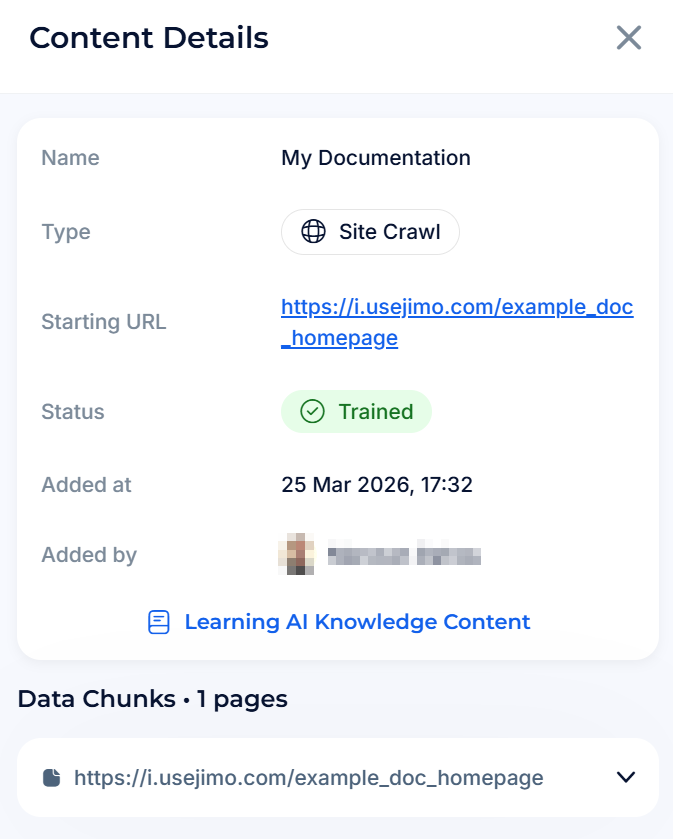
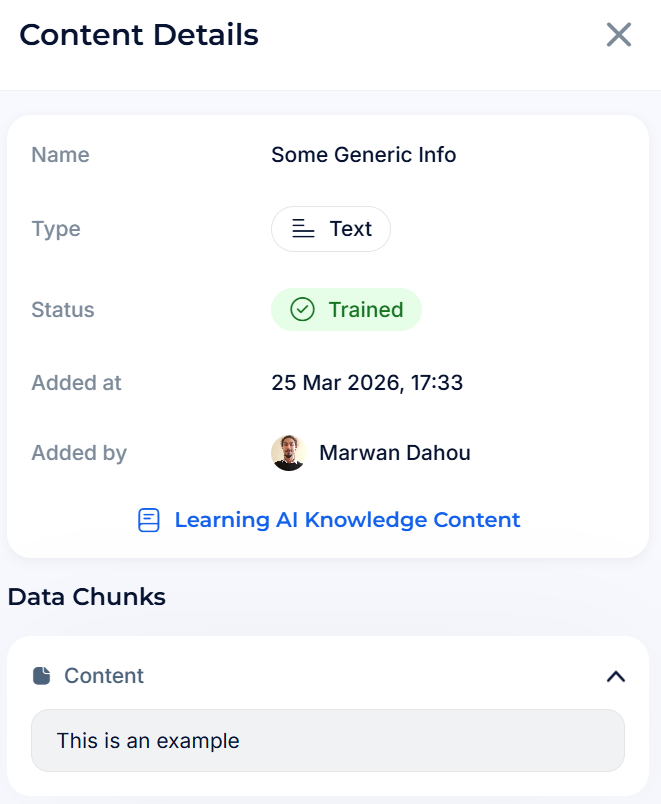
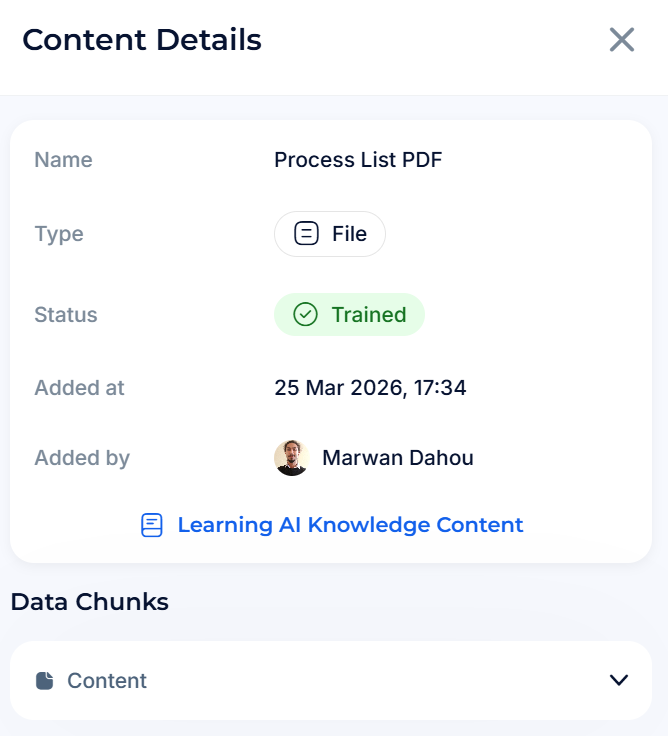
Click any row to open the **Content Details** drawer, where you can inspect the indexed data chunks and metadata.
***
### Adding a source
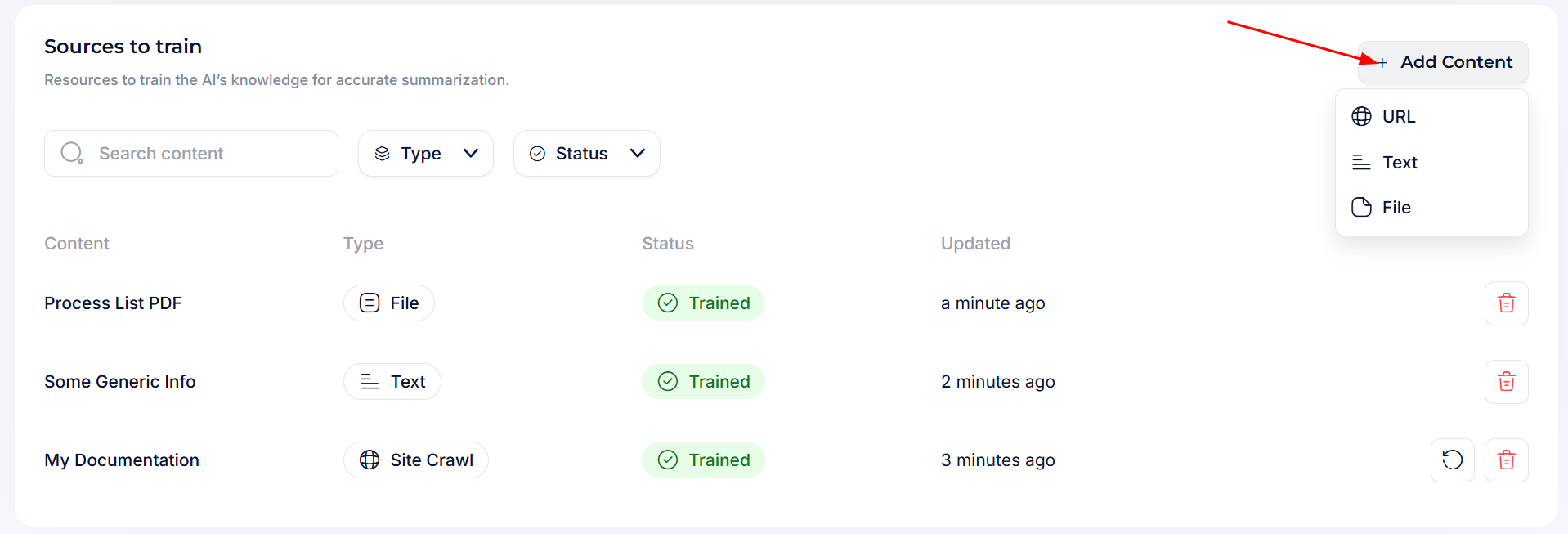
Click **+ Add Content** (top-right of the Sources to train section) to open a dropdown with three source types: **URL**, **Text**, and **File**.
{% tabs %}
{% tab title="URL" %}
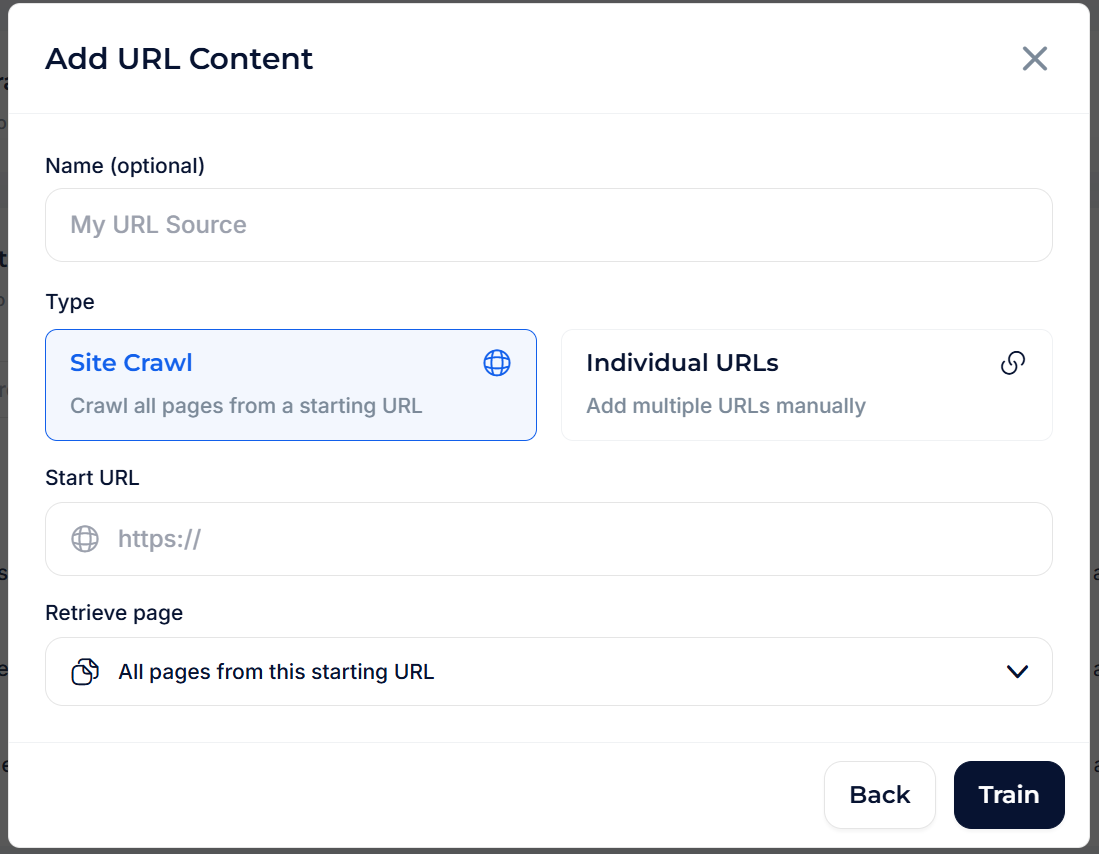
URL sources let you feed entire websites or specific pages to the Agent. Choose between two modes: **Site Crawl** and **Individual URLs**.
#### Site Crawl
Crawl all pages starting from a root URL. Jimo follows internal links and extracts text from every reachable page.
**Fields:**
* **Name** *(optional)*: A label for this source (e.g. "Help Center", "Product Docs").
* **Type**: Toggle between **Site Crawl** and **Individual URLs**.
* **Start URL**: The root URL where the crawl begins (e.g. `https://help.yourapp.com`).
* **Retrieve page**: Controls which pages are included in the crawl.
* **All pages from this starting URL** *(default)*: Follows every internal link from the start URL.
* **Only filtered URLs**: Restricts the crawl to pages matching specific rules.
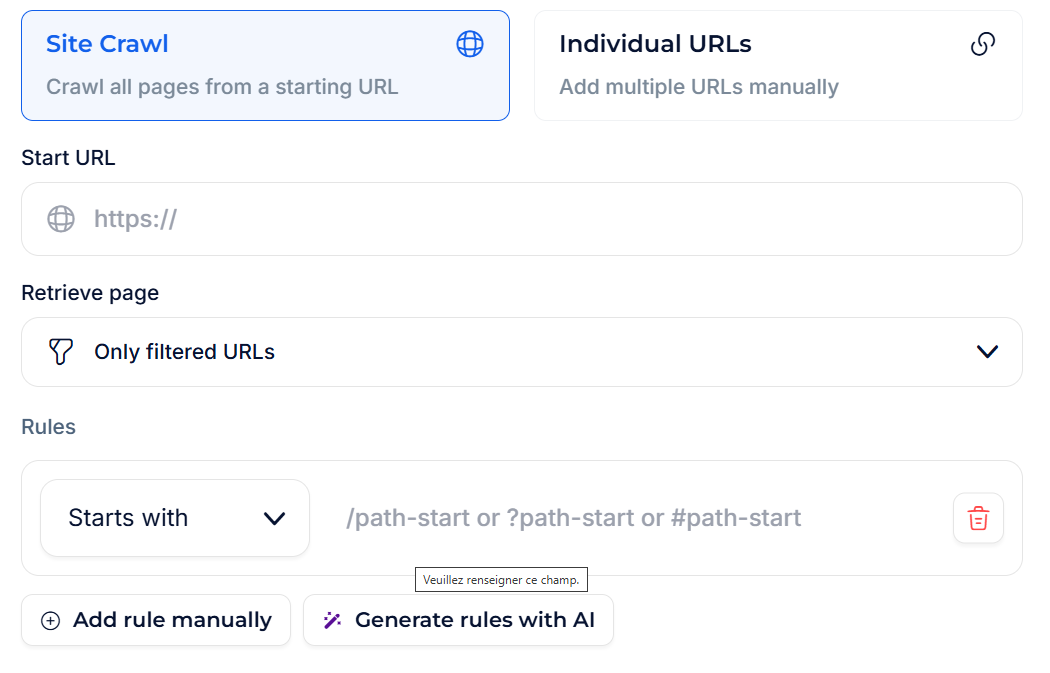
**Filtering with rules**
When you select **Only filtered URLs**, a **Rules** section appears where you can define path-based filters.
Each rule has two parts:
* **Condition** (dropdown): `Starts with`, `Contains`, `Equals`, etc.
* **Path pattern**: The URL path segment to match (e.g. `/docs/`, `?category=help`).
You can build rules in two ways:
* **+ Add rule manually**: Add conditions one by one.
* **✨ Generate rules with AI**: Let Jimo AI analyze the start URL and suggest relevant filtering rules automatically.
> **Tip:** Use path filters to focus the crawl on your help center or product documentation and exclude marketing pages, blog posts, or legal content that could dilute the Agent's answers.
Click **Train** to start indexing. The source appears in the list with a *Training* status and flips to *Trained* once processing is complete.
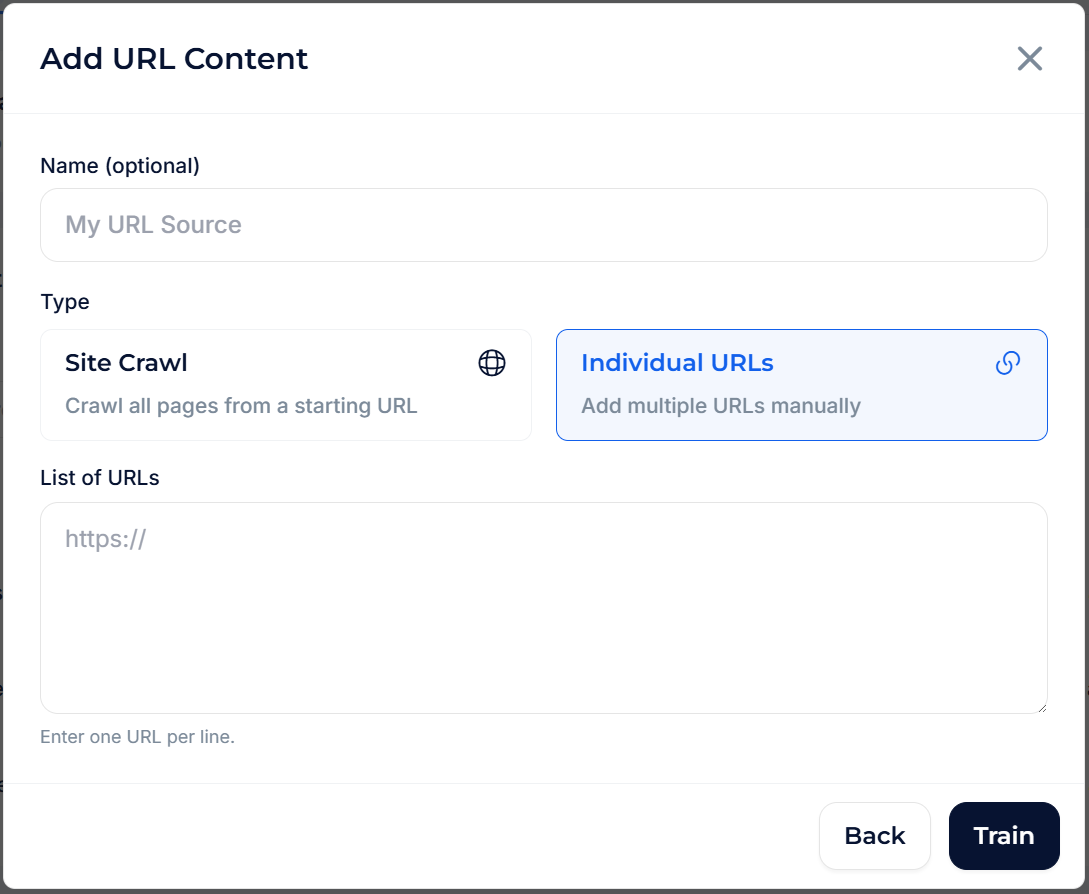
#### Individual URLs
Add specific pages manually when you only need a few pages indexed, or when the pages you need are spread across different domains.
**Fields:**
* **Name** *(optional)*: A label for this source.
* **Type**: Toggle to **Individual URLs**.
* **List of URLs**: Paste one URL per line. Each URL is fetched and indexed independently.
Click **Train** to start indexing.
{% endtab %}
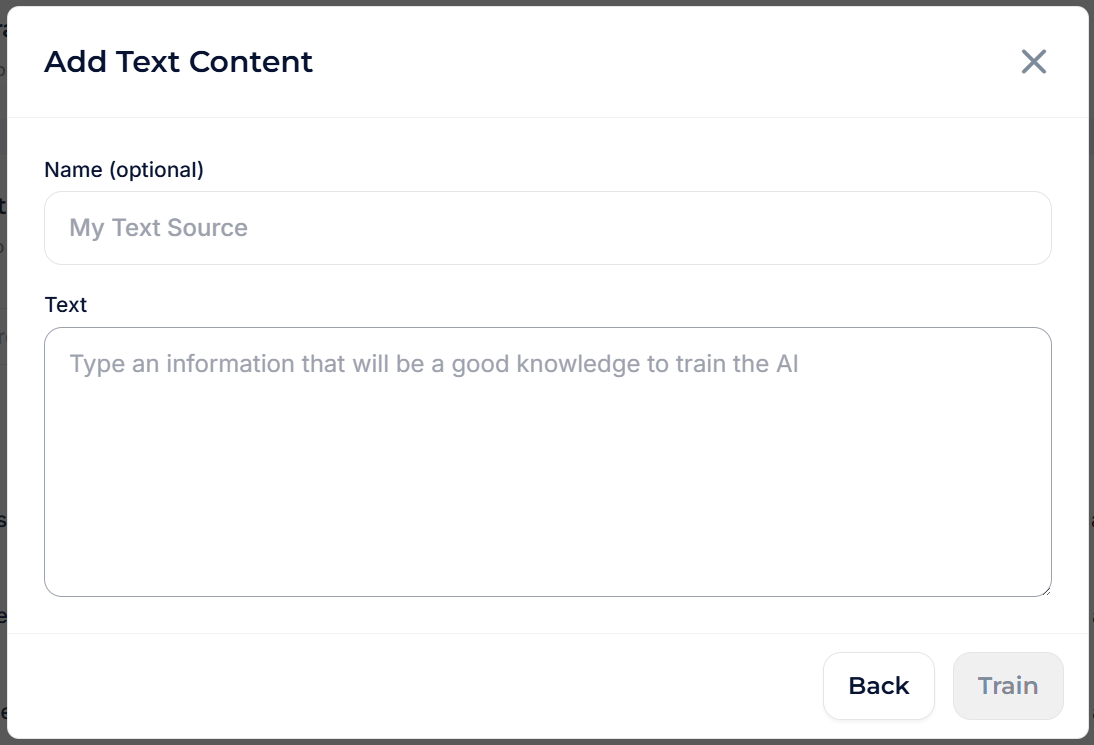
{% tab title="Text" %}
Paste any plain-text or Markdown content directly. Useful for internal knowledge that is not published on a website, like release notes, internal procedures, product specifications, or code documentation.
**Fields:**
* **Name** *(optional)*: A label for this text source.
* **Text**: The content to index. Supports plain text and Markdown formatting.
Click **Train** to index the content.
> **Tip:** Keep each text snippet focused on a single topic. Multiple smaller, topic-specific sources perform better than one massive text dump.
> {% endtab %}
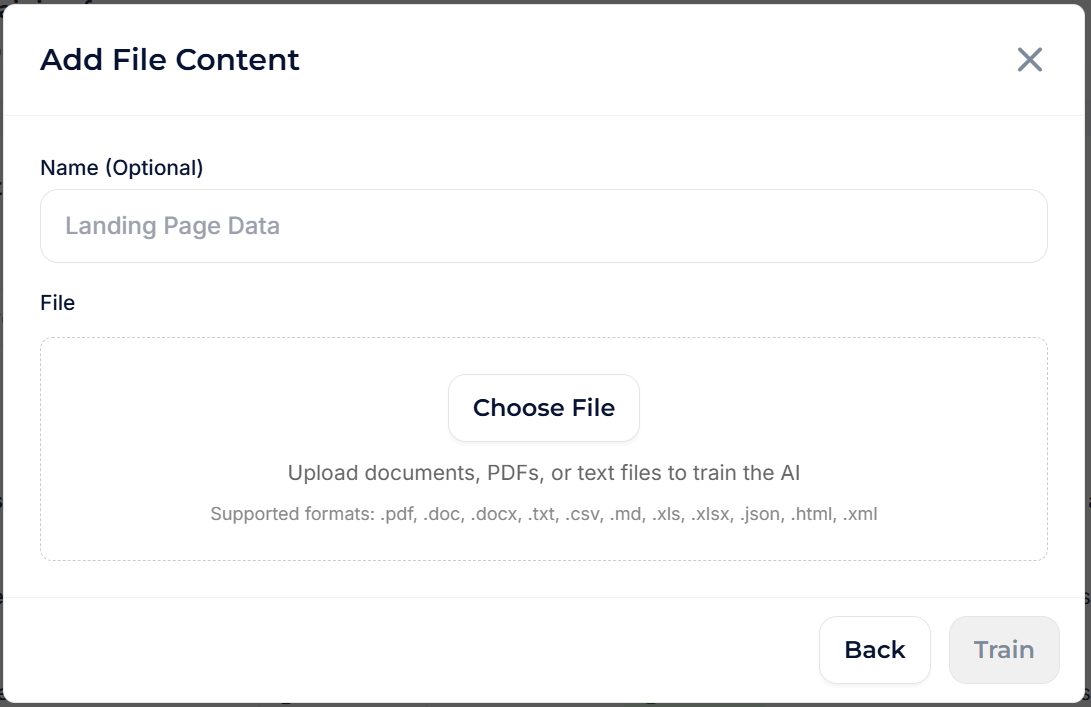
{% tab title="File" %}
Upload documents and files for the Agent to learn from. Ideal for product manuals, PDF guides, data exports, or any structured content stored as files.
**Fields:**
* **Name** *(optional)*: A label for this file source.
* **File**: Click **Choose File** to upload one or several files at once, or a whole folder. Supported formats: `.pdf`, `.doc`, `.docx`, `.txt`, `.csv`, `.md`, `.xls`, `.xlsx`, `.json`, `.html`, `.xml`. Each file becomes its own source in the list, with its own status and refresh action.
Click **Train** to start processing. Large files are automatically chunked so the model can process them efficiently.
{% endtab %}
{% endtabs %}
***
#### Status reference
| Status | Meaning |
| -------------- | -------------------------------------------------------------------------------------------- |
| **Trained** ✅ | Source is fully indexed and the Agent uses it to generate answers. |
| **Training** ⏳ | Source is being processed. The Agent cannot use it yet. |
| **Failed** ⚠️ | Something went wrong during indexing. Hover the status icon for the error message and retry. |
***
### Content Details drawer
Click any source row to open its detail panel and inspect what was indexed.
The drawer shows:
* **Header**: Source name, type, starting URL or filename, status, date added, and who added it.
* **Data Chunks**: For crawls, a list of every crawled path with its extracted text. For files, each section or page of the document. Expand any chunk to preview the indexed text.
{% hint style="warning" %}
If a crawl returns unexpected pages, review the data chunks and consider adding path filter rules to narrow the scope.
{% endhint %}
***
## Best practices
{% stepper %}
{% step %}
#### **Start broad, then refine.**
Begin with a full site crawl of your help center, then review data chunks and add path filters to exclude irrelevant pages.
{% endstep %}
{% step %}
#### **Name your sources clearly.**
Labels like "Help Center - Product Docs" or "API Reference v2" make the source list easier to manage as it grows.
{% endstep %}
{% step %}
#### **Use Daily retraining during active development.**
Switch to Weekly once your documentation stabilizes.
{% endstep %}
{% step %}
#### **Keep text sources focused.**
One topic per text source produces better results than a single massive text block.
{% endstep %}
{% step %}
#### **Avoid noisy content.**
Exclude marketing pages, blog posts, customer testimonials, and legal disclaimers unless users frequently ask about them.
{% endstep %}
{% step %}
#### **Monitor statuses.**
Check for Failed sources regularly, especially after changing your website structure.
{% endstep %}
{% endstepper %}