> For the complete documentation index, see [llms.txt](https://help.usejimo.com/docs/llms.txt). Markdown versions of documentation pages are available by appending `.md` to page URLs; this page is available as [Markdown](https://help.usejimo.com/docs/experiences/agent/knowledge/tours.md).
# Tours
Make your live Tours available to the Agent so it can deliver targeted, step-by-step guidance directly in conversations when a user asks a question that matches a Tour's topic.
{% hint style="danger" %}
**This feature was removed on September 17, 2026.** The Agent no longer triggers Tours or Actions from the chat. Use Skills instead. This page is kept for reference only.
{% endhint %}
## Overview
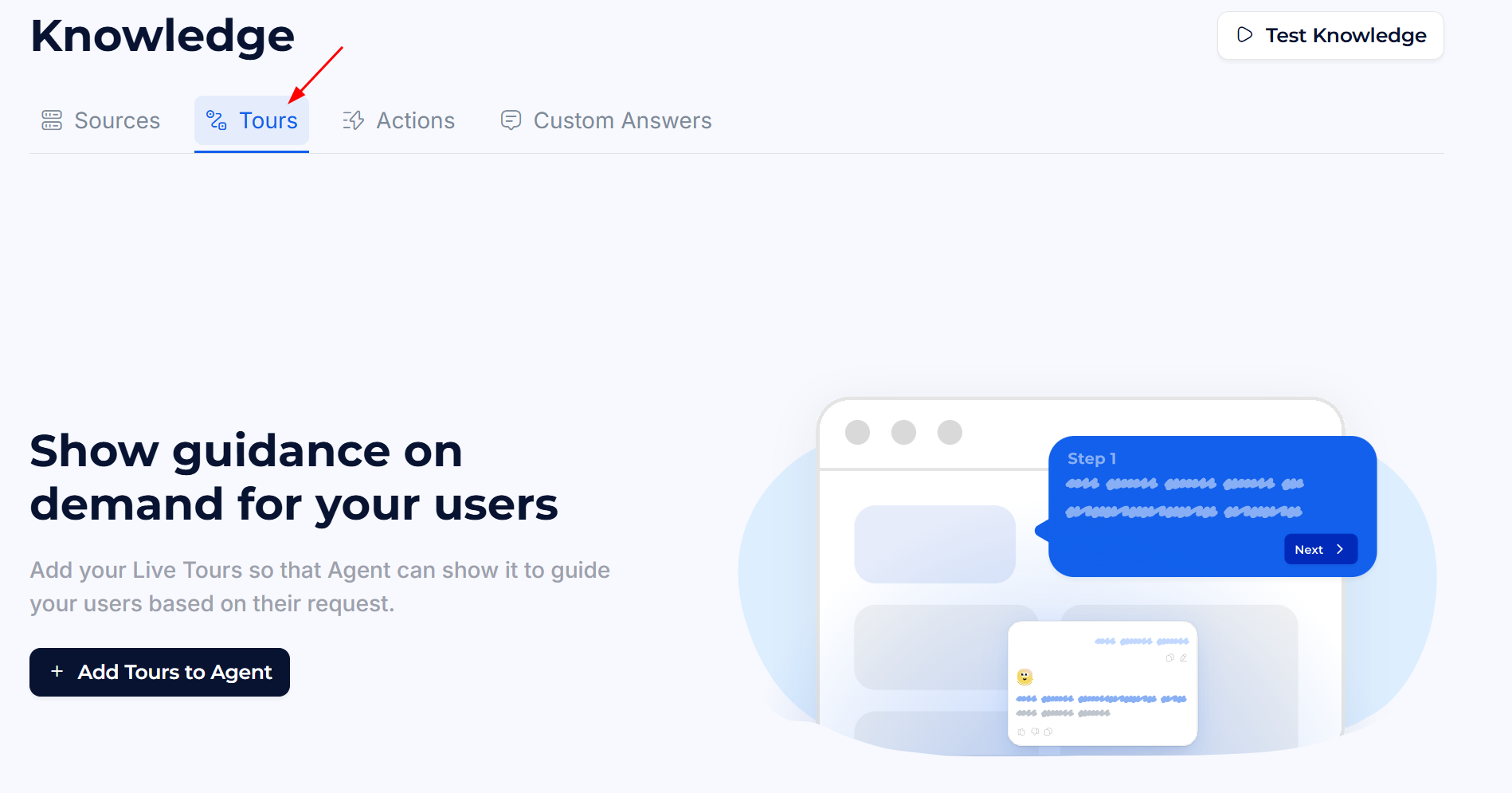
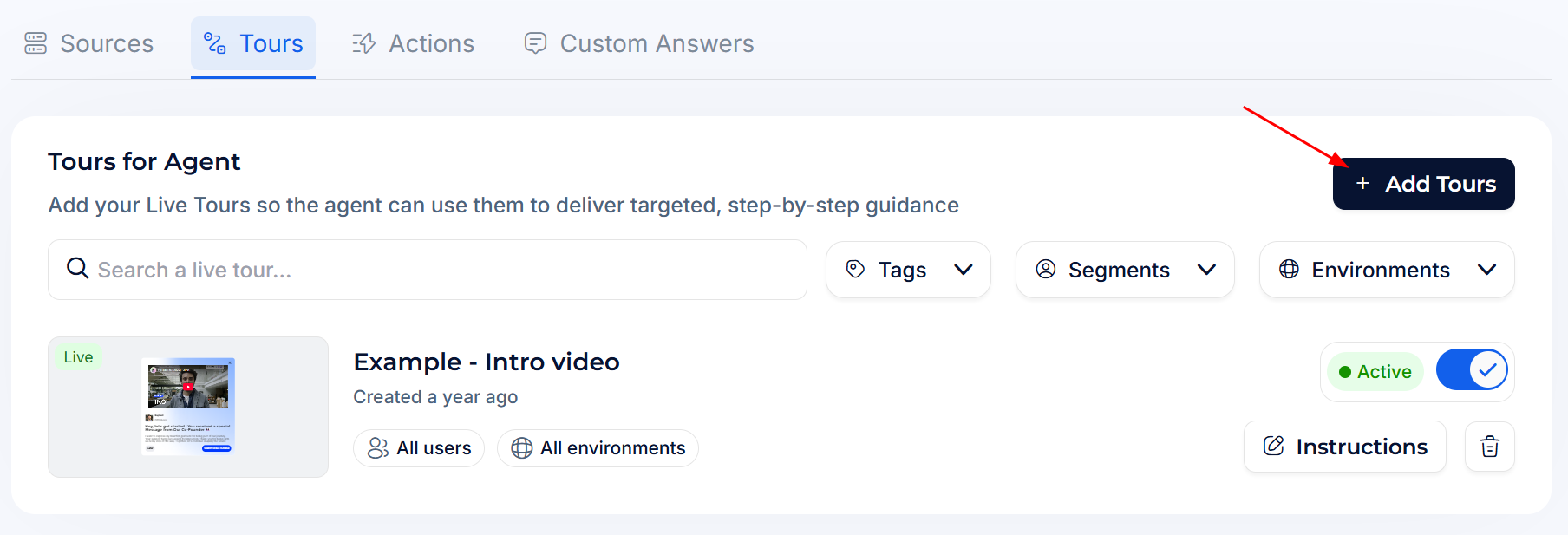
The Tours tab lists every Tour you have connected to the Agent. Each Tour card shows its name, creation date, segment/environment scope, and status (Live or Paused from the Tour builder). From here you can activate or deactivate each Tour for the Agent, configure its trigger instructions, or remove it.
**Dashboard path:** [Agent > Knowledge > Tours](https://i.usejimo.com/agent/knowledge/tours)
***
## Adding a Tour
Click **+ Add Tours** (top-right) to open the Tour selection modal.
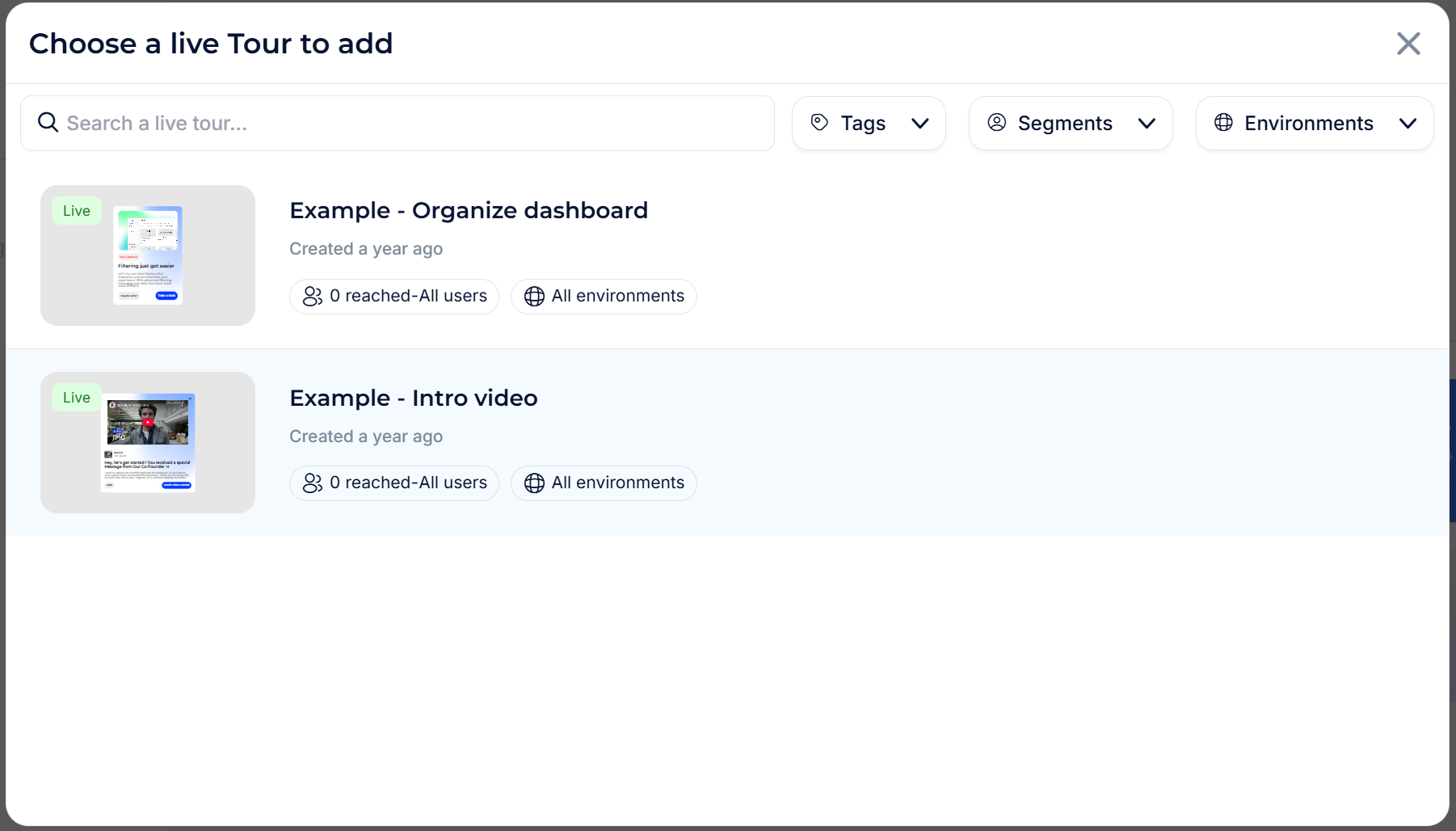
Browse or search your existing Tours. Each card shows a thumbnail preview, the Tour name, creation date, audience scope, and environment. Click a Tour to select it.
After selecting a Tour, the **Instructions** modal opens to configure how the Agent should use it.
{% hint style="warning" %}
Only **live Tours** (published in the [Tour builder](/docs/experiences/tours-and-modals.md#builder)) can be added to the Agent. Paused or draft Tours appear in the selection modal but must be set to Live before the Agent can actually deliver them.
{% endhint %}
***
## Configuring Tour Instructions
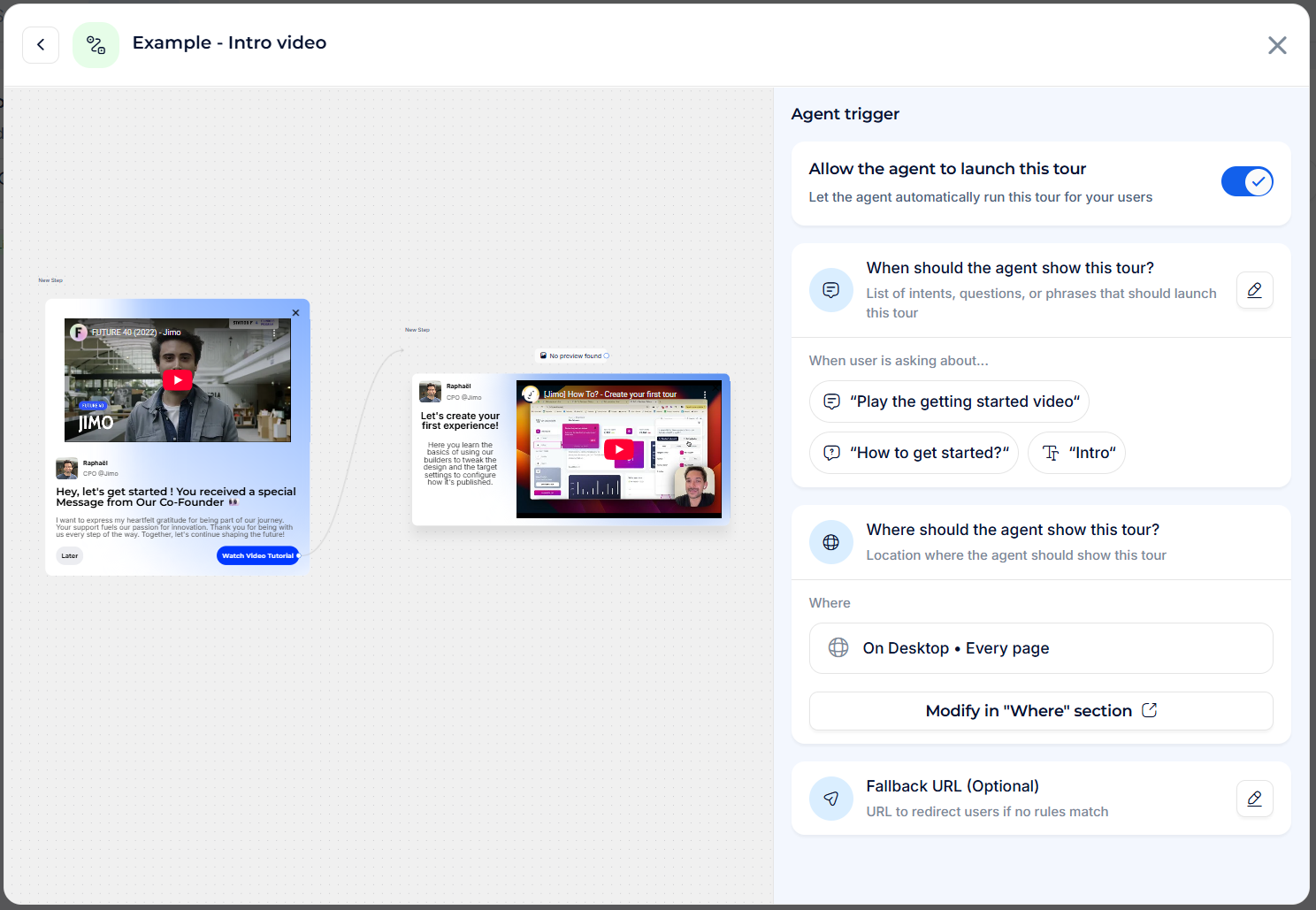
The Instructions modal is where you define when and where the Agent should launch a Tour. It has three sections: a master toggle, an Agent trigger configuration, and location settings.
### Allow the agent to launch this tour
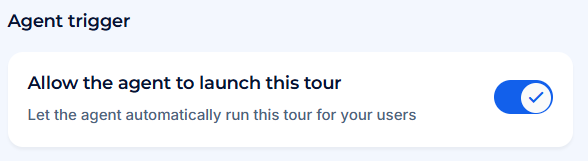
A master toggle at the top of the modal. When enabled, the Agent can automatically run this Tour for your users. When disabled, the Tour remains in the list but the Agent will not suggest or launch it.
### When should the agent show this tour? (Topics)
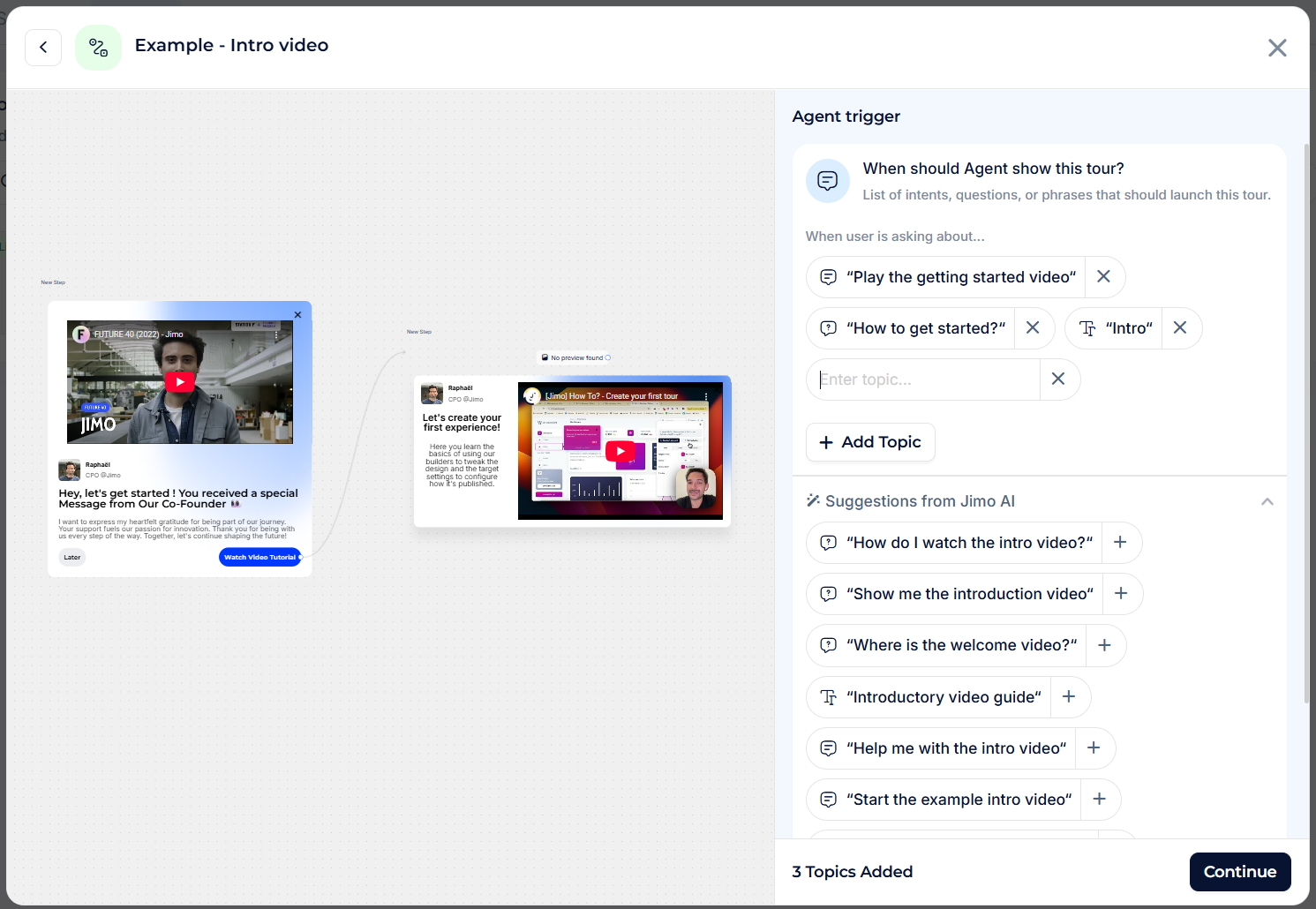
Define the intents, questions, or phrases that should trigger this Tour. This is the core matching logic: when a user's message in the Agent chat matches one of these topics, the Agent knows to suggest or launch this Tour.
**Adding Topics:**
* Click **+ Add Topic** to type a custom intent or question.
* Each topic is a phrase that represents a user intent (e.g. "How do I set up my dashboard?", "Profile settings", "Getting started").
* Add as many topics as needed to cover the different ways users might ask about this subject.
**Suggestions from Jimo AI:**
When you open the Instructions modal for the first time, Jimo AI automatically generates topic suggestions based on the Tour's content. Each suggestion shows the AI-generated question with a **+** button to add it instantly.
{% hint style="info" %}
Start with AI suggestions to quickly cover common phrasings, then add custom topics for specific terminology your users actually use.
{% endhint %}
### Where should the agent show this tour?
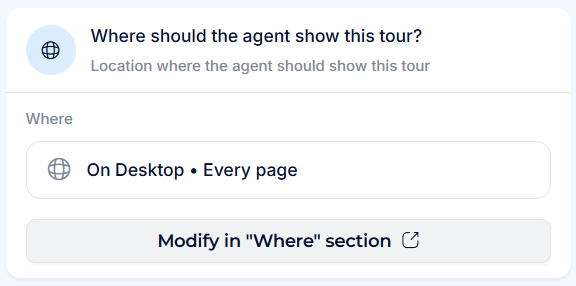
Controls on which pages and devices the Agent is allowed to launch this Tour.
**Where**: Shows the current location rule (e.g. "On Desktop • Every page").
* Click **Modify in "Where" section** to open the related [Tour's full targeting settings](/docs/publish/target-specific-urls-domains-where.md) and adjust URL rules, device targeting, and environment filters.
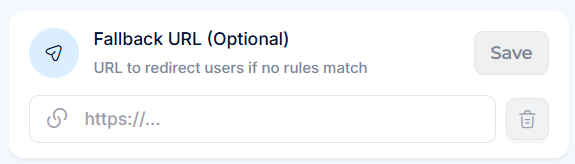
**Fallback URL** *(optional)*: A URL to redirect users to if no location rules match.
* Useful as a safety net when the Tour targets specific pages that the user might not be on.
***
## Managing Tours
From the Tours list, each Tour has the following controls:
* **Active / Inactive toggle**: Enable or disable the Tour for the Agent without removing it from the list.
* **Instructions** button: Open the Instructions modal to edit topics, location rules, and the master toggle.
* **🗑 Delete**: Remove the Tour from the Agent entirely.
### Filters
Use the filter bar to narrow the list:
* **Search**: Find Tours by name.
* **Tags**: Filter by Tour tags.
* **Segments**: Filter by audience segment.
* **Environments**: Filter by deployment environment.
***
## How it works at runtime
When a user sends a message in the Agent chat:
1. The Agent analyzes the user's intent.
2. It compares the message against all active Tour topics.
3. If a match is found and the user is on a qualifying page (per the "Where" rules), the Agent launches the Tour directly in the conversation.
4. If the user is not on a qualifying page, the Agent can suggest the Tour and use the Fallback URL to redirect the user first.
The Tour runs as a standard Jimo Tour, with all steps, tooltips, and interactions intact, just triggered by the Agent instead of a traditional trigger.
{% hint style="info" %}
You can publish tours to [Show on "No automatic trigger"](/docs/publish/trigger-on-the-right-spot-show-on.md#no-automatic-trigger). \
That way your tour will only be accessible via the Agent.
{% endhint %}
***
## Best practices
{% stepper %}
{% step %}
#### **Write natural-language topics.**
Use the phrasing your users actually type: "How do I invite someone to my team?" rather than "team member invitation procedure".
{% endstep %}
{% step %}
#### **Use AI suggestions as a starting point.**
They cover common phrasings but you know your users best. Add custom topics for product-specific jargon or internal terminology.
{% endstep %}
{% step %}
#### **Start with your most-requested Tours.**
Connect the Tours that address your top support questions first, then expand coverage based on conversation analytics.
{% endstep %}
{% step %}
#### **Set a Fallback URL for page-specific Tours.**
If a Tour only works on a particular page, add a fallback URL so users can be redirected there before the Tour starts.
{% endstep %}
{% step %}
#### **Keep the "Where" rules aligned.**
Make sure the Tour's page targeting matches where your users are likely to be when asking about that topic.
{% endstep %}
{% endstepper %}