> For the complete documentation index, see [llms.txt](https://help.usejimo.com/docs/llms.txt). Markdown versions of documentation pages are available by appending `.md` to page URLs; this page is available as [Markdown](https://help.usejimo.com/docs/experiences/agent/knowledge/custom-answers.md).
# Custom answers
Custom Answers let you craft curated Q\&A pairs that the Agent prioritizes over generated responses allowing you to attach a specific CTA to trigger an action related to this Q\&A.
{% hint style="info" %}
**When to use a Custom Answer, when to use a Skill.**
A Custom Answer returns your exact wording every time: use it for pricing, legal or security statements, and for sending users to an existing Tour, Survey or Checklist, since a Custom Answer with a Launch Experience button is the only way the Agent launches an experience from the chat.
For anything that depends on what the user sees on screen, or that needs steps, build an Explain, Guidance or Execute [Skill](/docs/experiences/agent/skills.md) instead.
{% endhint %}
## Overview
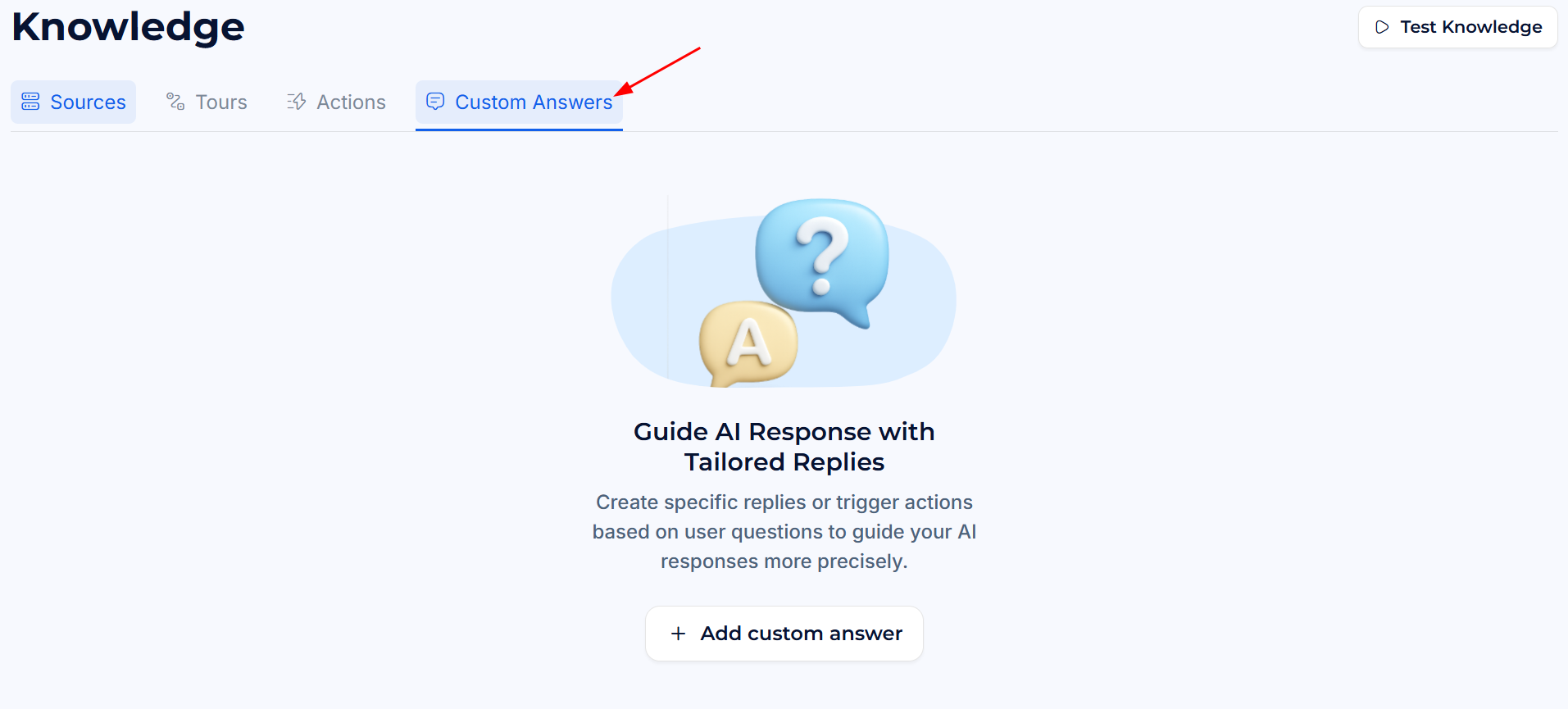
The Custom Answers tab lists all your curated Q\&A pairs. When you have no Custom Answers yet, an empty state guides you to create your first one.
**Dashboard path:** [Agent > Train > Knowledge > Custom Answers](https://i.usejimo.com/agent/knowledge/custom-answers)
***
## Creating a Custom Answer
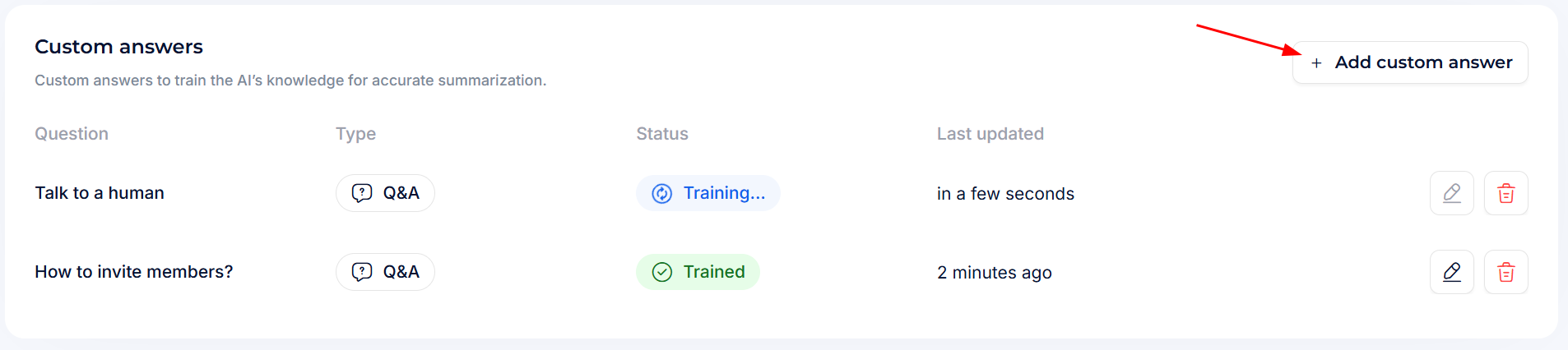
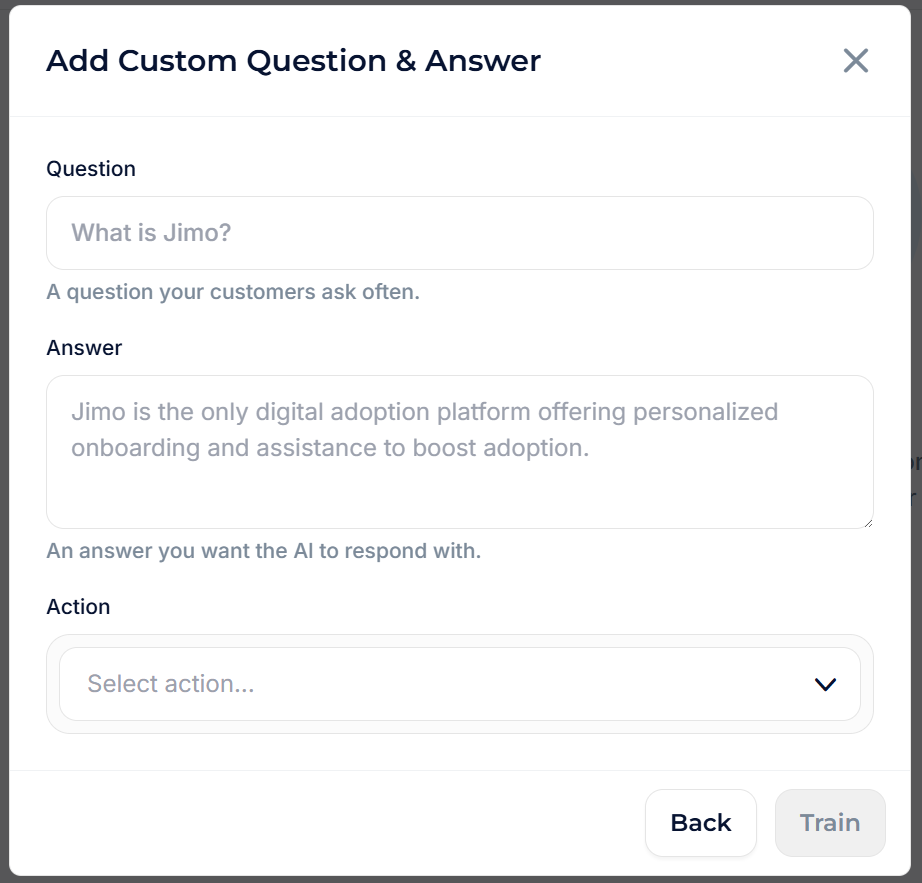
Click **+ Add custom answer** to open the creation modal.
**Fields:**
* **Question**: The phrase or intent users will type. Write it as naturally as possible, matching the way your users actually ask. The Agent uses semantic matching, so it will also trigger on similar phrasings.
* **Answer**: The exact reply you want the Agent to return. This is the verbatim text the Agent will use, so write it as a complete, helpful response.
* **Action** *(optional)*: Attach a CTA button that appears alongside the answer. Choose from:
| Action | What it does |
| ----------------------------------------------------------------------------------- | ----------------------------------------------------------------------------------------------------------------------------------------------------------- |
| **None** | No CTA button. The Agent simply returns the answer text. |
| [**Open Post**](/docs/build/actions/available-actions.md#open-post) | Displays a button that opens a [Changelog post](/docs/experiences/changelog/posts.md). Select which post to link. |
| [**Launch Experience**](/docs/build/actions/available-actions.md#launch-experience) | Displays a button that launches a Jimo experience: a Tour, a Survey or a Checklist. Banners and Hints cannot be chosen. Select which experience to trigger. |
| [**Navigate To**](/docs/build/actions/available-actions.md#navigate-to) | Displays a button that navigates the user to a specific URL. Enter the target URL. |
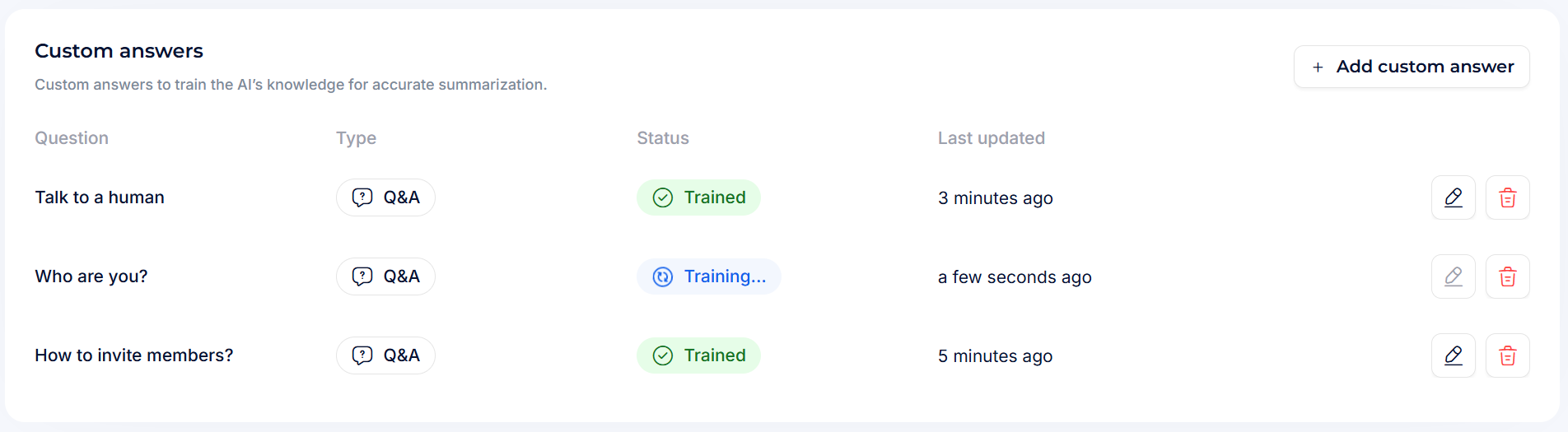
Click **Save**. Jimo auto-trains the new Custom Answer in seconds. It appears in the list with a *Trained* status once processing is complete.
***
## Managing Custom Answers
The Custom Answers list shows all your curated Q\&A pairs in a table.
| Column | Description |
| ---------------- | -------------------------------------------- |
| **Question** | The trigger question text. |
| **Type** | Always displays `Q&A`. |
| **Status** | Training state: *Trained* ✅ or *Training* ⏳. |
| **Last updated** | When the Q\&A was last modified. |
**Row actions:**
* **✏️ Edit**: Modify the question, answer, or action.
* **🗑 Delete**: Remove the Custom Answer permanently.
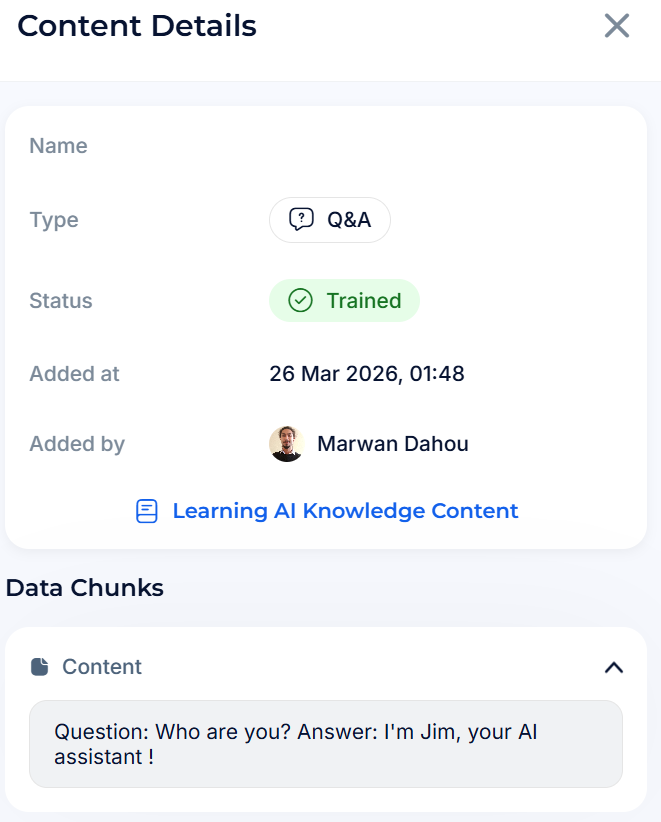
Click any row to open the **Content Details** drawer showing the full question, creation date, author, and status.
***
## How matching works
The Agent uses semantic matching to compare user messages against your Custom Answer questions. This means:
* **Question to question.** The Agent compares the user's message with the question of each Custom Answer, not with the answer. Exact matches always work, and similar phrasings match too: "What is Jimo?", "Tell me about Jimo" and "Can you explain what Jimo does?" can all match the same Custom Answer.
* **One at most, and only if both ask the same thing.** After the similarity check, the Agent verifies that the two questions really ask the same thing before using the Custom Answer. A near miss falls back to Sources.
* **Returned faithfully.** When a Custom Answer matches, it beats your Sources and the Agent restates it without adding facts of its own. That is what makes it the right tool for wording you must control.
If the Custom Answer has an Action attached, the Agent displays the CTA button alongside the answer text. The user can click the button to trigger the action, or simply read the answer and continue the conversation.
***
## Best practices
{% stepper %}
{% step %}
#### **Start with your top 10-20 support questions.**
Review your support tickets or conversation analytics to identify the questions users ask most frequently, then create precise Custom Answers for each one.
{% endstep %}
{% step %}
#### **Write complete, standalone answers.**
Each answer should fully address the question without requiring additional context. Include links to relevant documentation when helpful.
{% endstep %}
{% step %}
#### **Attach a Launch Experience button to send users to an existing Tour or Checklist.**
The Agent does not start experiences on its own. For "how do I get started?", create a Custom Answer with a **Launch Experience** button pointing at your onboarding Tour or Checklist; for "where are my settings?", a **Navigate To** button. The user clicks the button. If a Guide or Execute Skill also matches the question, the Skill's Start button replaces the Custom Answer's button.
For a walkthrough the Agent runs on the live page, build a [Guidance Skill](/docs/experiences/agent/skills.md#the-three-types-of-skills) instead.
{% endstep %}
{% step %}
#### **Keep questions natural.**
Write questions the way users actually phrase them, not how your internal documentation titles them. "How do I reset my password?" works better than "Password reset procedure".
{% endstep %}
{% step %}
#### **Use Custom Answers for compliance-critical wording.**
For security disclaimers, legal statements, or pricing information that must be worded precisely, Custom Answers ensure the Agent returns your exact text every time.
{% endstep %}
{% step %}
#### **State what the product does not do.**
A Custom Answer for "Can I export to Excel?" that says "Not yet, here is the workaround" stops the Agent from guessing, and keeps a near-miss Skill from being offered for an unrelated object.
{% endstep %}
{% step %}
#### **Review and update regularly.**
As your product evolves, check that Custom Answers still reflect the current UI, pricing, and processes.
{% endstep %}
{% endstepper %}