> For the complete documentation index, see [llms.txt](https://help.usejimo.com/docs/llms.txt). Markdown versions of documentation pages are available by appending `.md` to page URLs; this page is available as [Markdown](https://help.usejimo.com/docs/settings/team-management.md).

# Team management

Reference for Settings > Team: members, roles and their permissions, and auto-join by email domain.

**Settings > Team** (`/settings/team`) is where you invite colleagues to a project and decide what each of them can do. Roles are sets of permissions: give each person the role that matches what they build, publish or configure.

{% hint style="info" %}
**Setting up your team for the first time?** [Roles and permissions](/docs/getting-started/your-workspace/roles-and-permissions.md) in Getting started tells you who to invite with which role, task by task. This page is the reference for the screen.
{% endhint %}

## Members

The **Members** tab lists everyone in the project with their status and role. To invite a new member, type their email in the invite field, pick their initial role next to it, and click **Invite**: the invitation arrives by email. From the list, change a member's role with their role picker, or remove their access.

There is no limit on the number of team members: invite as many people as you need, on every plan.

<figure><img src="https://2794860263-files.gitbook.io/~/files/v0/b/gitbook-x-prod.appspot.com/o/spaces%2FKzAcDWQbK1gKbpra7bkb%2Fuploads%2FoWXvgRcRDpnS1Pn1WN6H%2FE2-s05-team-members.png?alt=media&amp;token=c48b0232-ae85-4287-b9b5-63ef6be18f5d" alt="Settings, Team: the Members and Roles tabs (A), the invite field with its role picker and Invite button (B), and the role picker of a member (C)"><figcaption></figcaption></figure>

#### Auto-join

With Auto-Join on, anyone with an email on your company domain can join the project on their own, with the Viewer role. Convenient for visibility. It is also why a colleague may "already have an account" but no rights: an Admin changes their role in the Members tab.

## Roles and permissions

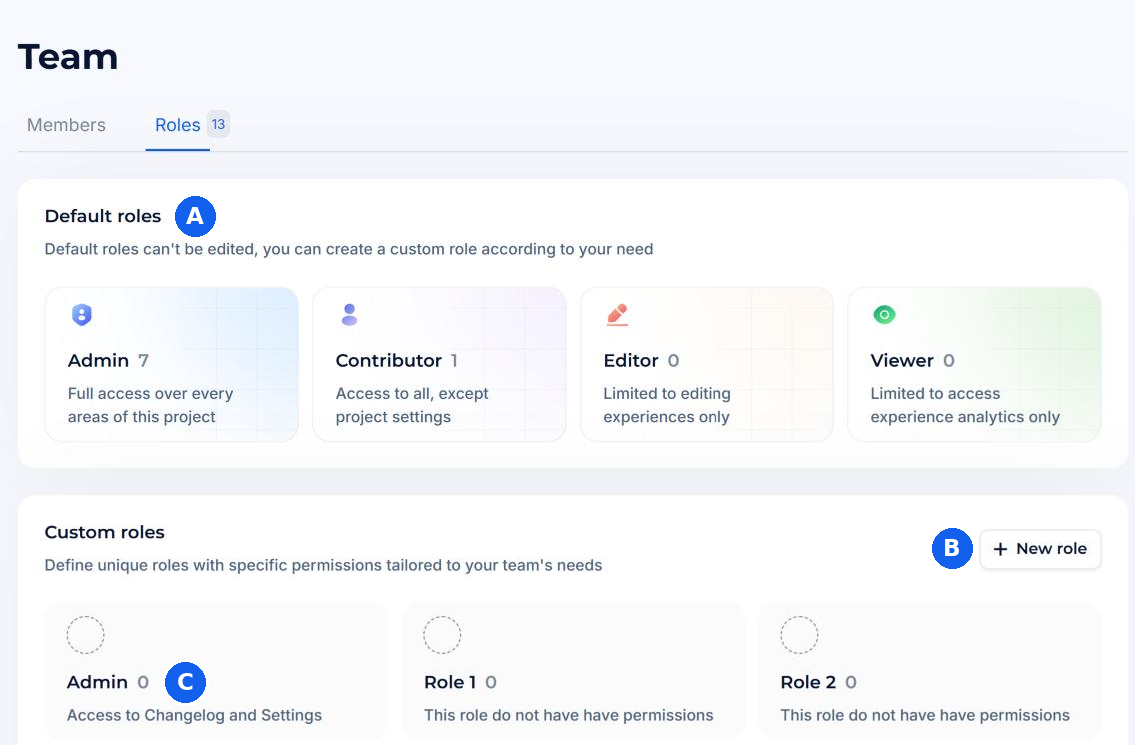
The **Roles** tab lists the roles of the project and the permissions of each one.

<figure><img src="https://2794860263-files.gitbook.io/~/files/v0/b/gitbook-x-prod.appspot.com/o/spaces%2FKzAcDWQbK1gKbpra7bkb%2Fuploads%2F2RXMTeRFF5jOnqO3xX6c%2Fn09-who-does-what.png?alt=media&amp;token=c6af49d9-b94a-4d9c-bef8-6e7d8d0f43d8" alt="Permissions and the tasks they unlock"><figcaption></figcaption></figure>

<figure><img src="https://2794860263-files.gitbook.io/~/files/v0/b/gitbook-x-prod.appspot.com/o/spaces%2FKzAcDWQbK1gKbpra7bkb%2Fuploads%2FacnMt7ulEWGSH82UlJvy%2FE2-r01-team-roles.png?alt=media&amp;token=20b11414-ae3e-4c8e-9703-174544f2387f" alt="Settings, Team, Roles tab: the default roles Admin, Contributor, Editor and Viewer (A), New role to create a custom role (B) and a custom role with its permissions summary (C)"><figcaption></figcaption></figure>

#### Default roles

Admin, Contributor, Editor and Viewer come with every project, and they cannot be edited. Admin has full access over every area of the project, including members, roles and billing. Contributor has access to everything except the project settings. Editor is limited to editing experiences. Viewer is limited to experience analytics, without changing anything.

#### Custom roles

Click **New role** to create a role with exactly the permissions a group needs, for example a role that builds experiences but cannot publish them. Custom roles are listed under the default ones.

#### Publishing is a permission

Building an experience and publishing it are two separate permissions, and not every editing role has the second one. If someone can build but cannot publish, check their role in the Roles tab. See [Roles and permissions](/docs/getting-started/your-workspace/roles-and-permissions.md#publish-and-unpublish).

#### Permissions beyond experiences

Some settings need their own permission: reading the snippet in [Installation](/docs/settings/installation.md), seeing [billing](/docs/settings/plan-and-billing.md#billing), or connecting an AI assistant through [MCP](/docs/integrations/mcp.md), which requires the same permission as the Integrations settings. An assistant connected with your account can never do more than your role allows.

#### Multi-factor authentication for the team

In **Settings > Security**, an Admin can turn on **Enforce multi-factor authentication (MFA) for all members**. Each member sets up their own MFA in [My account](/docs/settings/notifications-and-account-settings.md#my-account).

## Who can change this

Inviting members, changing roles and editing permissions need Admin.

## Verify

Ask the new member to log in: they see the project, and the actions they need (build, publish, open Installation) are available to them.

## Go further

<table data-view="cards"><thead><tr><th></th><th></th><th data-hidden data-card-target data-type="content-ref"></th><th data-hidden data-card-cover data-type="files"></th></tr></thead><tbody><tr><td><strong>Roles and permissions</strong></td><td>Who to invite with which role, task by task, at onboarding.</td><td><a href="/docs/getting-started/your-workspace/roles-and-permissions.md">Roles and permissions</a></td><td><a href="https://2794860263-files.gitbook.io/~/files/v0/b/gitbook-x-prod.appspot.com/o/spaces%2FKzAcDWQbK1gKbpra7bkb%2Fuploads%2FWRiQx3vezp2C12ewue0R%2FE2-c07-team.png?alt=media&amp;token=114a9208-bb9b-42ec-931d-e236259d08d8">E2-c07-team.png</a></td></tr><tr><td><strong>Permissions and safety</strong></td><td>What an AI assistant connected with your account can and cannot do.</td><td><a href="/docs/integrations/mcp/permissions-and-safety.md">Permissions and safety</a></td><td><a href="https://2794860263-files.gitbook.io/~/files/v0/b/gitbook-x-prod.appspot.com/o/spaces%2FKzAcDWQbK1gKbpra7bkb%2Fuploads%2FOjdnOV3iinFjZG65GqMc%2FE2-c12-security.png?alt=media&amp;token=99ac107f-8d8f-403f-bb0d-78b09f6b877b">E2-c12-security.png</a></td></tr></tbody></table>

**Next page:** [Troubleshooting](/docs/settings/troubleshooting.md)
