> For the complete documentation index, see [llms.txt](https://help.usejimo.com/docs/llms.txt). Markdown versions of documentation pages are available by appending `.md` to page URLs; this page is available as [Markdown](https://help.usejimo.com/docs/experiences/surveys.md).
# Surveys
Craft and customize interactive surveys with Jimo's Builder. Gather feedback, measure satisfaction, and learn about your users. All directly within your product.
## What Are Surveys?
**Surveys** are a specialized type of Jimo experience that let you **collect valuable user feedback** right in your product. Like Tours, Surveys consist of sequential steps, but each step is optimized to capture responses, whether it’s a quick multiple-choice question, an open-ended field, or a satisfaction rating.
Surveys seamlessly integrate feedback collection into your product, turning every interaction into an opportunity to learn and improve.
**You will have at the end:** a survey that sends each user to the right next step depending on their answer, and a clear view of where the answers go.
***
## Branching logic
Each question step can send users somewhere depending on their answer. In the builder these are the step's **Conditions**: each condition checks the answer and sets where users go. **If no conditions are met** sets where everyone else goes.
Scores 7 and 8 match no condition, so they follow "If no conditions are met".
A condition can send users to:
| Destination | What happens |
| ----------------- | --------------------------------------------------------------- |
| Next | The next step of the survey |
| Go to step | A step you choose, for instance an open question for low scores |
| End | The survey ends and counts as completed |
| Dismiss | The survey closes without being completed |
| Launch experience | The survey is completed, then another experience starts |
| URL | The survey is completed, then a page opens |
Under **If no conditions are met**, **Go to** sets the step everyone else goes to.
What a condition can check depends on the question:
| Question | What the condition checks |
| --------------- | ---------------------------------------------------------------- |
| NPS | The score, from 0 to 10: a value, or above or below a value |
| Slider | The value, from 0 to 100: a value, or above or below a value |
| Opinion scale | The position picked on the scale, from 1 to the number of points |
| Multiple choice | The options picked |
| Open question | The text: what it is or what it contains |
{% hint style="info" %}
A condition outside the range of its question, such as an NPS score above 10, can never match. Turn on **Answer required** on a question when every user must answer before moving on.
{% endhint %}
To start a follow-up experience for some users only, a condition that launches an experience is the simplest way. For other patterns, see [Chain experiences](https://help.usejimo.com/docs/build/actions/chain-experiences.md).
## Where answers go
Every answer stays with the survey, and you can reuse it:
* **Read and export them** in the survey's results: see [Survey results and exports](https://help.usejimo.com/docs/analyze/analytics/survey-results-and-exports.md), which also explains which answer is kept when a user answers the same survey again.
* **Target users on what they answered** with the **Answered with** condition of [Who](https://help.usejimo.com/docs/publish/target-right-people-who.md#target-on-what-users-already-did), to show another experience to promoters or detractors.
* **Start the next experience right away** with a condition that launches it, see [Branching logic](#branching-logic).
Where survey answers go
***
## Overview
### Tutorial: First Survey
{% embed url="" %}
First Survey
{% endembed %}
* **Sequential Steps:** Like Tours, Surveys consist of a series of steps, but each is tailored to gather specific types of data, such as multiple-choice answers, open-ended responses, or ratings.
* **Data Reuse:** Collected data isn’t just for analysis: it can also be leveraged to segment users, refine targeting, and trigger other experiences.
***
## Use Cases
Explore our [demo website](https://explore.usejimo.com/dashboard) to see examples of Surveys in action. Choose between different experience examples to see how a survey can be effectively implemented in context.
* **Customer Satisfaction:** Gather quick feedback after feature launches or interactions.
* **Onboarding Insights:** Understand user pain points and success rates during the onboarding journey.
* **Market Validation:** Validate new ideas by asking targeted questions to a relevant user segment.
* **User Profiling:** Capture demographic or preference data for personalization and future feature planning.
***
## How to Access
1. **Navigate to Experiences:**
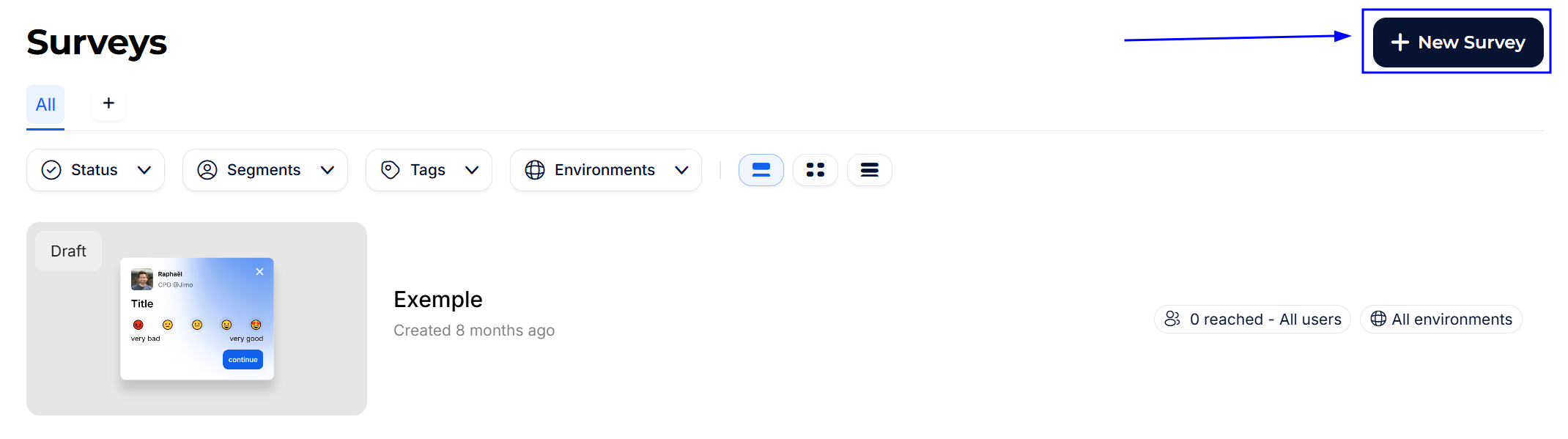
* From your [Jimo dashboard](https://help.usejimo.com/docs/build/dashboard.md), go to [**Surveys**](https://i.usejimo.com/surveys).
2. **Create or Select a Survey:**
* **First-Time Users:** Click on **"Create Your First Survey"**.
* **Returning Users:** Click the **+ New Survey** button in the top-right corner.
3. **Choose a Template or Start from Scratch:**
* **Templates:** Select from a variety of prebuilt surveys tailored for common use cases.
* **From Scratch:** Build your survey step-by-step for complete customization.
***
## Main Features
Jimo’s Surveys come equipped with a robust set of tools designed to give you full control over your **data collection** experiences. Below is an overview of the overall process. For a detailed breakdown of survey question types and customization, visit our [**Survey Components Page**](https://help.usejimo.com/docs/experiences/surveys/components.md).
{% hint style="warning" %}
Unlike Tours, Survey steps **all share the same style type** (e.g., Snippet, Modal, Tooltip). You choose this style in the **Type** section within the **Content Builder**, and it applies to **every step** of the survey.
* If you switch to a targeted style (like Tooltip), you’ll **only set the target once**, and it will position all steps accordingly.
* If you need different placements mid-flow, you must split your questions into **multiple separate surveys**
{% endhint %}
### Builder
The [Builder ](https://help.usejimo.com/docs/build/builders.md)is your central hub for creating and customizing Surveys. It features two main tabs, **Flow Builder** and **Content Builder**, allowing you to manage the structure of your survey and refine each question’s content.
Name and Back Button (A)
* **Edit Survey Name:** At the very top, you can edit the name of your survey for easy identification.
* **Back to Dashboard:** Use the arrow next to the name to quickly return to the [Dashboard](https://help.usejimo.com/docs/build/dashboard.md) overview of all your surveys.
Switch Tabs (B)
* **Switch Between Builders:** Easily toggle between the **Flow Builder** and **Content Builder** tabs to manage different aspects of your experience.
Action Buttons (C)
* **Save:** Secure your progress with the 'Save' button, which also automatically saves your work regularly.
* [**In-App Editor:**](https://help.usejimo.com/docs/build/builders/in-app-builder.md) Visualize and edit the survey within the context of your actual website by indicating the starting point URL.
* [**Preview:**](https://help.usejimo.com/docs/build/preview.md) Simulate a full survey flow to see how it appears and behaves.
* [**Target & Publish:**](https://help.usejimo.com/docs/publish/target-and-publish.md) Set the criteria for who will see the survey and when it will be displayed.
***
### **Flow Builder**
The [**Flow Builder**](https://help.usejimo.com/docs/build/builders/flow-builder.md) tab allows you to design the sequence and logic of your survey. Add and arrange question steps, integrate conditional paths, and guide users smoothly from one question to the next.
Adding and Managing Steps (A)
* **Select Step Type:** Choose the type of step you want from the sidebar (e.g., NPS, Multiple choice, Open question).
* **Drag & Drop:** Place and reorder the selected step into your flow effortlessly.
**Style type (applied to all steps):** Switch between snippet, modal, tooltip, etc., in the [Content Builder](https://help.usejimo.com/docs/build/builders/content-builder.md). **All steps use the same style.**
Preview Flow (B)
* **Flow Overview:** Arrows indicate the progression between steps, while the central view displays each step.
* **Target Element Access:** Quick access to target elements for positioning and trigger settings.
Step Management Options (C)
* **Rename Step:** Click on the step name to rename it.
* **Reorder Steps:** Use the double arrow icon to move steps up or down in the flow.
* **Duplicate or Delete:** Easily duplicate steps or remove them using the respective icons.
***
### **Content Builder**
The [**Content Builder**](https://help.usejimo.com/docs/build/builders/content-builder.md) tab is where you fine-tune each question’s text, answer types, and conditions. Customize everything from the wording to the validation rules, ensuring your survey aligns with your brand and objectives.
Properties Sidebar: Elements Editor (A)
* **Modify Attributes:** Adjust positioning, styling, and animations for the currently selected element in the navigator.
Builder Menu (B)
* [**Flow Builder Access:**](https://help.usejimo.com/docs/build/builders/flow-builder.md) Switch back to the Flow Builder tab.
* [**Navigator:**](https://help.usejimo.com/docs/build/navigator.md) Manage and edit elements within the step.
* [**Conditions:**](https://help.usejimo.com/docs/build/triggers-and-conditions.md) Add condition-based actions (if/else logic).
* [**Themes:**](https://help.usejimo.com/docs/build/theme.md) Apply consistent styling across your survey.
* [**Translations:**](https://help.usejimo.com/docs/build/multiple-languages.md) Manage multi-language versions.
Navigator (C)
* **Element List:** See all elements in the current step, with the selected element highlighted.
* **Element Selection:** Click to edit specific elements via the Properties Sidebar.
Live Step Preview (D)
* **Real-Time Editing:** View and edit elements in the central preview.
* **Element Interaction:** Click on elements to modify content directly.
CSS Selector for Targeted Steps (E)
* [**Positioning:**](https://help.usejimo.com/docs/build/positioning.md) Use the quick access pop-up to apply CSS selectors to steps needing specific placement. Adjust the position from the step parameters in the sidebar.
On surveys **all steps share the same style** type (same as tours step types), if you choose a targeted type you'll only need to position it once.
Steps Conditions (F)
* **Advanced Behavior:** Add triggers to define how steps behave based on user interactions or answers.
{% hint style="warning" %}
If the [in-app builder](https://help.usejimo.com/docs/build/builders/in-app-builder.md) reloads each time you change steps or if the next button doesn't work, it may be caused by the initial URL where the builder was opened.
To avoid this issue, open the builder out-app and build each step individually by opening the builder in-app on the exact URL where the steps need to appear.
{% endhint %}
***
## Best Practices
{% stepper %}
{% step %}
**Focus on Clarity**
Use straightforward, concise questions to maximize response rates. Avoid jargon or overly complex language.
{% endstep %}
{% step %}
**Keep It Short**
Aim for 3-5 well-targeted questions to respect users’ time. Users are more likely to complete brief and relevant questionnaires.
{% endstep %}
{% step %}
**Time It Right**
Trigger surveys when users are most likely to provide feedback (e.g., post-onboarding, after using a feature). Avoid interrupting critical workflows.
{% endstep %}
{% step %}
**Iterate and Improve**
Start small, gather feedback, then refine your questions or add more depth if needed. Continuous improvement ensures data remains accurate and actionable.
{% endstep %}
{% step %}
**Leverage Data**
Reuse collected survey data to further segment users and tailor subsequent experiences, making feedback a driving force in your product strategy.
{% endstep %}
{% step %}
**Leverage Segmentation**
Show surveys to specific user groups or behaviors using custom attributes to target effectively. Targeting the right audience yields more relevant insights.
{% endstep %}
{% endstepper %}
***
## From your assistant
> "Draft an NPS survey with a thank-you step, and launch the Feedback modal for anyone who answers below 7."
Your assistant drafts the survey from question, text and thank-you steps, or from a survey template, with the labels and options you give. It writes the branching logic of each question and flags a condition that can never match. The result carries a preview link that shows the steps and the rule before anything goes live. On a live survey, it previews every change first, and removing a step hides it.
It does not set styling, and it creates concept test and interview steps only from a template. See [What to ask?](https://help.usejimo.com/docs/integrations/mcp/what-to-ask.md).
## Verify
* Open the [Preview](https://help.usejimo.com/docs/build/preview.md) and answer the survey once for each condition: each answer leads where you set it.
* Answer once with a value no condition matches: you follow **If no conditions are met**.
## Go further
* [Components](https://help.usejimo.com/docs/experiences/surveys/components.md): every question type and its settings
* [Survey results and exports](https://help.usejimo.com/docs/analyze/analytics/survey-results-and-exports.md): read, filter and export the answers
* [Analytics](https://help.usejimo.com/docs/analyze/analytics.md): how survey views and completions are counted
* [Who](https://help.usejimo.com/docs/publish/target-right-people-who.md#target-on-what-users-already-did): target users on what they answered
* [Show on](https://help.usejimo.com/docs/publish/trigger-on-the-right-spot-show-on.md): show the survey at the right moment, after an action
* [When](https://help.usejimo.com/docs/publish/trigger-at-the-right-time-when.md) and [Schedule, recurrence and priority](https://help.usejimo.com/docs/publish/trigger-at-the-right-time-when/planning-your-experience.md): ask again later, for instance an NPS every 90 days
* [Chain experiences](https://help.usejimo.com/docs/build/actions/chain-experiences.md): a follow-up for detractors
* [Triggers & Conditions](https://help.usejimo.com/docs/build/triggers-and-conditions.md): conditions and triggers in the builder
* [Figma](https://help.usejimo.com/docs/integrations/figma.md) and [Maze](https://help.usejimo.com/docs/integrations/maze.md): prototypes for a concept test
**Next page:** [Components](https://help.usejimo.com/docs/experiences/surveys/components.md)