> For the complete documentation index, see [llms.txt](https://help.usejimo.com/docs/llms.txt). Markdown versions of documentation pages are available by appending `.md` to page URLs; this page is available as [Markdown](https://help.usejimo.com/docs/build/navigator.md).
# Navigator
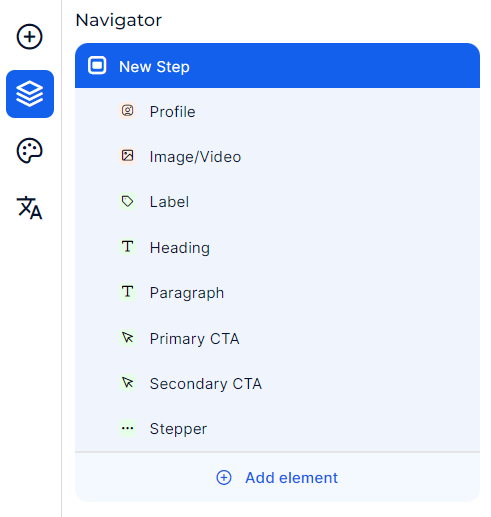
The Navigator within Jimo's Builder is a powerful tool designed to streamline the creation and organization of steps in a user tour or guide.
### Navigator Menu
Full Navigator
It functions as a centralized interface for managing and navigating between different components of a step and adjusting their specific parameters.
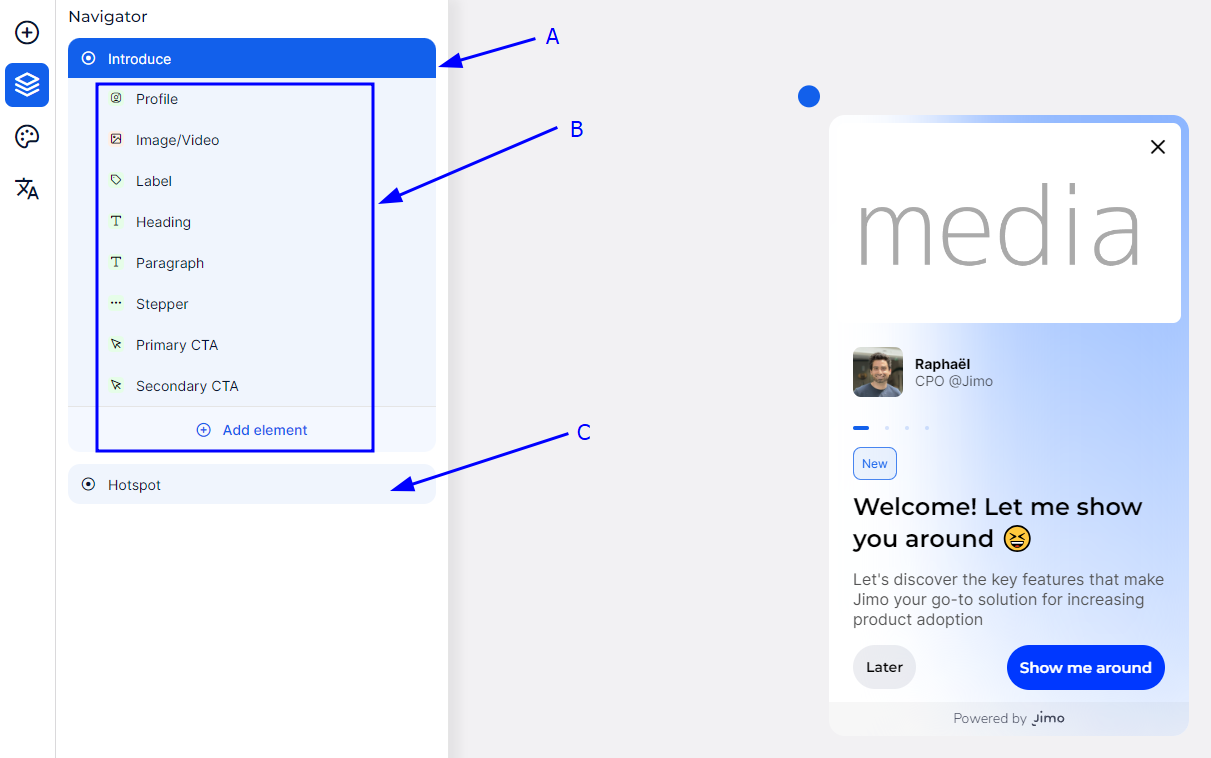
Navigator elements
* **A (Main or Parent Element)**: This is the central control for the step. It provides access to settings that determine how the step behaves and is positioned on the page. Here, you can adjust progression behaviors, like how a user moves to the next step, and how the step is visually placed.
* **B (Components of the Current Step)**: This section lists all active components within the step, such as text, images, or call-to-action buttons. It's designed for quick editing and the addition of new elements, allowing for real-time customization of step content.
* **C (Special Elements)**: Located below the main components, this area is for adding and configuring unique elements like hotspots, which focus user attention on particular aspects of the page. These elements include specialized settings for enhanced interaction.
Access element parameters
In the Jimo Builder interface, managing element-specific parameters is made straightforward:
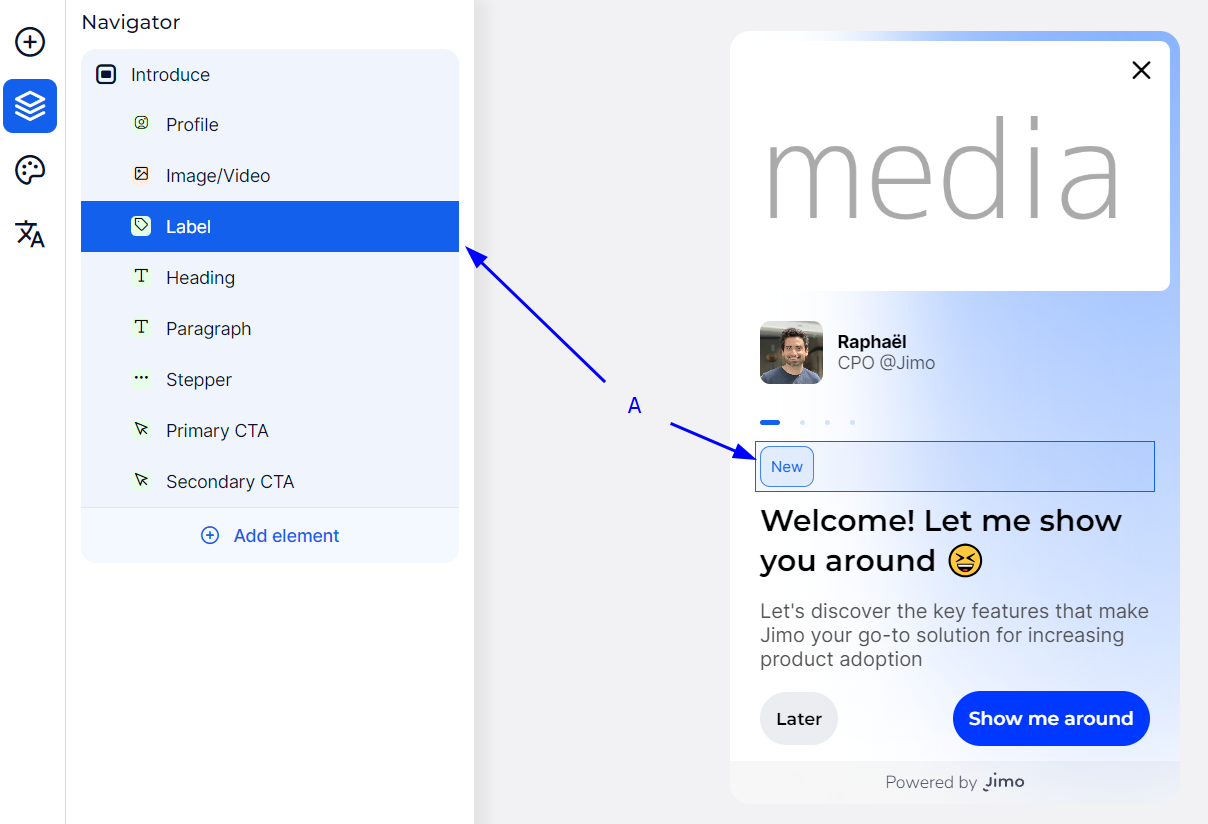
* **Navigator Selection**: You can select an element directly from the Navigator menu. When selected, the element is highlighted in a blue box (A), indicating it's ready for parameter adjustments.
* **Preview Interaction**: Alternatively, clicking an element in the live preview pane automatically highlights and selects it in the Navigator. This feature allows for immediate access to the element's settings, facilitating quick edits.