> For the complete documentation index, see [llms.txt](https://help.usejimo.com/docs/llms.txt). Markdown versions of documentation pages are available by appending `.md` to page URLs; this page is available as [Markdown](https://help.usejimo.com/docs/integrations/zapier.md).
# Zapier
## How it Works
This integration allows you to connect Jimo with various apps on Zapier, automating workflows and enhancing productivity by leveraging Jimo's features across different platforms.
## Step-by-Step Guide
### Step 1: Access the Integrations Dashboard
1. Navigate to your Jimo [project settings](https://i.usejimo.com/settings).
2. Click on [**Integrations**](https://i.usejimo.com/settings/integrations) in the left sidebar.
3. You will see various integration options. Locate the **Zapier** integration and click on the **Connect** button.
### Step 2: Generate the API Key
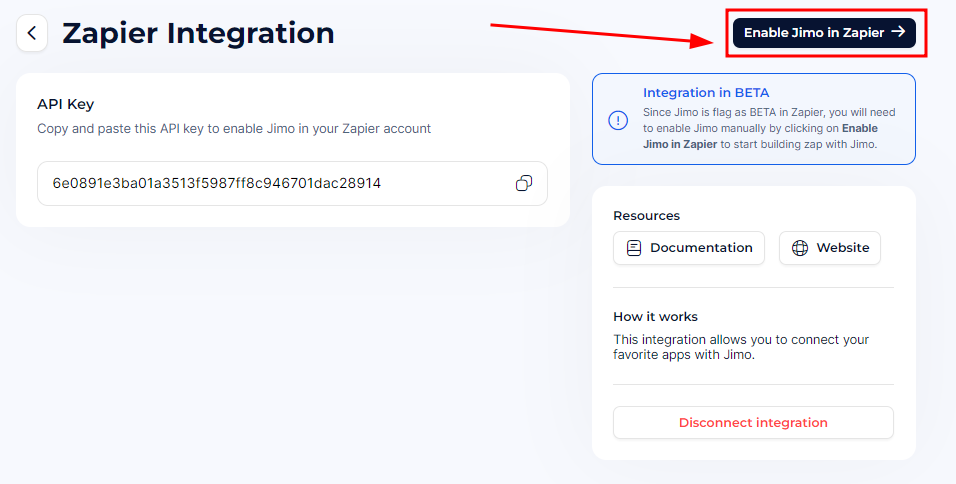
1. After clicking **Connect**, you will be directed to the Zapier integration setup page.
2. Here, an API key will be automatically generated for you.
3. Copy this API key, as you will need it to connect Jimo to your Zapier account.
### Step 3: Enable Jimo in Zapier
1. In the Zapier integration setup page, click on the **Enable Jimo in Zapier** button.
2. You will be redirected to Zapier's invitation page.
3. Click on the **Accept Invite & Build a Zap** button to start using Jimo with Zapier.
### Step 4: Create a New Zap
1. Navigate to your Zapier dashboard and click on the **Create** button.
2. Select **New Zap** from the dropdown menu.
### Step 5: Set Up Jimo as a Trigger
1. In your new Zap, search for **Jimo** in the app search bar.
2. You will have three types of events to choose from:
* **New Feedback Received**: Triggers when a user sends feedback.
* **New Survey Completed**: Triggers when a user completes a survey.
* **New Survey Response Received**: Triggers when a user answers a survey question.
3. Select the event that suits your needs and proceed to configure it.
### Step 6: Connect to Other Apps
1. After setting up the Jimo trigger, choose an action app like **Google Sheets**.
2. Configure how you want to forward the data from Jimo, such as logging feedback into a Google Sheets document.
## Disconnecting the Integration
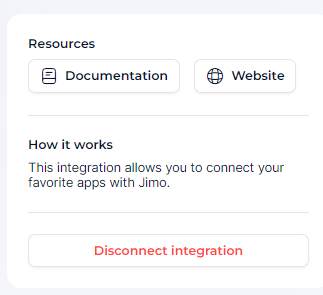
If you wish to disconnect Jimo from Zapier, simply navigate back to the Zapier integration setup page in Jimo and click on the **Disconnect Integration** button.
## Additional Resources
* **Zapier documentation**:
{% hint style="info" %}
To keep a historical log of [survey responses](/docs/experiences/surveys/overview.md), configure your Zapier integration to capture and store each survey response externally.
This approach ensures all answers are preserved, even if users update their responses in Jimo.
{% endhint %}
### Troubleshooting
* If you encounter any issues, ensure that your API key is correctly copied and pasted.
* Make sure Jimo is enabled in your Zapier account settings.
For further assistance, please contact our support team directly.