# Installing Jimo

### Why Install Jimo?

* **Enable Publishing:** Go beyond drafts, once installed, you can make experiences live for your users.
* **Unlock In-Context Previews:** See exactly how your experiences appear in your actual environment, not just in a standalone builder.
* **Leverage Targeting & Segmentation:** Installation opens the door to advanced features like user identification and segmentation, ensuring the right message reaches the right audience.

### What Happens Before Installation?

Without the snippet installed on your website, you can still use Jimo’s standalone builder to design your experiences. However:

* **No In-App Preview:** You can’t see how experiences look on your own pages.
* **No Publishing:** Experiences remain locked as drafts until the snippet is properly set up.

{% hint style="warning" %}
**Get a look at our** [**Chrome extension!**](https://help.usejimo.com/docs/getting-started/extension)

If you want to see how experiences would appear on any webpage before official installation, you can use Jimo’s browser extension to inject the snippet temporarily.&#x20;
{% endhint %}

### Core Requirements for Installation

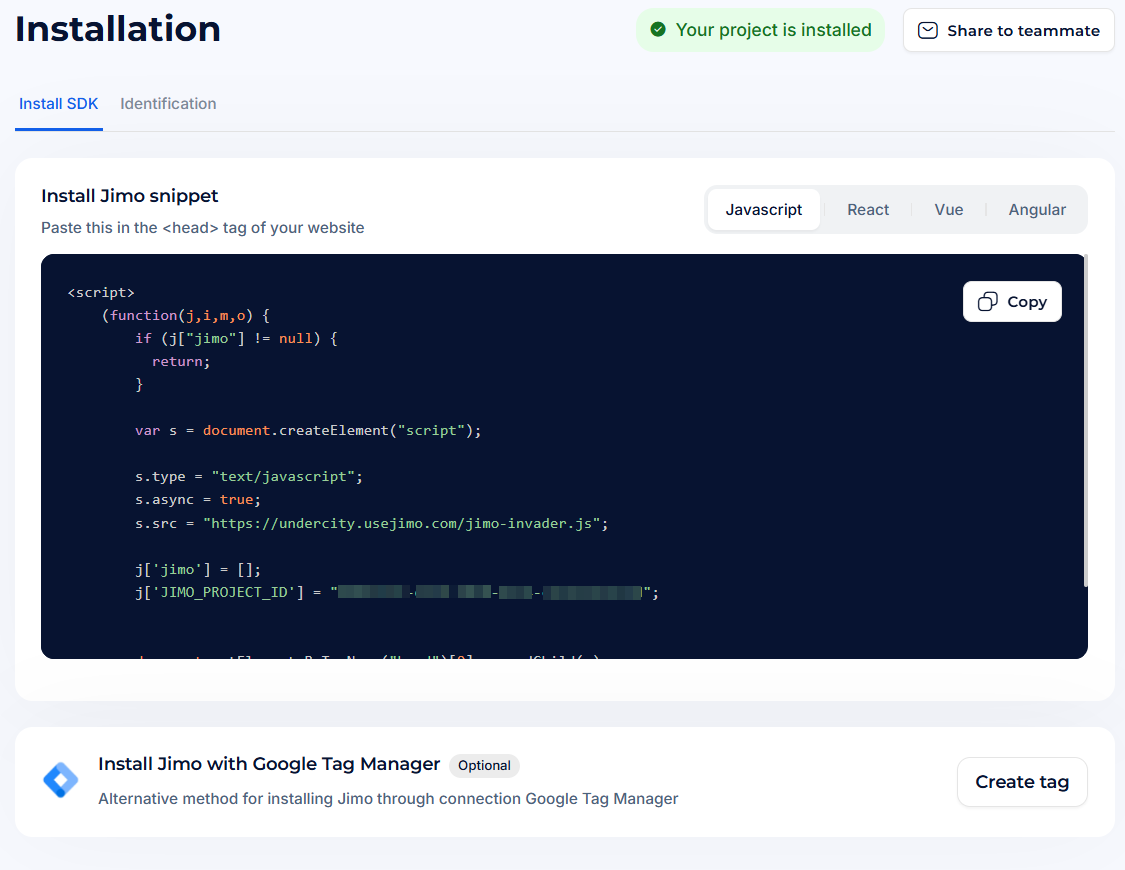
To unlock Jimo’s full capabilities, you must integrate the Jimo snippet into your website’s code. This snippet allows your chosen experiences to run, ensuring that once you’re ready, you can preview and publish them in your live environment.

<figure><img src="https://2794860263-files.gitbook.io/~/files/v0/b/gitbook-x-prod.appspot.com/o/spaces%2FKzAcDWQbK1gKbpra7bkb%2Fuploads%2Fx757MecMc2jkv6AYXMkZ%2Fimage.png?alt=media&#x26;token=2c77b2ef-501d-4ebc-b4cf-d9e7b3e7187b" alt=""><figcaption></figcaption></figure>

1. **Get Your Project ID**
   * When you create or join a project in Jimo, you’ll receive a unique **Project ID,** which you can recover in your [Jimo settings](https://i.usejimo.com/settings). This ID ensures that only experiences associated with your project are triggered where the snippet is installed.
2. **Obtain Your Installation Snippet**

   * **From Your Jimo Settings:**\
     Visit your project’s [**Installation Page**](https://i.usejimo.com/settings/install) within the Jimo dashboard.
     * **Adapted for Your Project:** You’ll find a tailored code snippet that includes your Project ID.
     * **Google Tag Manager Option:** If you prefer not to touch the code directly, there’s guidance on integrating via Google Tag Manager.
     * **Easy to Delegate:** You can simply copy this info and forward it to your development team for a quick and painless setup, there's a quick share button on the top side corner.

   **⇒ For a More Detailed Explanation:**\
   Consult our [**Detailed Installation Documentation**](https://help.usejimo.com/help-center/using-jimo/admin-and-settings/installation) for a broader overview and best practices. This is ideal if you or your dev team would like extra clarity on implementation details.

### Optional but Recommended Addons

Once the snippet is installed, consider implementing these optional steps to maximize Jimo’s value:

* **User Identification:**\
  Align Jimo’s user tracking with your own internal IDs. This helps personalize experiences and optimize Monthly Active Users (MAU) tracking.\
  [Identify Users](https://help.usejimo.com/help-center/for-developers/for-developers/sdk-guides/identify-users)
* **Manual Initialization:**\
  Control when Jimo starts tracking to better manage MAU and load performance.\
  [Manual Initialization Guide](https://help.usejimo.com/help-center/for-developers/for-developers/sdk-guides/manual-initialization)
* **Identify Verification:**\
  Add a layer of security to ensure data authenticity and prevent spoofing.\
  [Identify Verification Setup](https://help.usejimo.com/help-center/for-developers/for-developers/sdk-guides/setup-identify-verification)
* **Segmentation Setup:**\
  Push custom attributes to Jimo for precise audience targeting and more meaningful segmentation.\
  [Segmentation Setup](https://help.usejimo.com/help-center/for-developers/for-developers/sdk-guides/setup-the-segmentation)

{% hint style="warning" %}
**Force Identify**

From your [installation settings](https://i.usejimo.com/settings/install/identify), you can enable the **Force Identify** option.

When active, Jimo will only initialize once the user is identified. \
This ensures that no users are logged anonymously — all tracked users will be properly identified.
{% endhint %}

{% hint style="info" %}
Most of these configurations are one-time setups. Afterward, your Jimo experiences can be adjusted and refined entirely from the low-code builder, with no further code edits needed.
{% endhint %}

### Explore the “For Developers” Section

For a deep dive into technical details, advanced integrations, code samples, and best practices, check out the dedicated “For Developers” section of our documentation.

<table data-view="cards" data-full-width="false"><thead><tr><th></th><th></th><th data-hidden data-card-cover data-type="files"></th><th data-hidden data-card-target data-type="content-ref"></th></tr></thead><tbody><tr><td><strong>Install Our SDK</strong></td><td><p>Learn how to integrate Jimo’s snippet into your site for a proper technical setup.</p><p>This guide summarizes all essential installation steps and best practices. </p></td><td><a href="https://2794860263-files.gitbook.io/~/files/v0/b/gitbook-x-prod.appspot.com/o/spaces%2FKzAcDWQbK1gKbpra7bkb%2Fuploads%2FuqYWvss0h5VTTmj7ohF9%2FInstalling%20Jimo%20-%20cards%20thumbnailsinstall1.png?alt=media&#x26;token=f33debe8-f7a7-459e-a19e-1510d64f79d6">Installing Jimo - cards thumbnailsinstall1.png</a></td><td><a href="https://app.gitbook.com/s/Q1pi3sC2zIV5o9Oa46Aq/for-developers/install-our-sdk">Install our SDK</a></td></tr><tr><td><strong>SDK Guides</strong></td><td>In-depth tutorials on advanced features: <strong>user identification</strong> for tracking, manual <strong>initialization</strong> to control MAU, <strong>segmentation</strong> for targeted experiences, and <strong>identity verification</strong> for secure data handling.</td><td><a href="https://2794860263-files.gitbook.io/~/files/v0/b/gitbook-x-prod.appspot.com/o/spaces%2FKzAcDWQbK1gKbpra7bkb%2Fuploads%2Fss3jfNDB592xPUYZIh90%2FInstalling%20Jimo%20-%20cards%20thumbnailsinstall.png?alt=media&#x26;token=755ea1a6-5de2-4257-b4cf-9d1797bcaf56">Installing Jimo - cards thumbnailsinstall.png</a></td><td><a href="https://app.gitbook.com/s/Q1pi3sC2zIV5o9Oa46Aq/for-developers/sdk-guides">SDK Guides</a></td></tr><tr><td><strong>SDK Methods</strong></td><td>A reference of Jimo’s available commands, allowing you to fine-tune experiences, override defaults (like language), and adjust behaviors for unique use cases.</td><td><a href="https://2794860263-files.gitbook.io/~/files/v0/b/gitbook-x-prod.appspot.com/o/spaces%2FKzAcDWQbK1gKbpra7bkb%2Fuploads%2FnFon5OfB7LIZ5XqjCFKW%2FInstalling%20Jimo%20-%20cards%20thumbnailsinstall2.png?alt=media&#x26;token=8948c7f1-bb96-42d2-aa4f-0c9ed329bb16">Installing Jimo - cards thumbnailsinstall2.png</a></td><td><a href="https://app.gitbook.com/s/Q1pi3sC2zIV5o9Oa46Aq/for-developers/sdk-methods">SDK Methods</a></td></tr></tbody></table>
