# Designing Your First Experience

## Designing Your First Experience

Now that you’ve completed your initial setup, it’s time to walk through the lifecycle of creating an experience in Jimo. In this tutorial, we’ll build a simple **onboarding tour** for new, trialing users. This example demonstrates Jimo’s main workflow: **Design → Publish → Monitor**.

**What You’ll Learn:**

* Navigating to the relevant experience **dashboard**.
* Starting with a prebuilt **template** or starting **from scratch**.
* Using the **Flow Builder**, **Content Builder**, and other Jimo tools.
* Positioning steps in context with the **CSS selector**.
* Preparing your experience for **targeting**, **publishing**, and later **analytics**.

#### Choose the Right Type

<table data-full-width="false"><thead><tr><th>If you need…</th><th width="190.111083984375">Pick</th><th>Why</th></tr></thead><tbody><tr><td><mark style="color:$info;">A guided moment with a clear completion</mark></td><td><mark style="color:$info;"><strong>Sequential Flow</strong></mark></td><td><mark style="color:$info;">You control start/end, sequence, and success criteria.</mark></td></tr><tr><td>To maximize attention for an important update</td><td><p><strong>Tour/Modal</strong></p><p>(Flow)</p></td><td>High visibility and clear call-to-action.</td></tr><tr><td>To collect feedback in context</td><td><p><strong>Survey</strong></p><p>(Flow)</p></td><td>Trigger after actions to capture intent.</td></tr><tr><td>To keep users oriented and progressing</td><td><p><strong>Checklist</strong></p><p>(Flow)</p></td><td>Break milestones into trackable steps.</td></tr><tr><td><mark style="color:$info;">An always-on help or info surface</mark></td><td><mark style="color:$info;"><strong>Static Self-Serve</strong></mark></td><td><mark style="color:$info;">Users open it when they need it; it stays available.</mark></td></tr><tr><td>To reduce confusion at specific UI points</td><td><p><strong>Hints</strong></p><p>(Self-Serve)</p></td><td>Lightweight guidance, no interruption.</td></tr><tr><td>To centralize help, docs, and contact</td><td><p><strong>Resource Center</strong></p><p>(Self-Serve)</p></td><td>One place users can always find support.</td></tr><tr><td>To broadcast ongoing improvements</td><td><p><strong>Changelog</strong></p><p>(Self-Serve)</p></td><td>Users can browse updates anytime.</td></tr></tbody></table>

***

### Step 1: Accessing the Dashboard

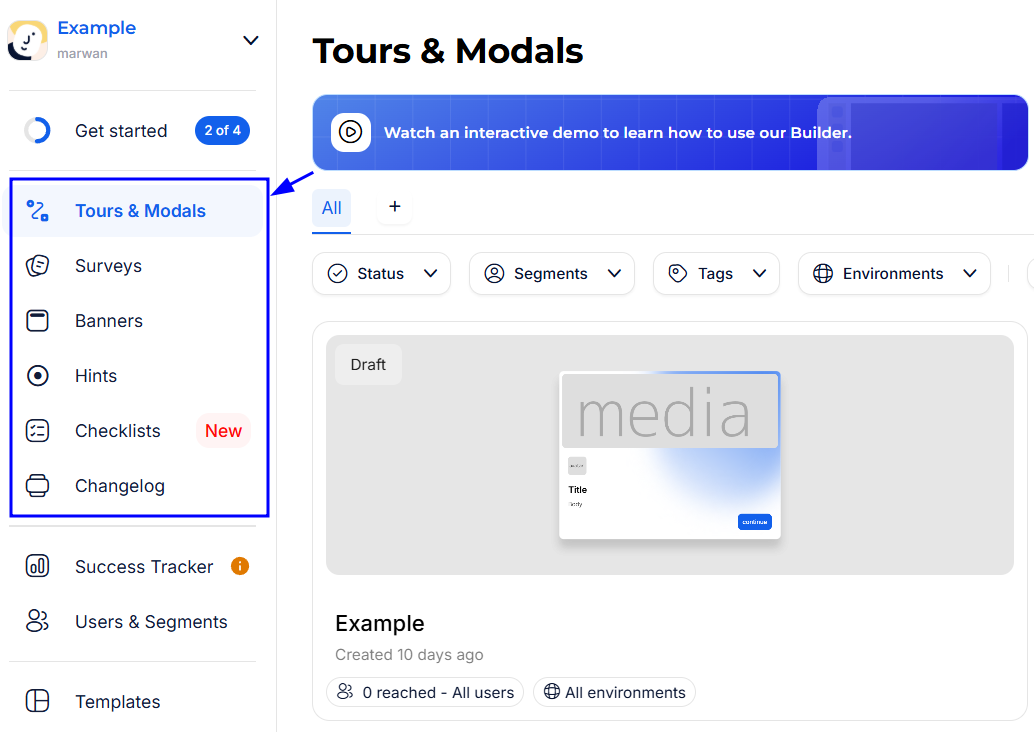
1. **Open the** [**Jimo Dashboard:**](https://help.usejimo.com/docs/build/dashboard)\
   From your Jimo main menu, choose the type of experience you want to create and access the dashboard from the sidebar. In our case: **Tours & Modals**.<br>

   <figure><img src="https://2794860263-files.gitbook.io/~/files/v0/b/gitbook-x-prod.appspot.com/o/spaces%2FKzAcDWQbK1gKbpra7bkb%2Fuploads%2FhpY2bcWuVSVsLl2Evlxq%2Fimage.png?alt=media&#x26;token=ecb368a0-0d4a-451d-8461-06e050914f38" alt=""><figcaption></figcaption></figure>
2. **Create Your First Tour:**
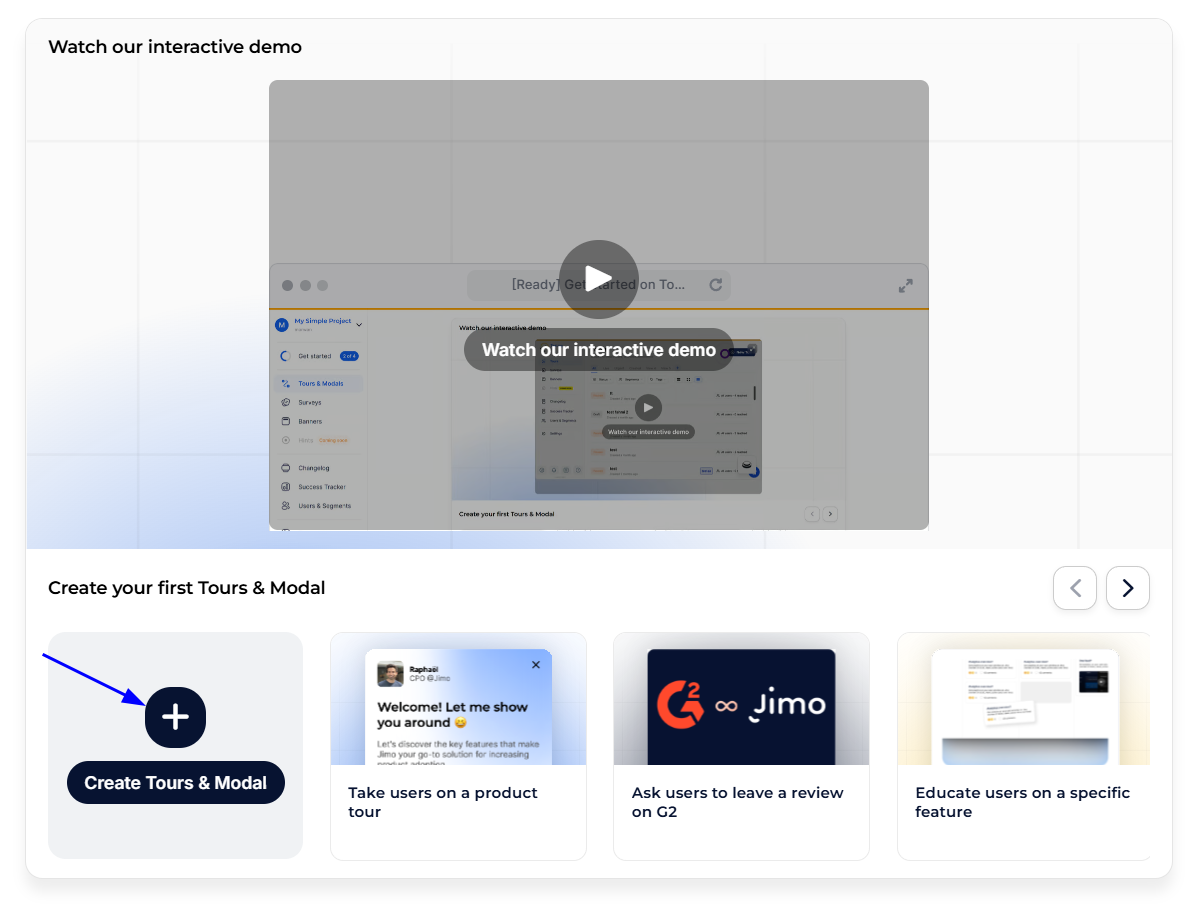
   * If this is your first time, you’ll see an “empty state” prompting you to “Create your first tour.”

     <figure><img src="https://2794860263-files.gitbook.io/~/files/v0/b/gitbook-x-prod.appspot.com/o/spaces%2FKzAcDWQbK1gKbpra7bkb%2Fuploads%2FYwj6Gh3YMd3rQdFdNV3H%2Fimage.png?alt=media&#x26;token=868d2913-bbcd-4f5b-a34d-f11dee84914d" alt=""><figcaption></figcaption></figure>
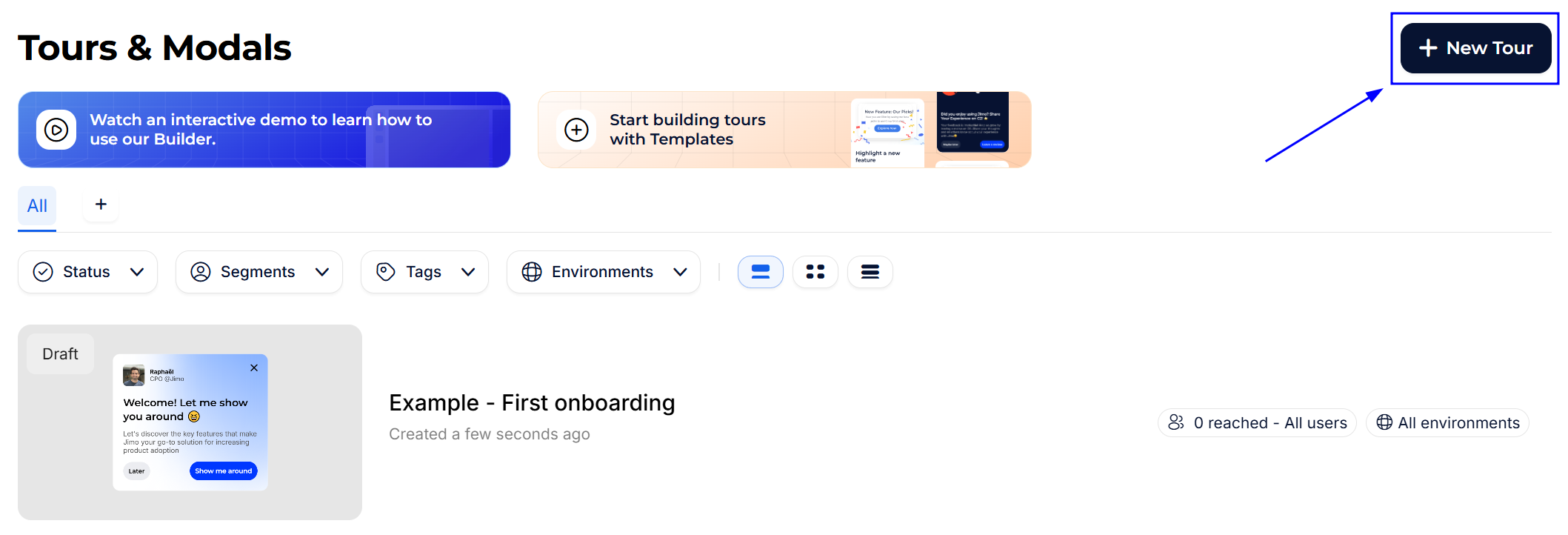
   * Otherwise, click the **+ New Tour** button in the top-right corner.<br>

     <figure><img src="https://2794860263-files.gitbook.io/~/files/v0/b/gitbook-x-prod.appspot.com/o/spaces%2FKzAcDWQbK1gKbpra7bkb%2Fuploads%2FWaYT4erJ4vBfoKixwyNA%2Fimage.png?alt=media&#x26;token=f59ce0e7-a935-4f4c-af52-be91928a4448" alt=""><figcaption></figcaption></figure>

***

### Step 2: Choosing a Starting Point

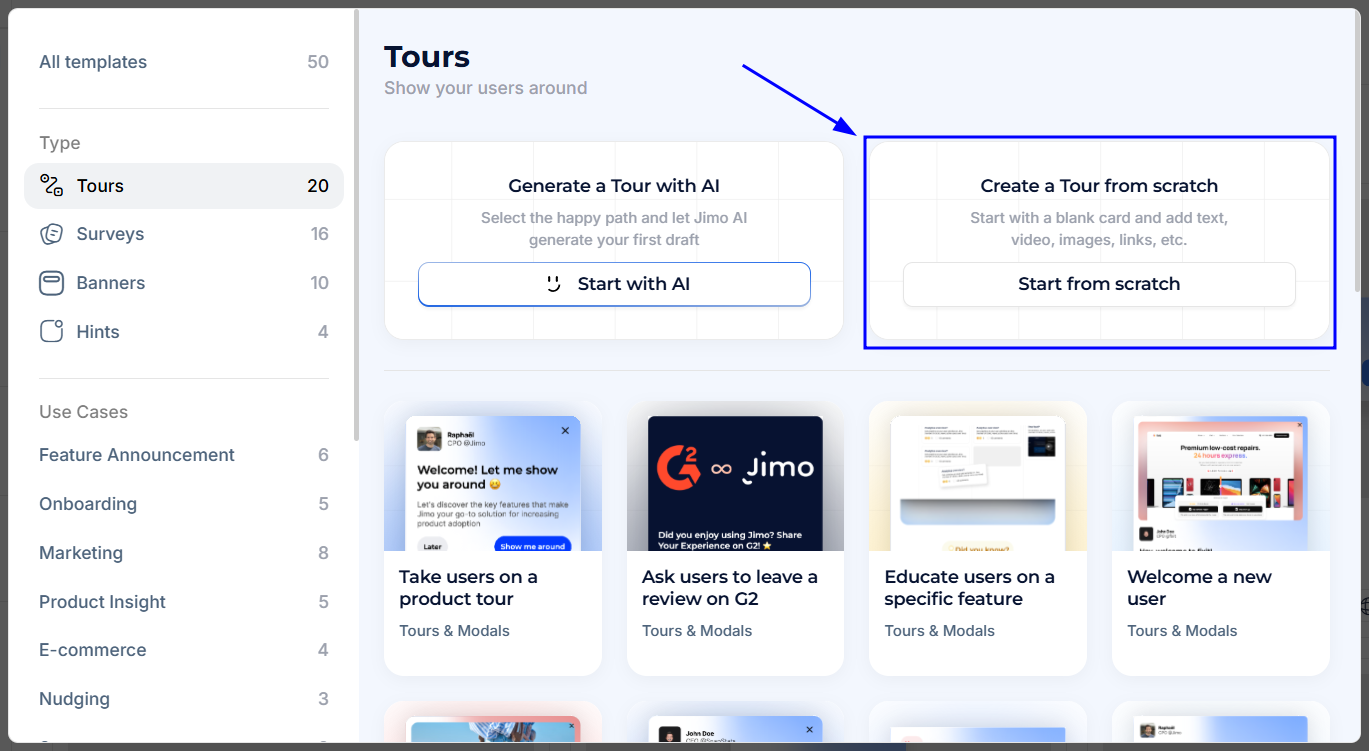
You can start from a **template**, **from scratch**, or let **AI generate a first draft** for you.

* **Templates**: Prebuilt tours for common use cases—just tweak the content and visuals.
* **From Scratch**: Total flexibility to build your tour step-by-step.
* **Start with AI**: Record your ideal user flow or select elements directly in your app, and let Jimo generate a tailored draft for you.

> For this guide, let’s **start from scratch**.\
> If you prefer a faster kickoff, choose [**Start with AI**](https://help.usejimo.com/docs/build/builders/ai-builder#first-time-using-the-ai-builder) for automated draft creation.

<figure><img src="https://2794860263-files.gitbook.io/~/files/v0/b/gitbook-x-prod.appspot.com/o/spaces%2FKzAcDWQbK1gKbpra7bkb%2Fuploads%2FJ9Nk3vMOzCfcc5ovdpBa%2Fimage.png?alt=media&#x26;token=d3075a28-71d6-457c-bb8d-a5e0b36d985a" alt=""><figcaption></figcaption></figure>

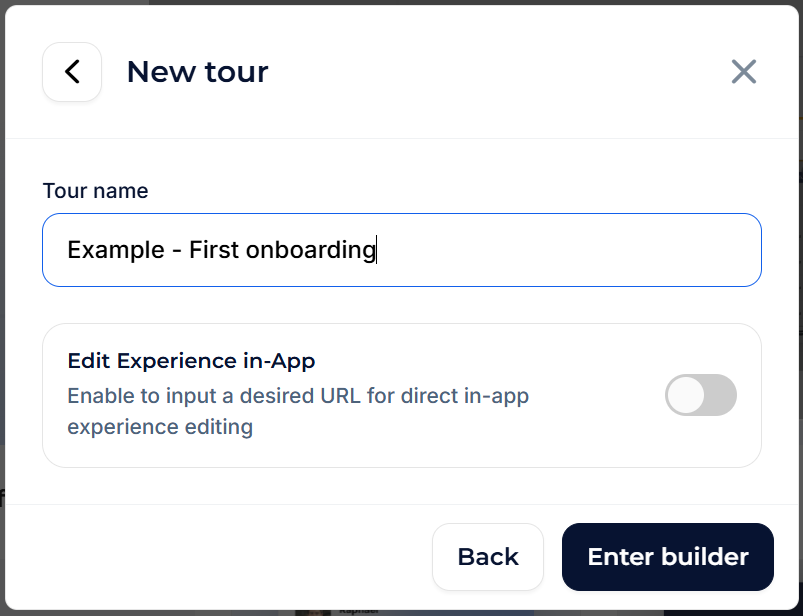
**Name Your Experience:**\
Give your tour a clear, descriptive name (e.g., “Trial Onboarding Tour”).

**Open the** [**Builder:**](https://help.usejimo.com/docs/build/builders)

* At this point, you can choose to open the builder **in-app** (if Jimo is installed on the page or using the extension) or use the **standalone builder**.
* Let’s start in the **standalone builder**. You can always switch to in-app mode later to refine targeting and positioning.

Click **Enter Builder** to proceed.<br>

<figure><img src="https://2794860263-files.gitbook.io/~/files/v0/b/gitbook-x-prod.appspot.com/o/spaces%2FKzAcDWQbK1gKbpra7bkb%2Fuploads%2FcNDTaKieTfMSJkeAbR2v%2Fimage.png?alt=media&#x26;token=bbdc5110-efb1-4593-84a9-f3216b45f726" alt=""><figcaption></figcaption></figure>

***

### Step 3: Building Your Flow

**Flow Builder Tab:**\
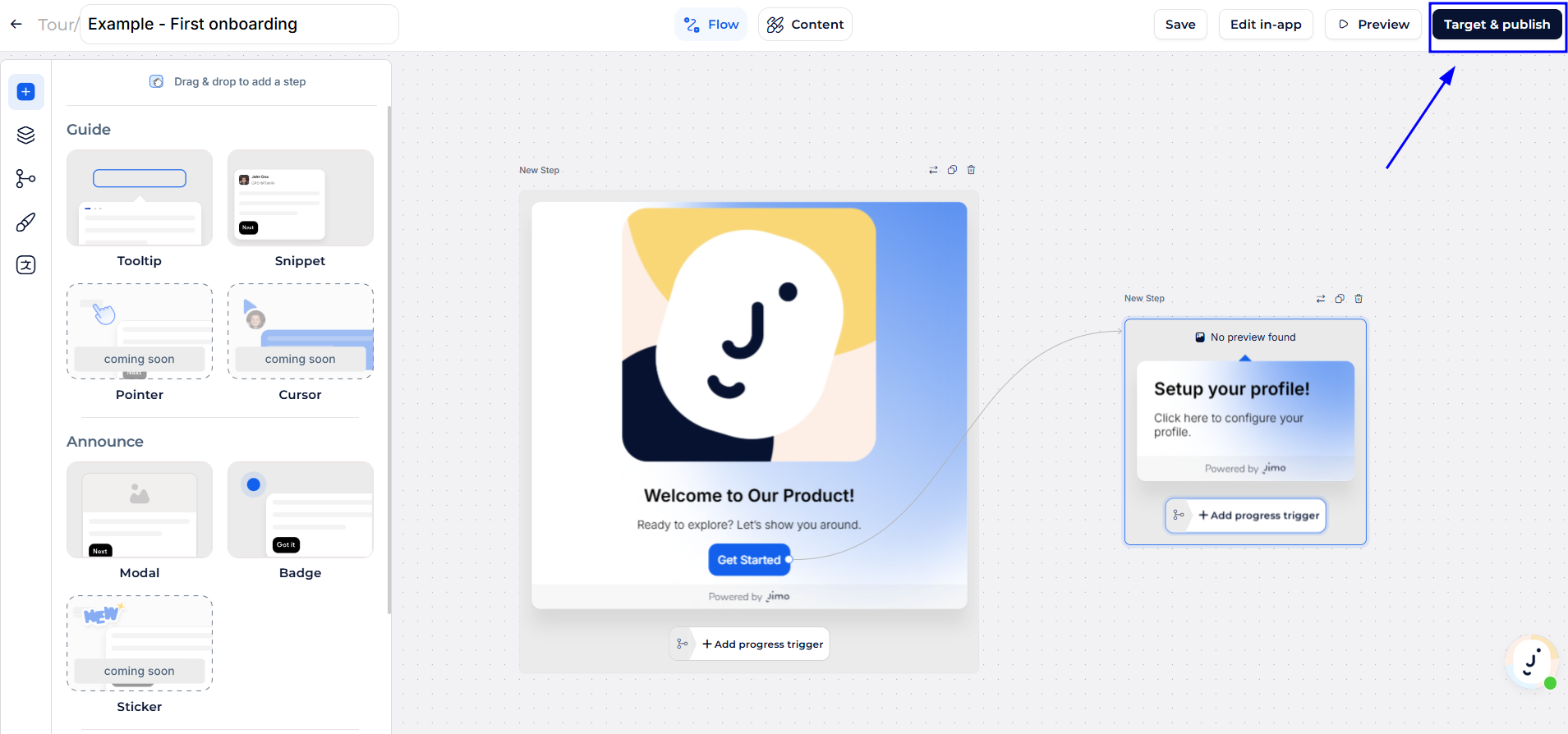
This is your experience’s structure, where you can add, arrange, and connect steps.

1. **Add Your First Step:**
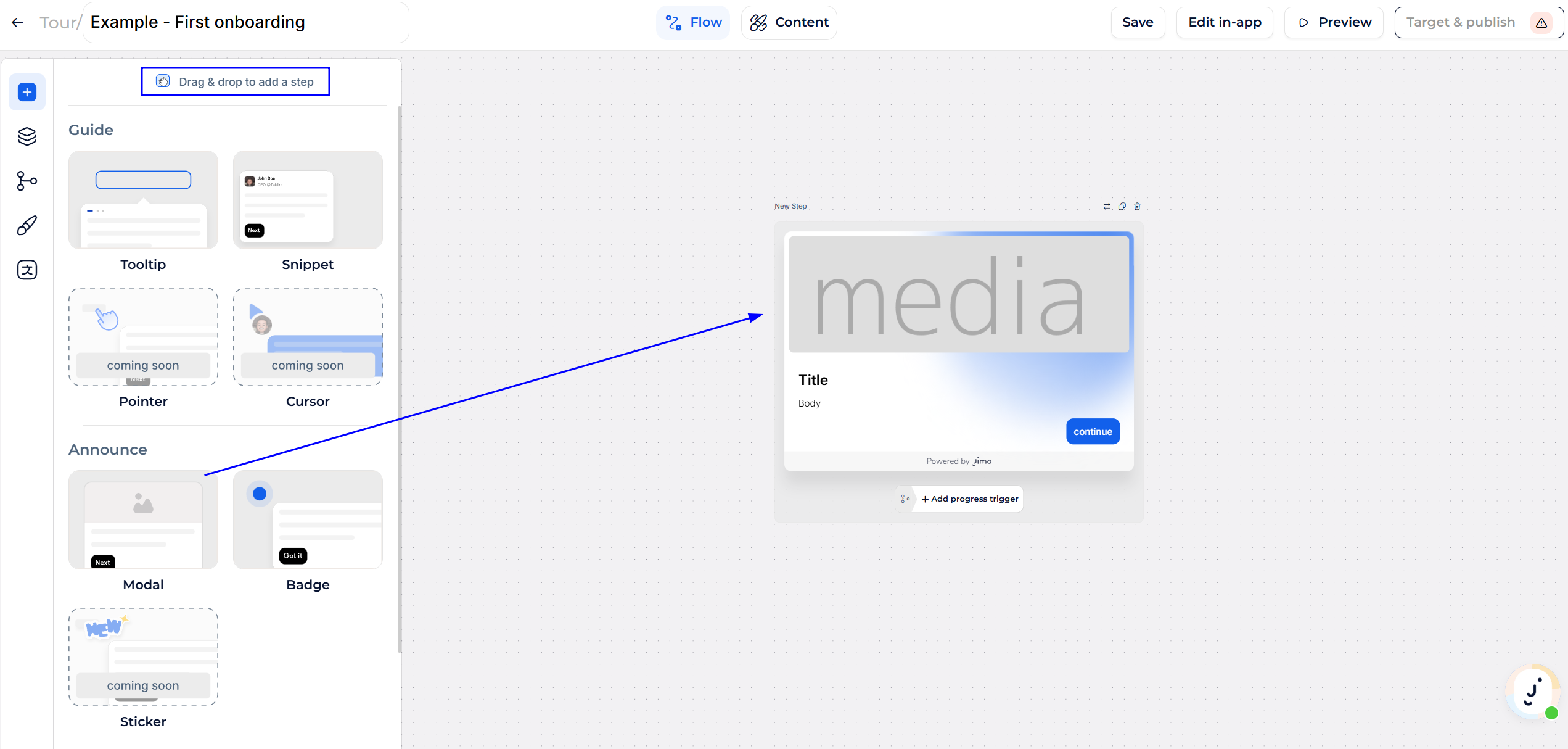
   * Drag and drop a **Modal** step from the tool panel. This will serve as the welcome message for new trial users.<br>

     <figure><img src="https://2794860263-files.gitbook.io/~/files/v0/b/gitbook-x-prod.appspot.com/o/spaces%2FKzAcDWQbK1gKbpra7bkb%2Fuploads%2FFJeIbfvxDG7Xa4EbjMaV%2Fimage.png?alt=media&#x26;token=dab6d282-628b-4a6d-9cff-8de1dbce5f31" alt=""><figcaption></figcaption></figure>
2. **Automatically Move to Content Builder:**\
   Once you add your modal step, you’ll be taken to the **Content Builder** to edit its content.

***

### Step 4: Editing Your Step Content

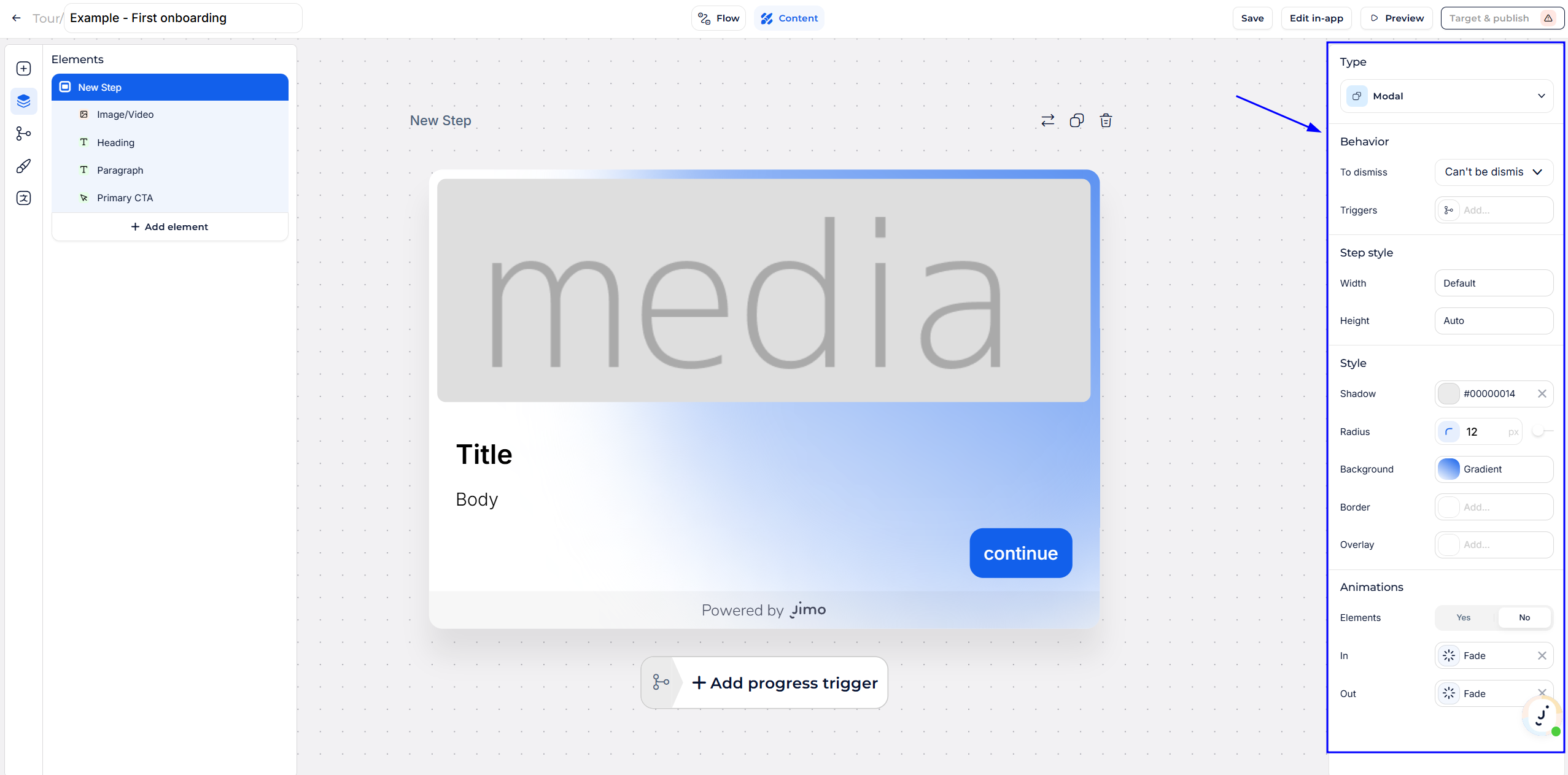
In the **Content Builder**, you can:

* Click on any element in the central preview or use the navigator to select components.
* Customize text, images, buttons, and style.
* Access top-level settings for step behavior and user interaction.

<figure><img src="https://2794860263-files.gitbook.io/~/files/v0/b/gitbook-x-prod.appspot.com/o/spaces%2FKzAcDWQbK1gKbpra7bkb%2Fuploads%2FmNkUZcAfShNfq1tvrqrc%2Fimage.png?alt=media&#x26;token=c47c44ca-55ea-4d40-9cf0-1f0a06d715c9" alt=""><figcaption></figcaption></figure>

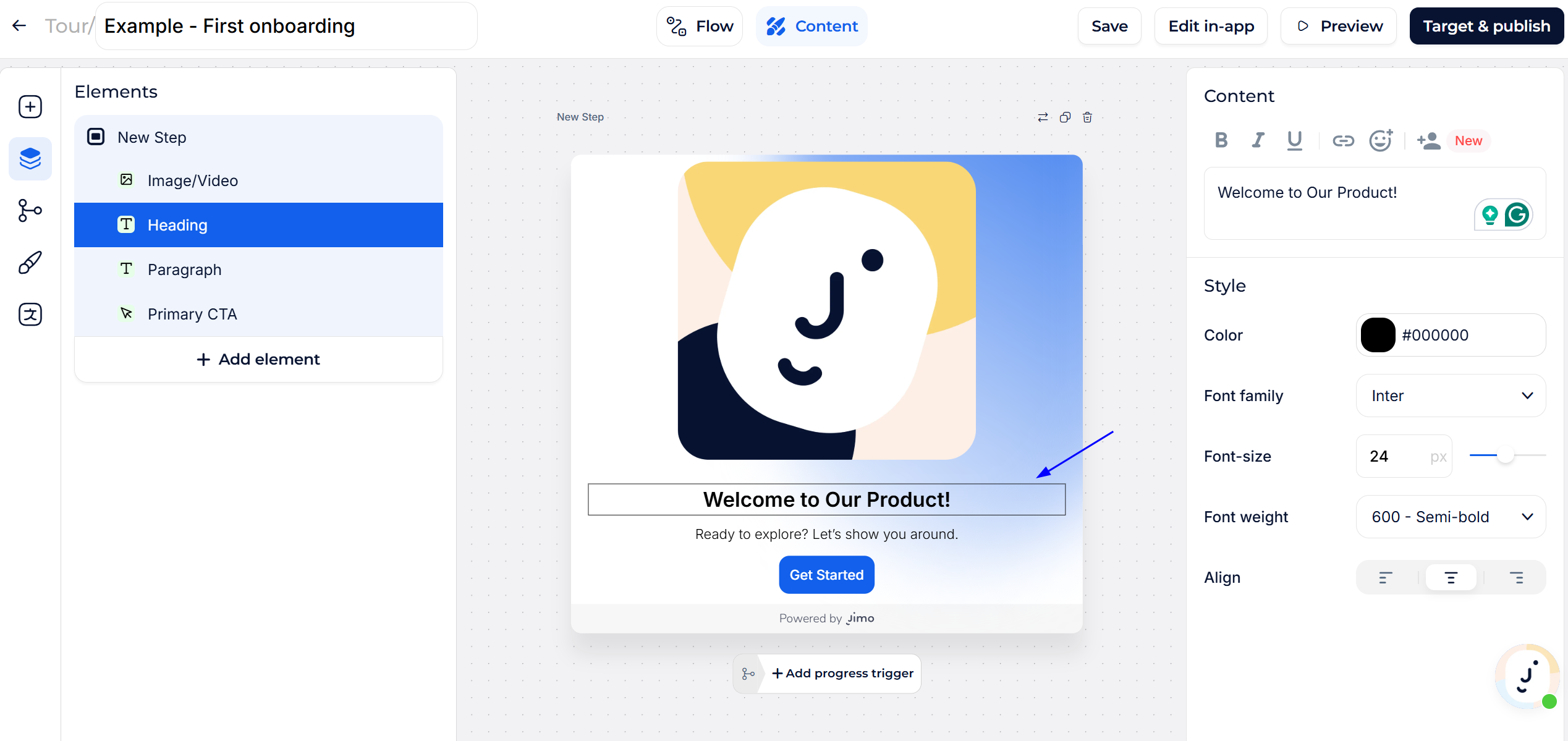
For our welcome modal:

* Add a short title (“Welcome to Our Product!”)
* A brief description (“Ready to explore? Let’s show you around.”)
* A “Get Started” button to move forward in the tour.

<figure><img src="https://2794860263-files.gitbook.io/~/files/v0/b/gitbook-x-prod.appspot.com/o/spaces%2FKzAcDWQbK1gKbpra7bkb%2Fuploads%2FEA2jueBfsIvqEv2CNjtK%2Fimage.png?alt=media&#x26;token=70959d0e-226a-4044-b325-ced5702c2e53" alt=""><figcaption></figcaption></figure>

#### Right Sidebar: Elements Editor

* **Select an Element:** Click on any element within the central preview or use the **Navigator** to select it from the left sidebar.
* **Edit Parameters:**
  * **Text:** Change the text content directly in the editor.
  * **Styling:** Adjust fonts, colors, and sizes to match your brand.
  * **Behavior:** Set actions like button clicks or step transitions.
* **Advanced Options:** Access generic and behavioral settings at the top of the dropdown in the navigator or by clicking on the entire card.

<figure><img src="https://2794860263-files.gitbook.io/~/files/v0/b/gitbook-x-prod.appspot.com/o/spaces%2FKzAcDWQbK1gKbpra7bkb%2Fuploads%2FbNsZmQJR6Squd9uRq15l%2Fimage.png?alt=media&#x26;token=e3cb9bc7-ff39-41cf-880a-32829e11a30a" alt=""><figcaption></figcaption></figure>

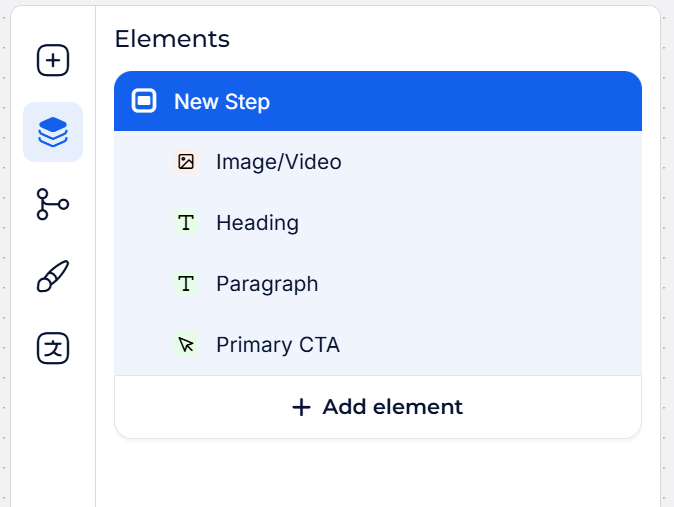
#### Left Sidebar: Builder Menu

* **Quick access to the Flow Builder**
* [**Navigator:**](https://help.usejimo.com/docs/build/navigator)
  * **Manage Elements:** Easily add, remove, or reorder elements within your step.
  * **Access Specific Elements:** Quickly jump to any element’s settings through the navigator.
* **Additional Features:**
  * [**Triggers/Conditions:**](https://help.usejimo.com/docs/build/triggers-and-conditions) Add if/else logic to control step flow.
  * [**Theme Management:**](https://help.usejimo.com/docs/build/theme) Apply predefined themes for consistent styling across all steps.
  * [**Language Tab:**](https://help.usejimo.com/docs/build/multiple-languages) Handle translations to support multiple languages.

***

### Step 5: Adding More Steps

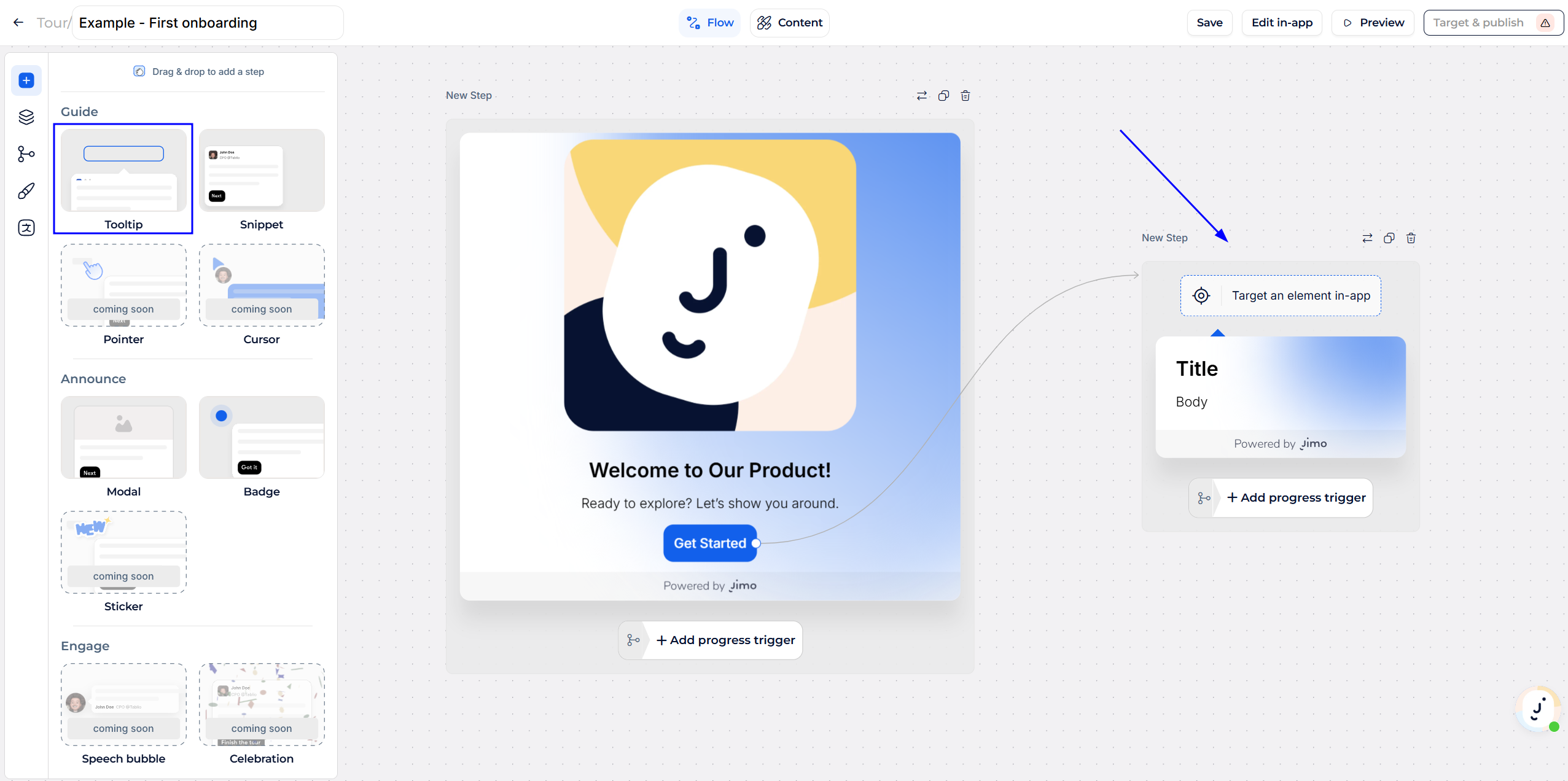
Go back to the **Flow Builder** and add another step, this time a **Tooltip**.

1. **Add Tooltip Step:**\
   Select a Tooltip step and place it in the flow after the Modal.<br>

   <figure><img src="https://2794860263-files.gitbook.io/~/files/v0/b/gitbook-x-prod.appspot.com/o/spaces%2FKzAcDWQbK1gKbpra7bkb%2Fuploads%2FTgAeI7AzHK85NVYhB0zX%2Fimage.png?alt=media&#x26;token=32e10f87-109e-4f2e-9868-7f70fba252a3" alt=""><figcaption></figcaption></figure>

2. [**In-App Positioning:**](https://help.usejimo.com/docs/build/positioning)\
   To attach a tooltip to a specific element on your website:

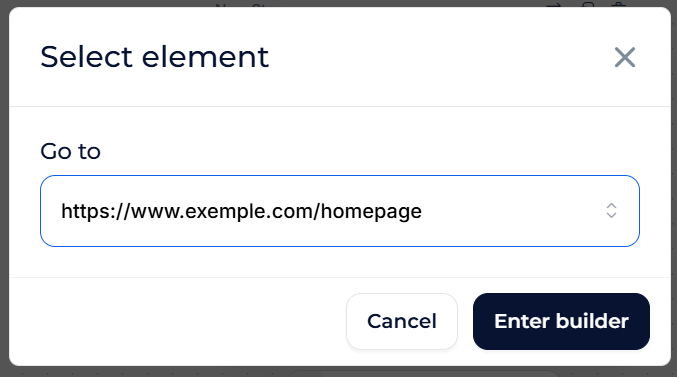
   * Switch to the in-app builder mode or hit the button target element in-app and choose the URL on which you want to place your tooltip step.

     <figure><img src="https://2794860263-files.gitbook.io/~/files/v0/b/gitbook-x-prod.appspot.com/o/spaces%2FKzAcDWQbK1gKbpra7bkb%2Fuploads%2FoDNT1tpwDKuIWLJsOKYb%2Fimage.png?alt=media&#x26;token=83143b15-5dd3-4bac-99f2-bdc8c2a62fc2" alt=""><figcaption></figcaption></figure>

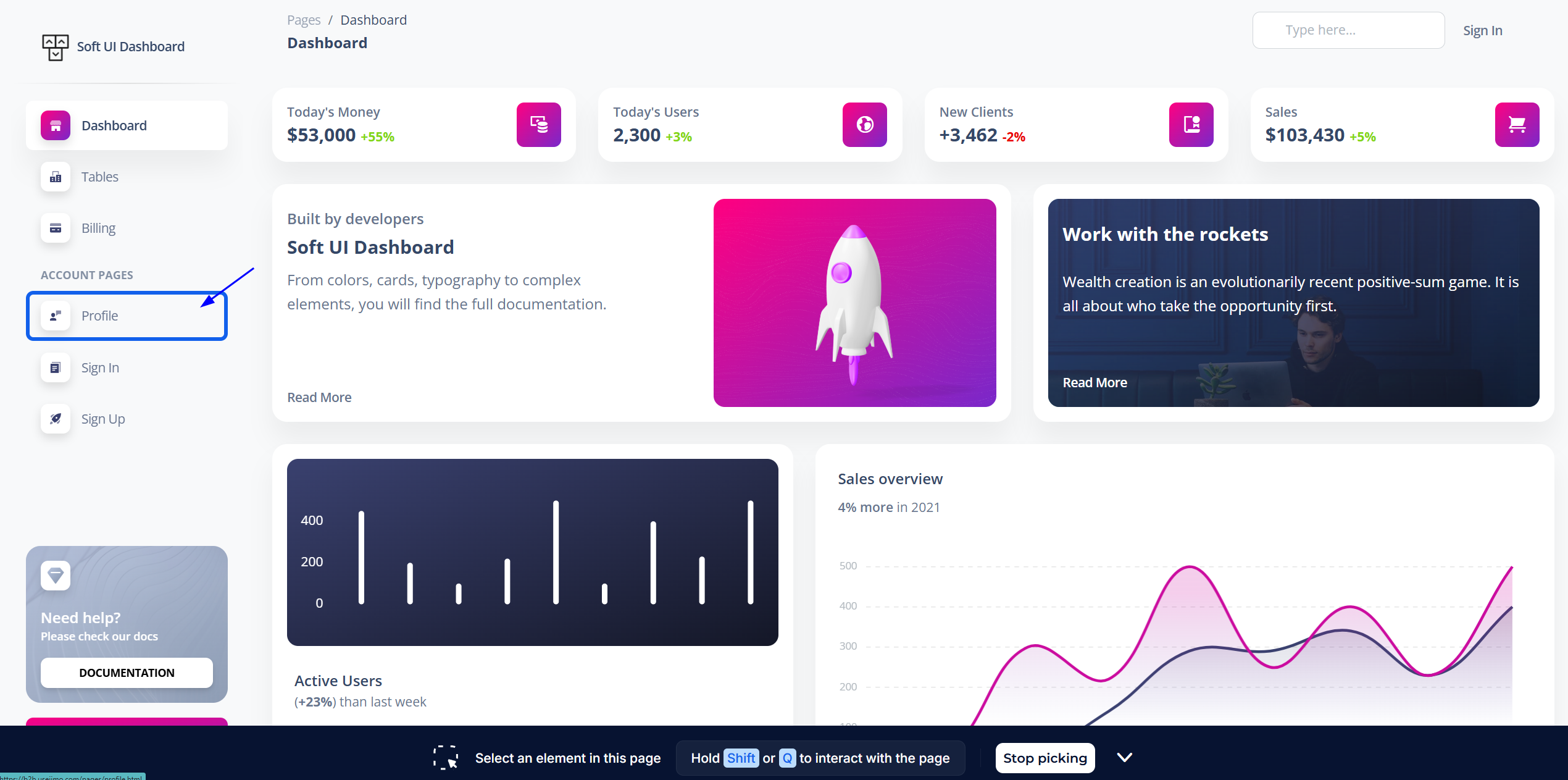
   * Use the [CSS selector](https://help.usejimo.com/docs/build/positioning#css-selector) to pinpoint the element you want to highlight.

   <br>

   <figure><img src="https://2794860263-files.gitbook.io/~/files/v0/b/gitbook-x-prod.appspot.com/o/spaces%2FKzAcDWQbK1gKbpra7bkb%2Fuploads%2FI1P4tFyCqEdfHzzag2UW%2Fimage.png?alt=media&#x26;token=4ffe2e40-2876-4a3e-8abf-cf866947a2ac" alt=""><figcaption></figcaption></figure>

3. **Edit Tooltip Content:**\
   Back in the Content Builder, customize the tooltip’s text and appearance. For example, highlight a “Settings” button or a “Start a Project” link to guide users deeper into your app.

{% hint style="warning" %}
Positioning targeted steps requires either Jimo [installed](https://help.usejimo.com/docs/getting-started/installing-jimo) on that URL or the [extension](https://help.usejimo.com/docs/getting-started/extension) active.
{% endhint %}

***

### Step 6: Iteration and Preview

Feel free to add more steps, change designs, or adjust the order. Each step can be:

* Simple modals that greet users.
* Tooltips guiding users to specific features.
* Hotspots pinpointing important UI elements.
* Etc... (Check [experiences components](https://help.usejimo.com/docs/experiences/tours-and-modals/components)).

-> And interconnect steps to other experiences with CTA actions like Hints, Banners, or Checklists to create more advanced patterns as you grow comfortable.

[**In-App Builder for Contextual Edits:**](https://help.usejimo.com/docs/build/builders/in-app-builder)

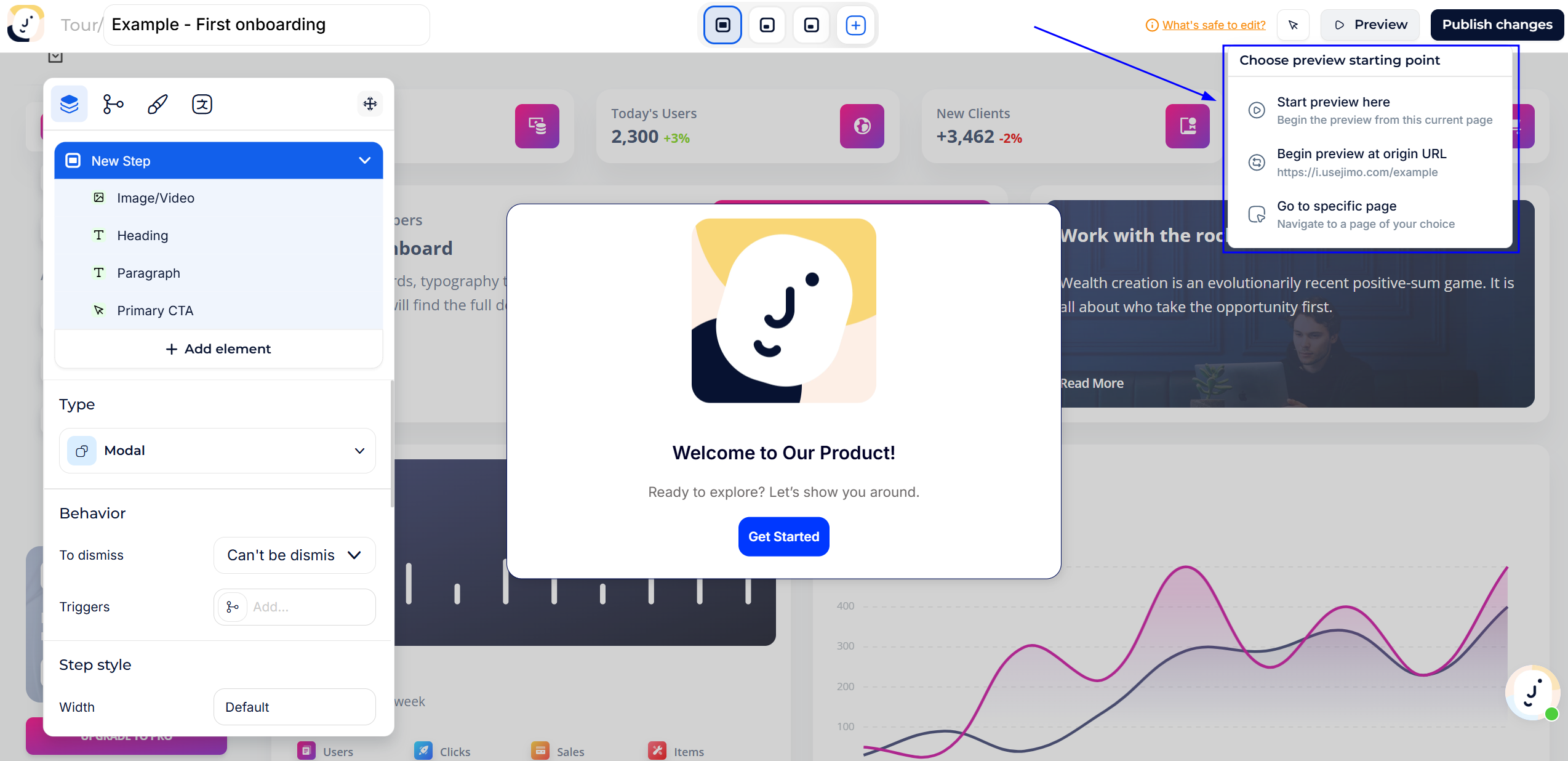
* At any time, open the in-app builder overlay directly on your site.
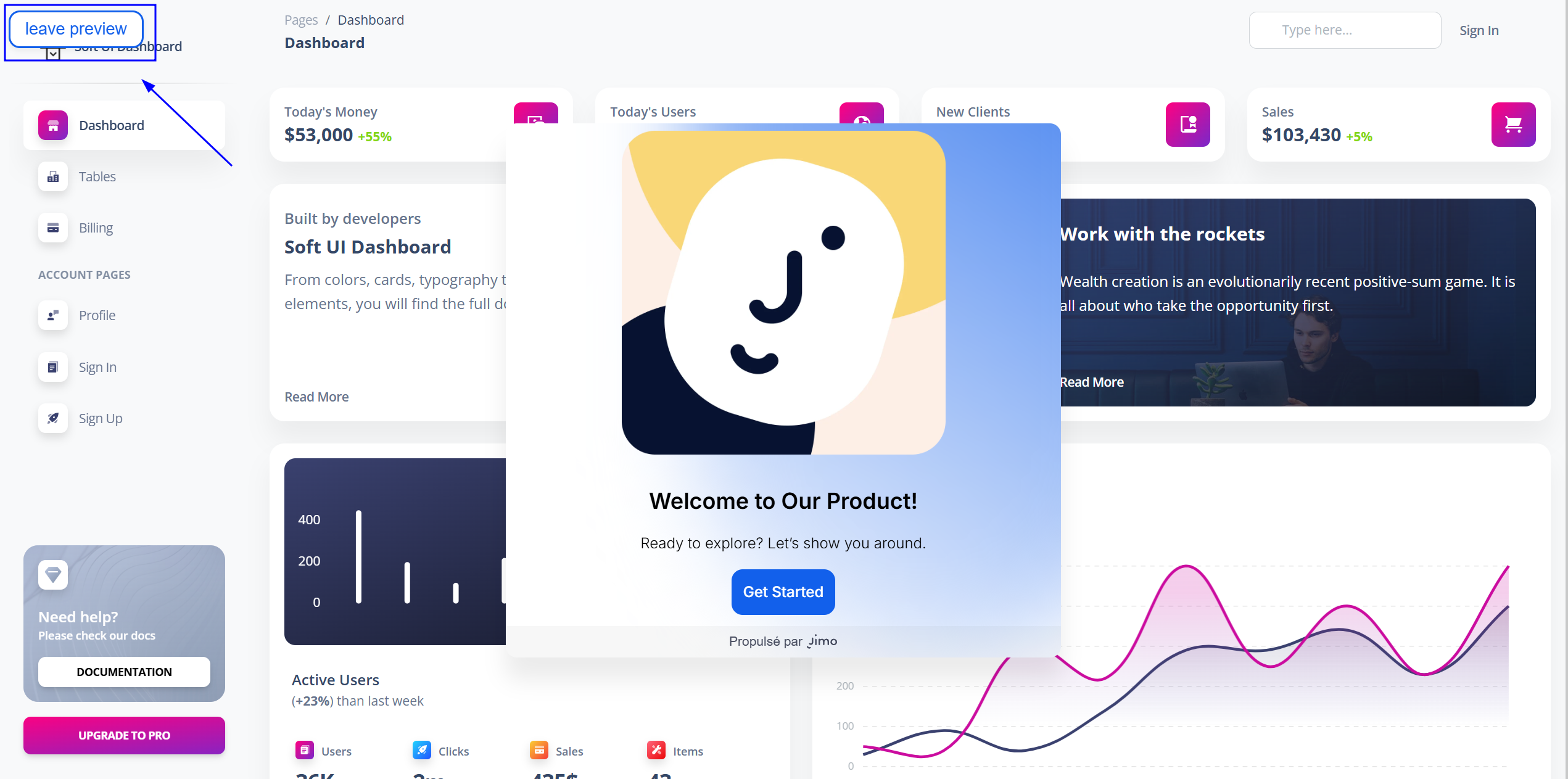
* Preview exactly how the tour will look and behave for end users.

<figure><img src="https://2794860263-files.gitbook.io/~/files/v0/b/gitbook-x-prod.appspot.com/o/spaces%2FKzAcDWQbK1gKbpra7bkb%2Fuploads%2F8dasyhE8JkAxEBz7HWK2%2Fimage.png?alt=media&#x26;token=719e6789-a98f-4fcf-afbc-884fb2fe1208" alt=""><figcaption></figcaption></figure>

[**Preview Mode:**](https://help.usejimo.com/docs/build/preview)

* Test the flow from start to finish.
* Ensure everything appears as intended and the triggers work as expected.

<figure><img src="https://2794860263-files.gitbook.io/~/files/v0/b/gitbook-x-prod.appspot.com/o/spaces%2FKzAcDWQbK1gKbpra7bkb%2Fuploads%2Flw0ljqkrpqTXJgBzUIqU%2Fimage.png?alt=media&#x26;token=64b88572-c054-4686-b227-0032f5b42152" alt=""><figcaption></figcaption></figure>

***

### Step 7: Target & Publish

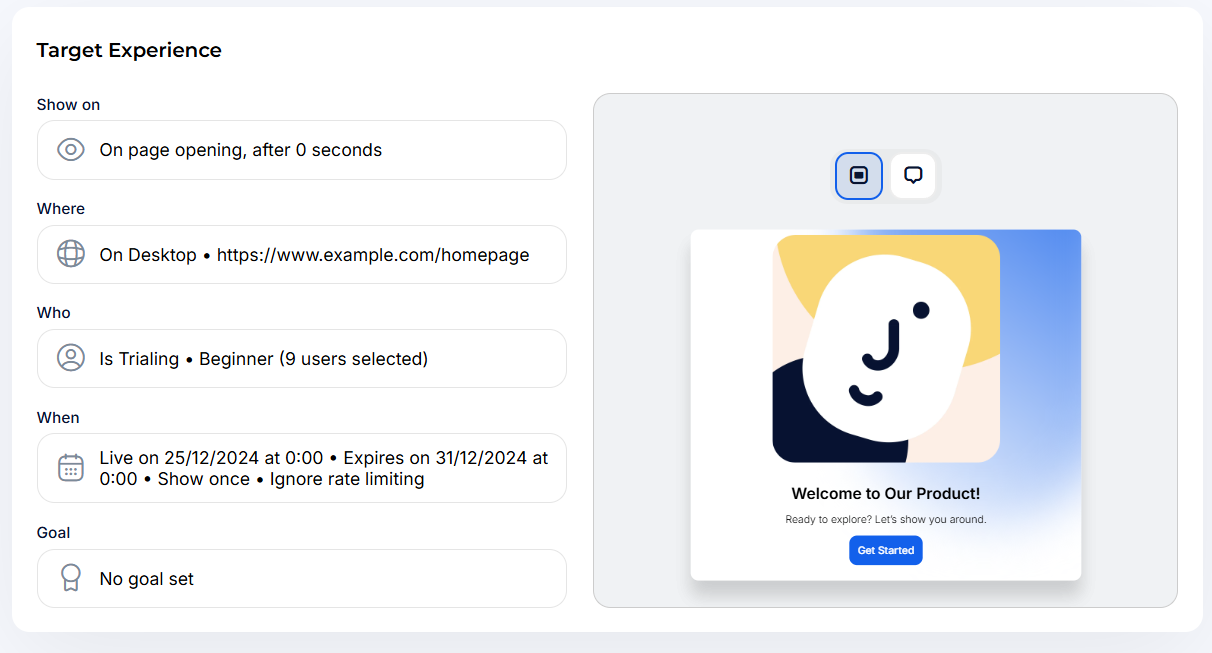
When you’re satisfied with your tour design, it’s time to configure how, where, and to whom it will appear.

<figure><img src="https://2794860263-files.gitbook.io/~/files/v0/b/gitbook-x-prod.appspot.com/o/spaces%2FKzAcDWQbK1gKbpra7bkb%2Fuploads%2FjtJMLFHHgBRnUe8h5wOi%2Fimage.png?alt=media&#x26;token=30f3bfba-b621-41d1-a8cb-c79946142c74" alt=""><figcaption></figcaption></figure>

-> Click the **Target & Publish** button to access the experience’s [targeting and publishing settings](https://help.usejimo.com/docs/publish/target-and-publish).

**What to Configure:**

1. [**Show On (Trigger):**](https://help.usejimo.com/docs/publish/trigger-on-the-right-spot-show-on)\
   Decide when the tour should start. For a simple onboarding, let’s trigger it **on page load**.
2. [**Where (Page Filtering):**](https://help.usejimo.com/docs/publish/target-specific-urls-domains-where)\
   Limit the experience to a specific URL (e.g., your main dashboard page).
3. [**Who (Audience):**](https://help.usejimo.com/docs/publish/target-right-people-who)\
   Use segments (e.g., a “Trial Users” segment) defined by the user attributes you’ve set up to ensure only trialing users see this tour.
4. [**When (Timing & Scheduling):**](https://help.usejimo.com/docs/publish/trigger-at-the-right-time-when)\
   Optionally schedule your experience or set an expiration date.
5. [**Goal (Optional Aim):**](https://help.usejimo.com/docs/publish/mesure-outcomes-goal)\
   Define success criteria, like whether users complete a certain step or interact with a key feature. This helps measure the impact of your onboarding.

<figure><img src="https://2794860263-files.gitbook.io/~/files/v0/b/gitbook-x-prod.appspot.com/o/spaces%2FKzAcDWQbK1gKbpra7bkb%2Fuploads%2FDrL7DpH5HSvgtIAcaYj1%2Fimage.png?alt=media&#x26;token=bcc13459-6e7a-42c4-92c4-9915055eeba8" alt=""><figcaption></figcaption></figure>

**Publishing:**

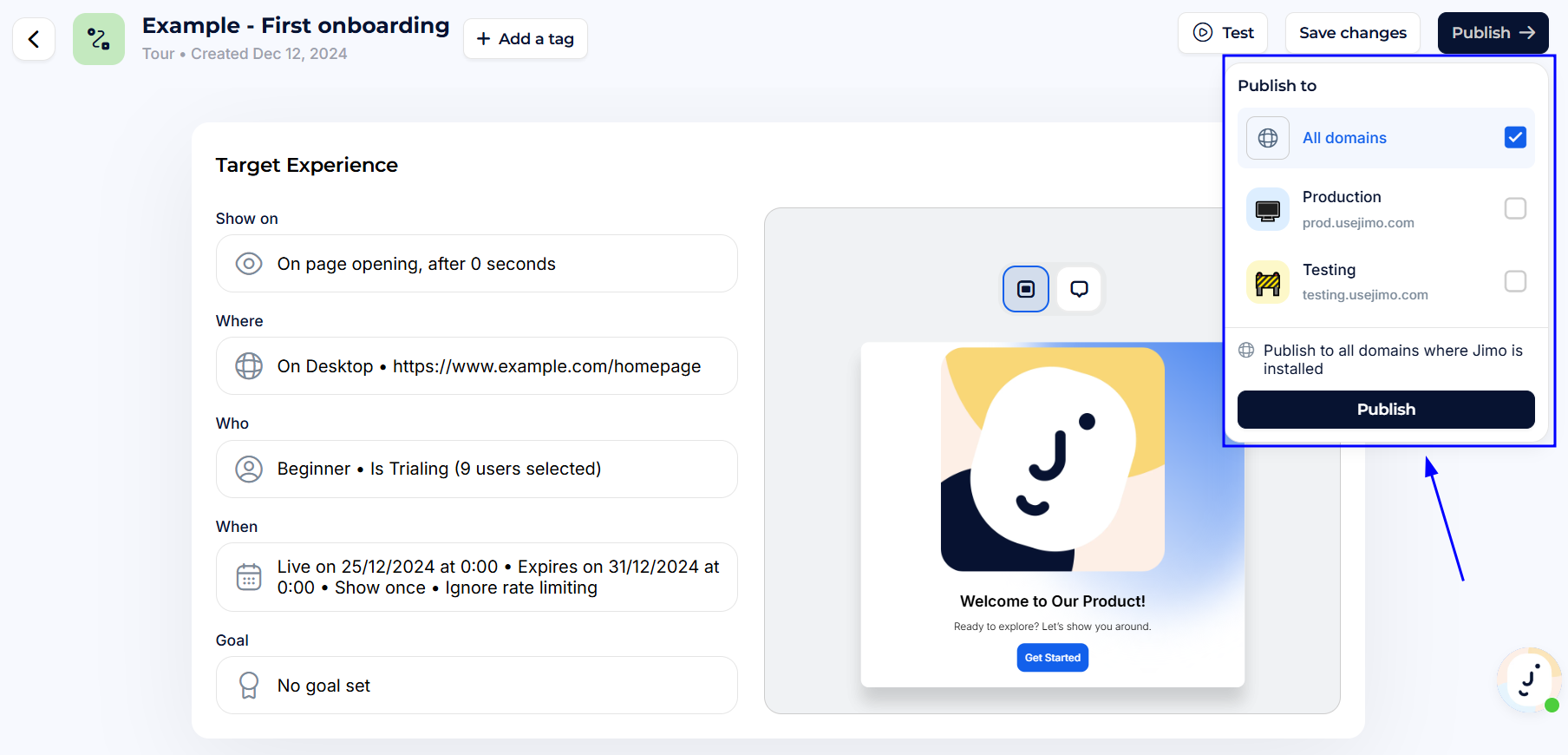
* Click **Publish** and select the environment (e.g., staging or production).

<figure><img src="https://2794860263-files.gitbook.io/~/files/v0/b/gitbook-x-prod.appspot.com/o/spaces%2FKzAcDWQbK1gKbpra7bkb%2Fuploads%2FJnJDiBYMYnRU7Wvmg1vi%2Fimage.png?alt=media&#x26;token=ed6f3058-3796-4ed0-9890-d433079b67cc" alt=""><figcaption></figcaption></figure>

{% hint style="warning" %}
Remember, you need Jimo [installed](https://help.usejimo.com/docs/getting-started/installing-jimo) (and a valid plan or active trial) to publish experiences.
{% endhint %}

***

### Step 8: Monitoring Your Results

<figure><img src="https://2794860263-files.gitbook.io/~/files/v0/b/gitbook-x-prod.appspot.com/o/spaces%2FKzAcDWQbK1gKbpra7bkb%2Fuploads%2FfXERbCnnJ0PdlGVh03gQ%2Fimage.png?alt=media&#x26;token=624f79d1-8d1a-4fb2-87ac-2af1f6800a1d" alt=""><figcaption></figcaption></figure>

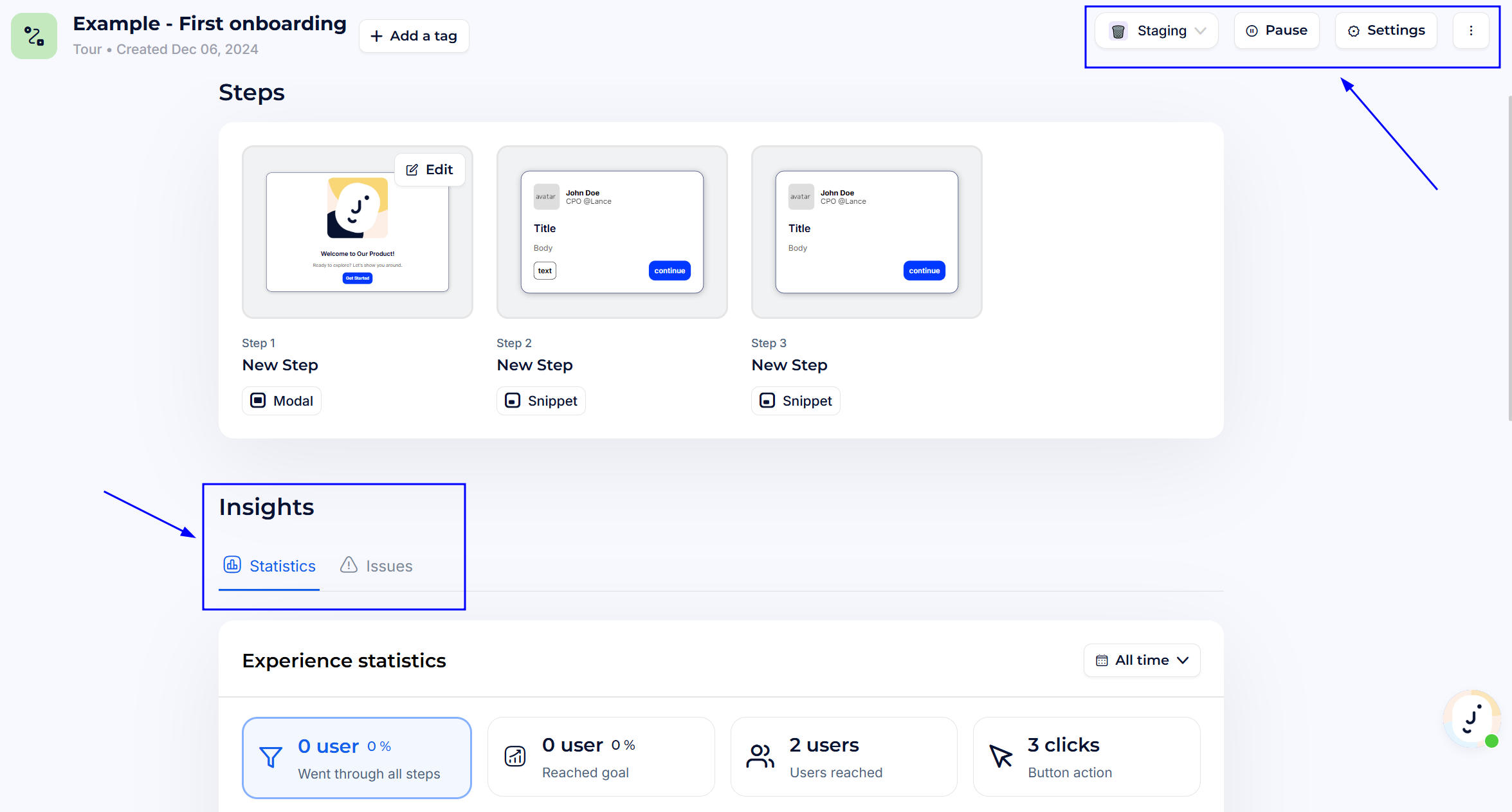
After going live, visit the [**Analytics**](https://help.usejimo.com/docs/analyze/analytics) section to:

* Track usage and engagement.
* Evaluate if your tour helps trial users adopt key features.
* Add tags to organize your experiences.
* (For surveys) Set up notifications for new responses.

Use these insights to refine your tour and improve user onboarding over time.