> For the complete documentation index, see [llms.txt](https://help.usejimo.com/docs/llms.txt). Markdown versions of documentation pages are available by appending `.md` to page URLs; this page is available as [Markdown](https://help.usejimo.com/docs/experiences/tours-and-modals/steps-and-navigation.md).
# Steps & Navigation
Jimo's Builder is designed to ease the creation and organization of your tours by making it intuitive and simple to move through steps.
***
### Quick Access
* [Flow Builder](#flow-builder)
* [CTA Navigation](#cta-navigation)
* [Trigger Navigation](#step-trigger-navigation)
* [Navigator Menu](#navigator-menu)
***
### **Flow Builder**
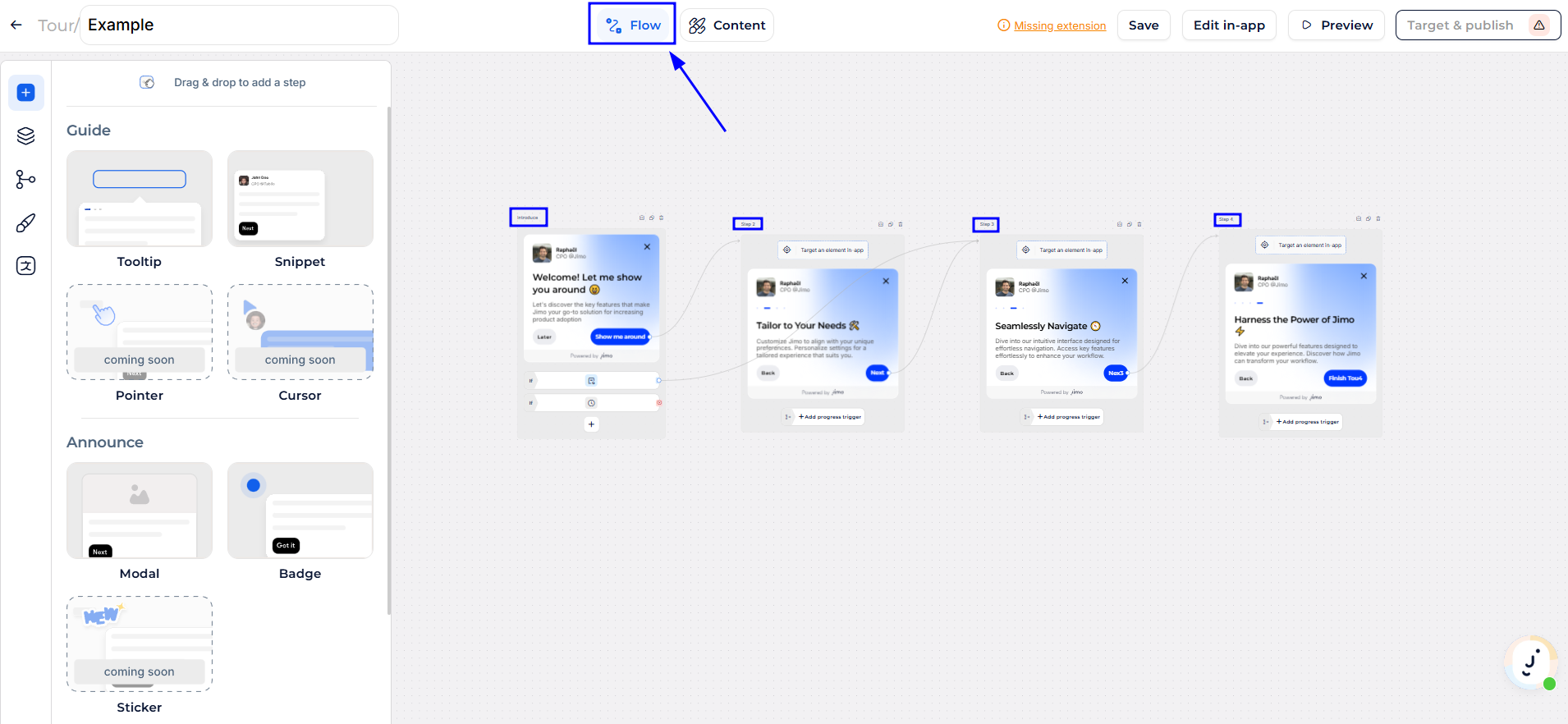
This tab allows you to add, remove, and navigate through the steps of your tour efficiently, offering tools to interact directly with individual steps of a tour. [Learn more.](/docs/build/builders/flow-builder.md)
{% hint style="warning" %}
It's important to understand the **difference** between **steps and components**.
**Steps** refer to the individual parts of your tour or guide that users navigate through. **Components** are the elements within each step, such as text, images, or buttons, that provide content and interactivity.
{% endhint %}
{% hint style="warning" %}
A **new step within an element** adds content (like a new card) to the existing setup. In contrast, an **independent element step** targets a separate element and stands alone with its own unique setup and target.
{% endhint %}
{% hint style="warning" %}
If you experience the **builder reloading each time you change steps** or the next button not working, it may be due to the behavior of our in-app builder remembering the URL where it was first opened.
To prevent this, open the builder out-app initially and then build each step individually by opening the builder in-app on the specific URL needed for each step.
{% endhint %}
***
### Navigation step (OUTDATED)
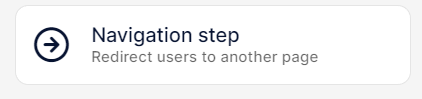
This feature enables the creation of a step that can redirect users to another page automatically or upon meeting specified conditions.
Nav step
In Jimo's Builder, steps are efficiently grouped by URL, represented visually on the navigation bar with distinctive icons. This setup aids in maintaining a structured and coherent user journey across different parts of your application.
Steps with navigation
#### Direct Navigation
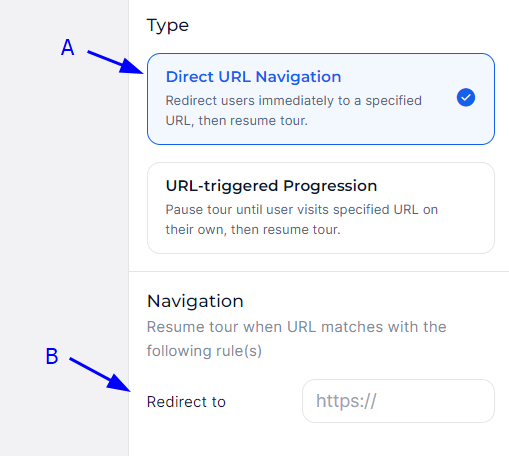
Automatically redirects users to a specified URL once they reach this step in the tour. This is typically used to guide users through a process that spans multiple pages.
Direct Navigation
* **A (Type Selection):**\
This section allows you to select the type of navigation step.
* **B (URL Parameter):**\
For the Direct URL Navigation, this field enables you to enter the specific URL to which users will be redirected. This ensures that the user journey is seamless and continues across different parts of the application as intended.
#### URL-Triggered Navigation
Pauses the tour until the user manually navigates to a specified URL, at which point the tour resumes. This option is useful for scenarios where user action outside the tour is expected before continuing.
URL-Triggered Navigation
* **A (Type Selection):**\
This section allows you to select the type of navigation step.
* **B (Navigation Rules):**\
Here you can set specific URL rules that determine when the tour should resume. This area allows you to add multiple conditions, ensuring flexibility and precision in how and when the tour continues based on user navigation. (The same behavior on [Filtered URLs](/docs/publish/target-specific-urls-domains-where.md#customized-targeting-filtered-urls-option) for the Where field.)
* **C (URL Test Field):**\
This functionality provides a practical tool for validating the rules you have set. By entering a URL, you can test whether it meets the conditions specified in the rules above, ensuring accuracy before applying the settings live.
### **CTA Navigation**
You can add advanced actions to CTAs within your experiences, providing more control and flexibility.
#### **Navigate to URL Action**
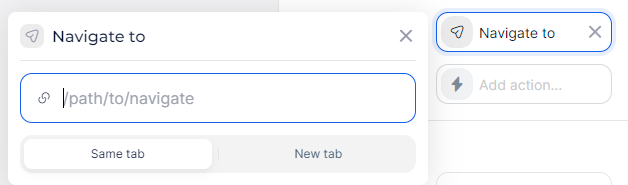
-> Add a navigation action to a CTA, allowing users to be directed to specific URLs.
**Options:**
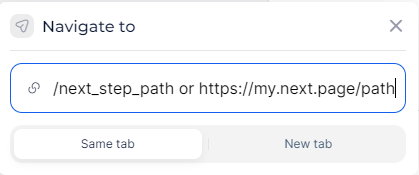
* **Absolute Path:** Specifies the complete URL.
* **Relative Path:** Specifies a URL relative to the current page.
* **Open in Same Tab or New Tab:** Choose whether to open the link in the same tab or a new tab.
**Usage Example:**
Set up a CTA that redirects the user to another page between steps.
1. Select the CTA element.
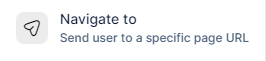
2. Choose the "Navigate to" action.
3. Enter the relative path to the target page.
4. Select "Same Tab" for the link to open in the same tab.
### **Step Trigger Navigation**
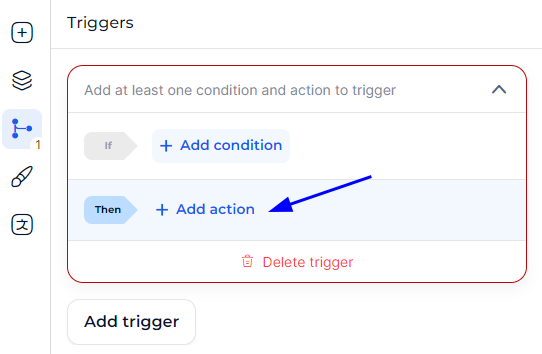
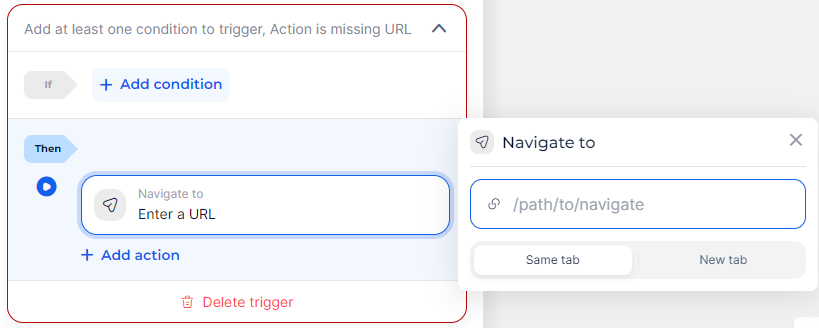
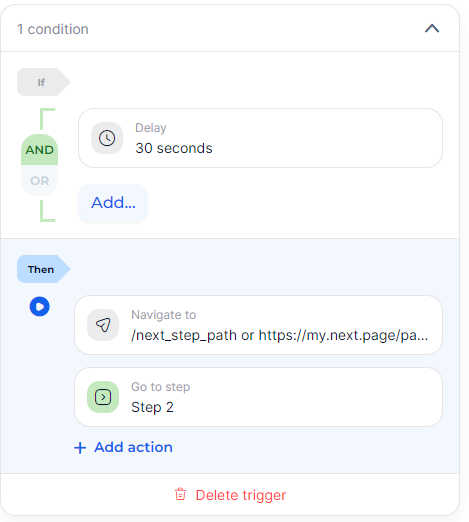
You can set advanced navigation actions within [step triggers](/docs/build/triggers-and-conditions/steps-triggers.md), enhancing interactivity and control over your tours.
#### **Navigate to URL Action:**
-> Set navigation actions for steps, similar to CTAs.
**Options:**
* **Absolute Path:** Specifies the complete URL.
* **Relative Path:** Specifies a URL relative to the current page.
* **Open in Same Tab or New Tab:** Choose whether to open the link in the same tab or a new tab.
**Usage Example:**
Create a step that redirects the user to another page between steps.
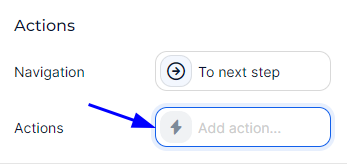
1. Add a new trigger to the step.
2. Set the If condition that will redirect the user.
3. Set the "Navigate to" action.
4. Enter the absolute path to the target page.
5. Select "Same Tab" for the link to open in the same tab.
***
### Navigator Menu
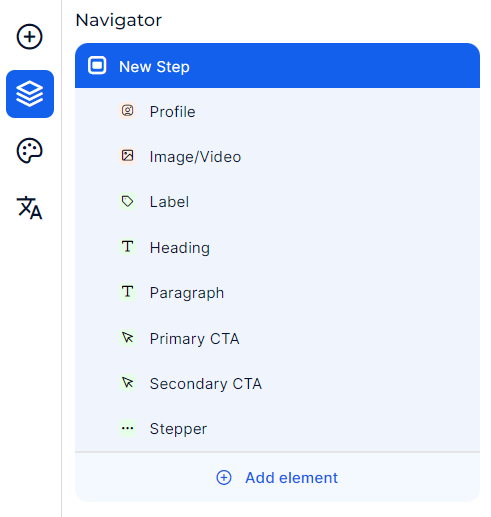
The Navigator within Jimo's Builder is a powerful tool designed to streamline the creation and organization of steps in a user tour or guide.
Full Navigator
It functions as a centralized interface for managing and navigating between different components of a step and adjusting their specific parameters.
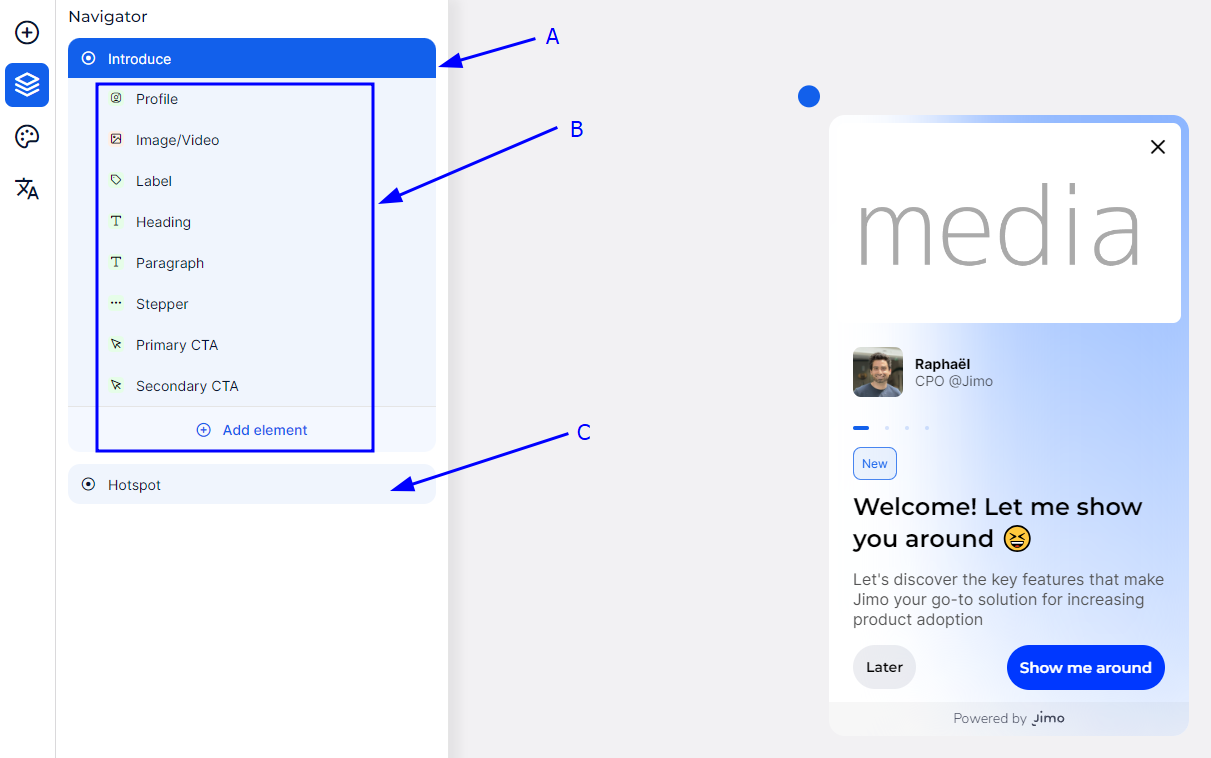
Navigator elements
* **A (Main or Parent Element)**: This is the central control for the step. It provides access to settings that determine how the step behaves and is positioned on the page. Here, you can adjust progression behaviors, like how a user moves to the next step, and how the step is visually placed.
* **B (Components of the Current Step)**: This section lists all active components within the step, such as text, images, or call-to-action buttons. It's designed for quick editing and the addition of new elements, allowing for real-time customization of step content.
* **C (Special Elements)**: Located below the main components, this area is for adding and configuring unique elements like hotspots, which focus user attention on particular aspects of the page. These elements include specialized settings for enhanced interaction.
Access element parameters
In the Jimo Builder interface, managing element-specific parameters is made straightforward:
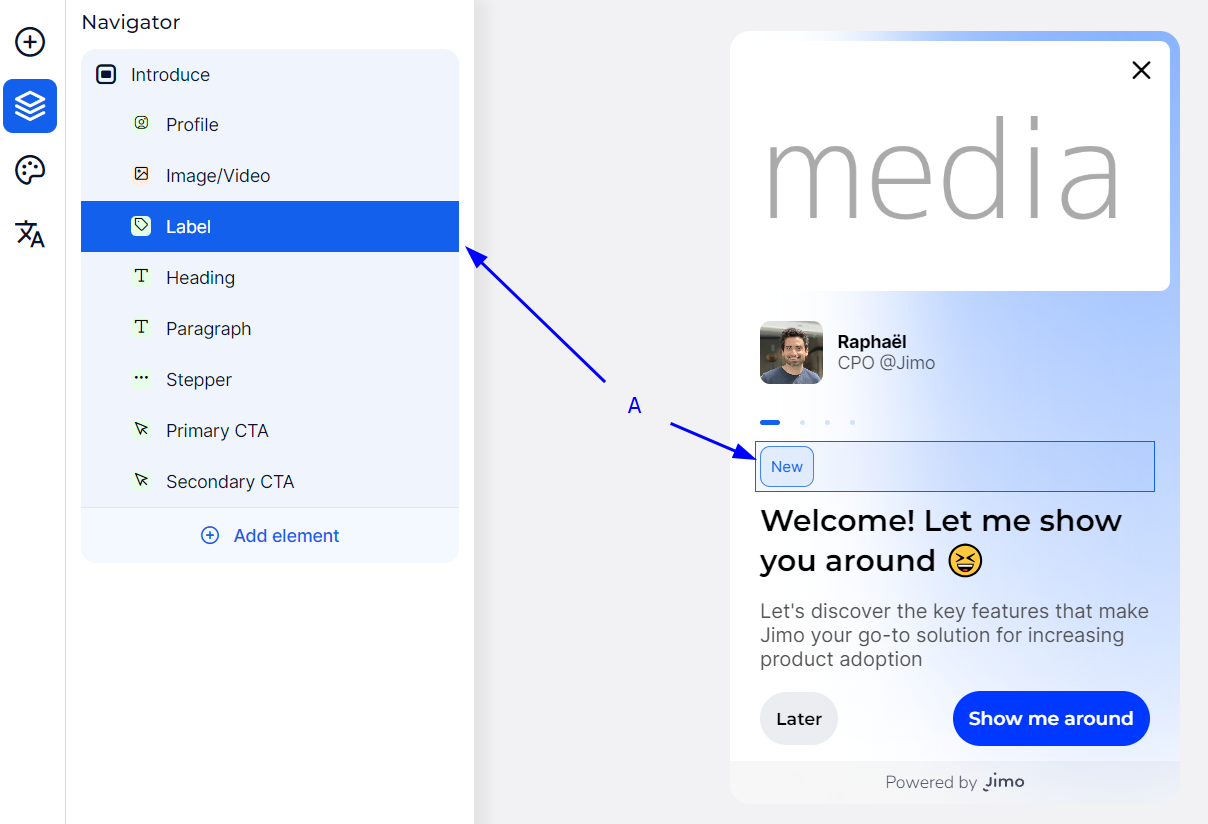
* **Navigator Selection**: You can select an element directly from the Navigator menu. When selected, the element is highlighted in a blue box (A), indicating it's ready for parameter adjustments.
* **Preview Interaction**: Alternatively, clicking an element in the live preview pane automatically highlights and selects it in the Navigator. This feature allows for immediate access to the element's settings, facilitating quick edits.