> For the complete documentation index, see [llms.txt](https://help.usejimo.com/docs/llms.txt). Markdown versions of documentation pages are available by appending `.md` to page URLs; this page is available as [Markdown](https://help.usejimo.com/docs/experiences/surveys/steps-and-navigation.md).
# Steps & Navigation
Navigation page within the Jimo's Builder is designed to ease the creation and organization of your surveys. It focuses on providing intuitive navigation tools that simplify moving through steps.
***
### Quick Access
* [Flow Builder](#flow-builder)
* [Navigator Menu](#navigator-menu)
***
### **Flow Builder**
This tab allows you to add, remove, and navigate through the steps of your surveys efficiently, offering tools to interact directly with individual steps of a survey. [Learn More.](/docs/experiences/surveys/flow-builder.md)
***
### Navigator Menu
The Navigator within Jimo's Builder is a powerful tool designed to streamline the creation and organization of steps in a user survey.
It functions as a centralized interface for managing and navigating between different components of a step and adjusting their specific parameters.
Navigator elements
* **A (Main or Parent Element):** This is the primary control center for the current step in your survey. It allows you to adjust critical settings affecting how the step functions and appears within the survey. This includes setting up progression logic and positioning the step within the survey layout.
* **B (Core Element of the Step):** Displayed here is a type-specific element that is automatically generated when you add a new step. For example, a slider (as shown) is integral to the step’s interaction design. This element is central to the step’s purpose, facilitating specific user responses like sliding a scale.
* **C (Special Elements Section):** This section allows you to incorporate specialized elements into your survey step. These elements, such as hotspots, are designed to enhance user interaction by focusing attention on key details or parts of the survey, making the experience more engaging.
* **D (Add Element Button):** Located at the bottom, this button opens a menu with [additional components](/docs/experiences/surveys/components-deprecated.md#components-building-blocks) that can be added to your step. Using this button, you can enrich your survey with diverse interactive elements, such as multiple-choice questions or image selections, tailored to collect a wide range of responses.
Access element parameters
In the Jimo Builder interface, managing element-specific parameters is made straightforward:
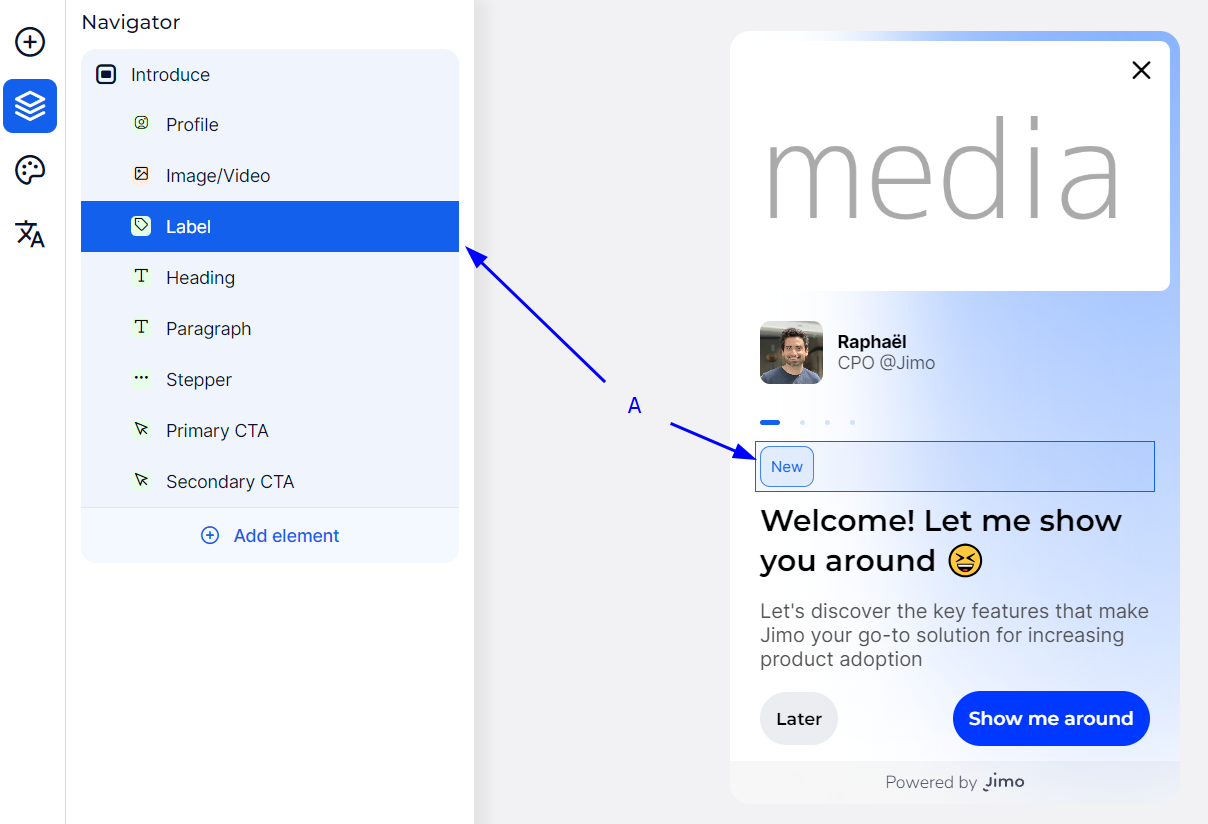
* **Navigator Selection**: You can select an element directly from the Navigator menu. When selected, the element is highlighted in a blue box (A), indicating it's ready for parameter adjustments.
* **Preview Interaction**: Alternatively, clicking an element in the live preview pane automatically highlights and selects it in the Navigator. This feature allows for immediate access to the element's settings, facilitating quick edits.