> For the complete documentation index, see [llms.txt](https://help.usejimo.com/docs/llms.txt). Markdown versions of documentation pages are available by appending `.md` to page URLs; this page is available as [Markdown](https://help.usejimo.com/docs/experiences/surveys/components-deprecated.md).
# Components (deprecated)
Discover key components for crafting Surveys in Jimo. Enhance surveys with Text, Media, and Interaction assets to ensure a comprehensive, informative journey.
***
### **Quick access**
[**Components for Building Surveys**](#components-for-building-surveys-in-jimo)
* [**Opinion Scale**](#opinion-scale)
* [**Multiple choice questions**](#multiple-choice-questions)
* [**Open question** ](#open-question)
* [**NPS** ](#nps)
* [**Emoji Slider** ](#emoji-slider)
* [**Concept Test** ](#concept-test)
* [**Interview prompt** ](#interview-prompt)
* [**Text Block** ](#text-block)
* [**Thank you block** ](#thank-you-block)
[**Transition and Flow**](#transition-and-flow)
* [Adding Multiple Steps ](#adding-multiple-steps)
* [Creating a flow](#creating-a-journey)
* [Navigation step](#navigation-step)
[**Component's building blocks** ](#components-building-blocks)
* [Customizing your Surveys](#customizing-your-surveys)
***
## Components for Building Surveys
### **Opinion Scale**
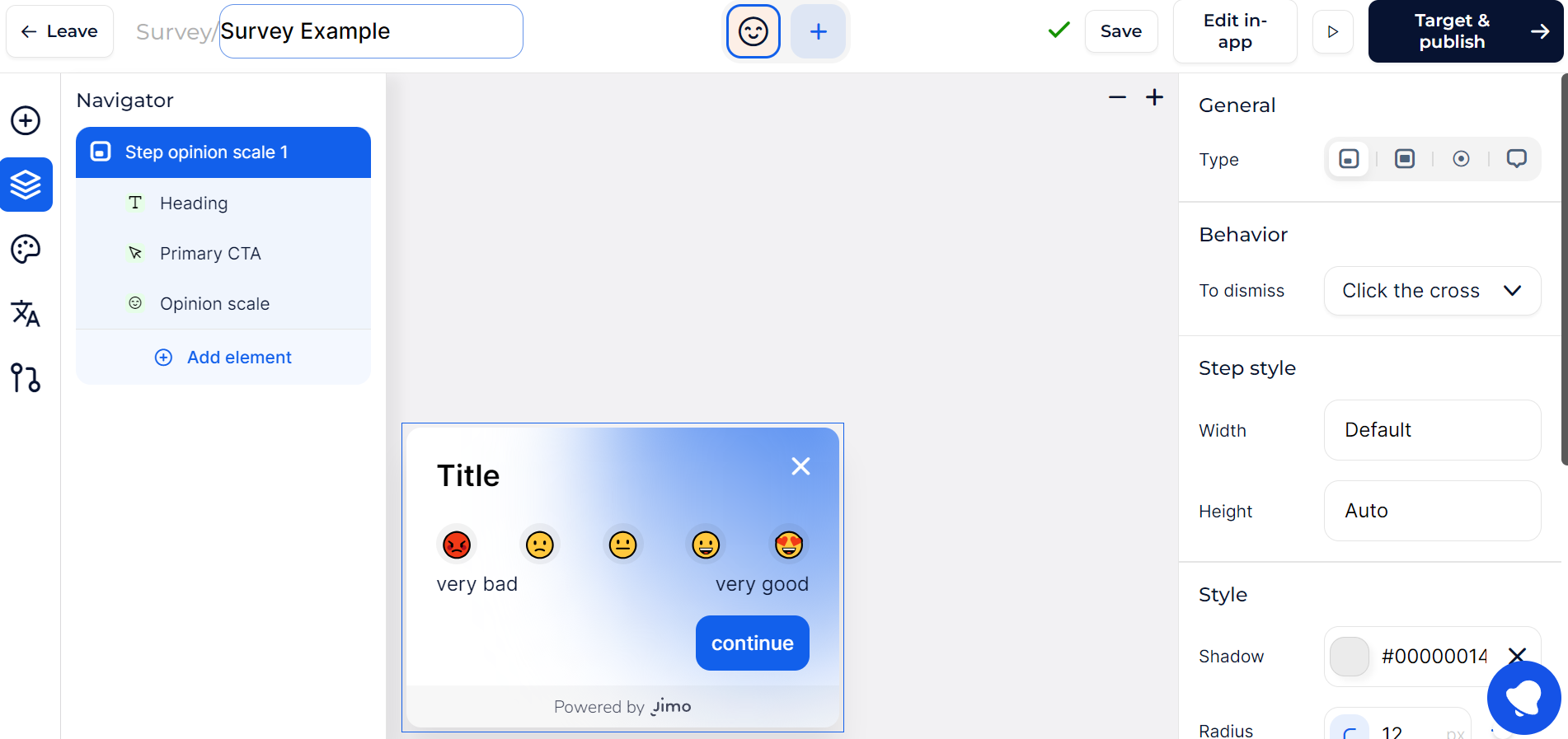
Opinion scales are quantifiable metrics that capture the intensity of user feelings on a topic. Adjust the scale range and labels to fit the question context. You can also modify the type of “Icons”, the number of possible answers, etc.
Opinion scale
-> Opinion scales are ideal for gauging user satisfaction or opinion strength.
### **Multiple choice questions**
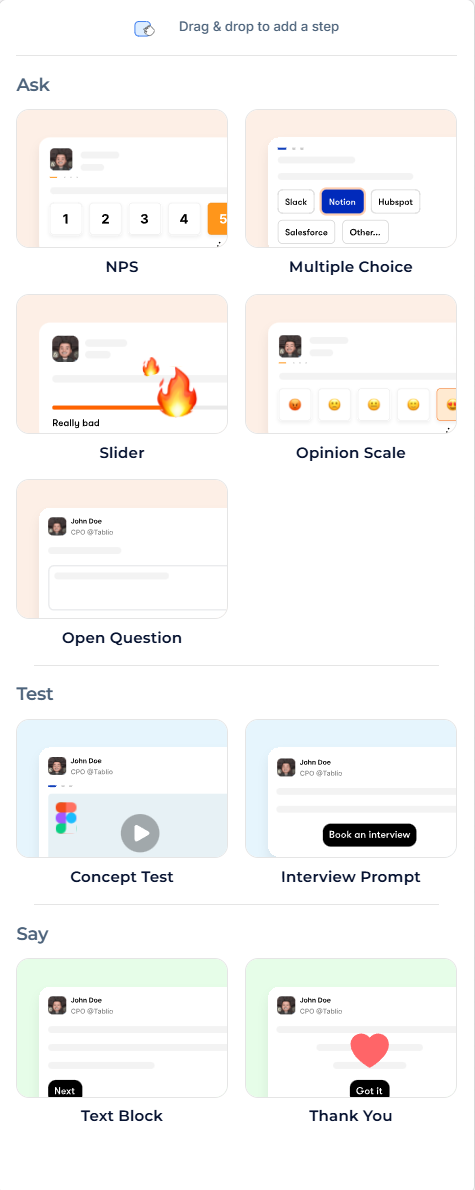
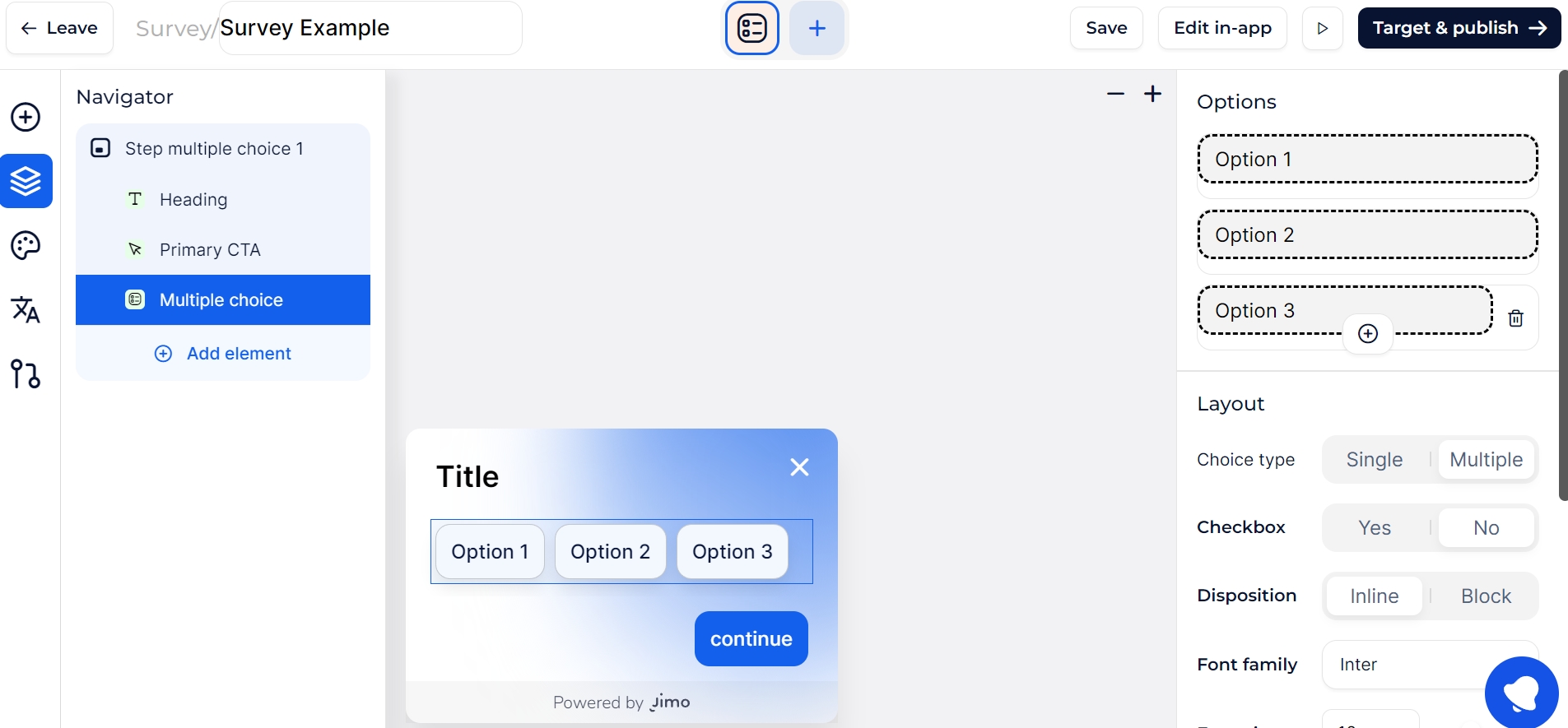
Multiple-choice questions offer predefined answers for users to select from. Define the choices and allow for single or multiple selections.
-> Multiple choice questions are perfect for structured feedback where the range of responses can be anticipated.
### **Open question**
Open questions invite users to provide free-form text responses. Set open-ended fields for comprehensive answers.
-> Open questions are suited for in-depth feedback and capturing nuanced user opinions.
### **NPS**
NPS (Net Promoter Score) measures user loyalty and can predict business growth. Utilize a standardized scoring system for easy analysis. You’ll be able to create the most engaging NPS that you’ve ever seen!
-> The NPS is excellent for a quick assessment of customer satisfaction and service quality.
### **Emoji Slider**
Emoji sliders offer a visually engaging way to capture user sentiment. Choose from various emotive icons to represent response levels.
-> Emoji sliders are effective for quick, intuitive feedback on user emotions or reactions.
### **Concept Test**
Concept tests allow you to gather user input on designs or upcoming features. Pair with visual aids or prototypes for effective feedback by embedding Figma prototypes directly on your platform.[ ](https://help.usejimo.com/knowledge-base/academy/best-practices/share-figma-in-app)[More information here](broken://spaces/Re2Ks4JjsWWmOQXOAHiS/pages/bUkVJVwpVbnzaDDYnzT6)
-> Concept tests are valuable for validating product concepts and design choices before full-scale development.
### **Interview prompt**
Interview prompts schedule user interviews or testing sessions. Set calendar slots and allow users to book a time directly. [More information here](broken://spaces/Re2Ks4JjsWWmOQXOAHiS/pages/MHvTWgJw1Dk98p9V97LP)
{% hint style="warning" %}
The only booking calendar links allowed are from **Calendly**, **Google Calendar**, or **Zcal**.
{% endhint %}
-> Interview prompts are useful for qualitative research and in-depth user studies.
### **Text Block**
Text blocks provide context or instructions within your survey. Use rich text formatting to highlight or emphasize key points. You can add images or videos to share pieces of information with your users about your discovery.
-> Text blocks are crucial for clarifying survey sections or providing additional information.
### **Thank you block**
End the interaction with joy! A thank you message concludes the survey on a positive note. Personalize the message to reflect your brand voice and gratitude. The best way to say thank you 🙂.
-> A thank you message is important for showing appreciation for user time and input, boosting the likelihood of future engagement.
## Transition and Flow
### Reorganizing Components & Steps
\
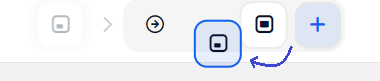
Jimo allows you to reorganize the order of components and steps at any time, giving you the flexibility to adapt and refine the experience based on user feedback or changes in your app.
Reorganizing components
With these components and the ability to add and rearrange steps, you have the creative freedom to build comprehensive, engaging, and educational experiences for your users.
## Component's building blocks
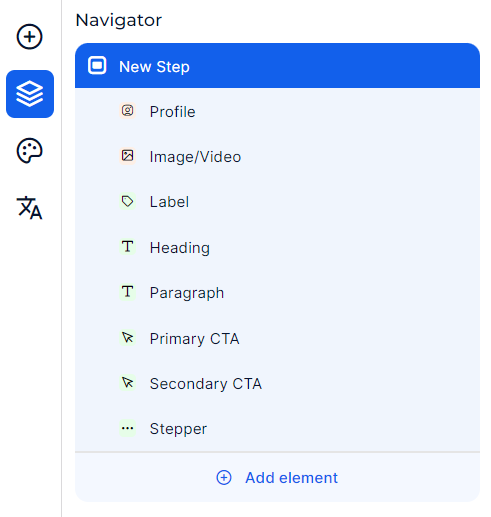
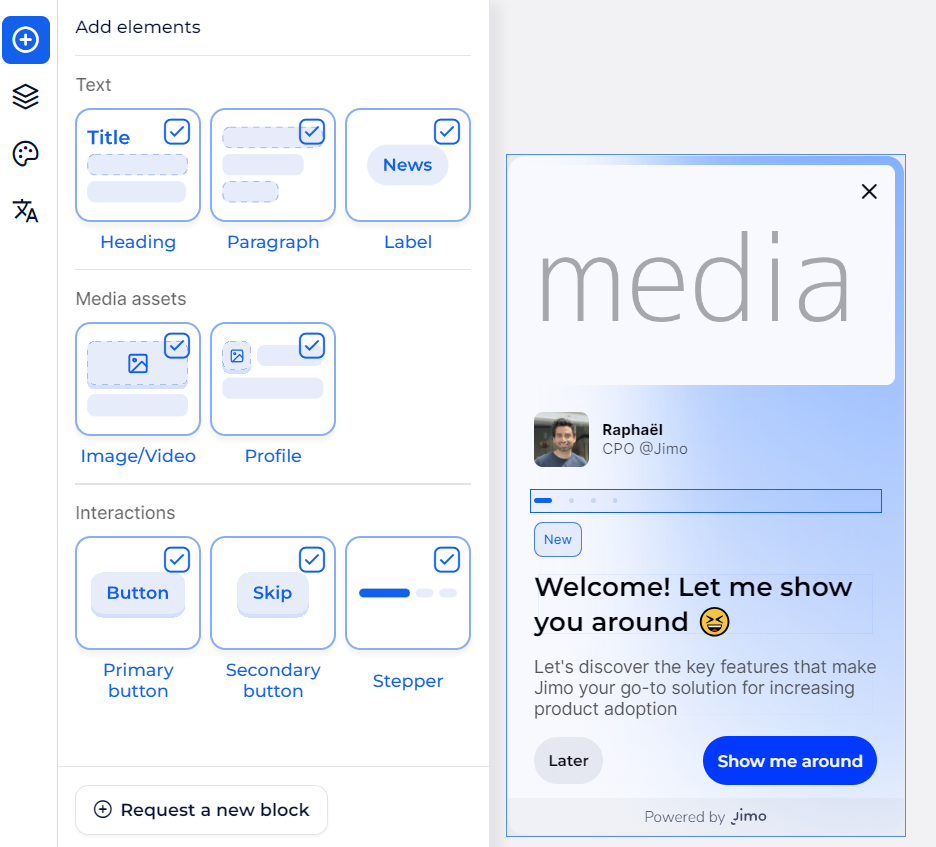
Components Building Blocks
#### Text Elements
* **Heading**: Craft compelling titles and headers to grab attention and set the context.
* **Paragraph**: Convey detailed information with descriptive text to guide users through the experience.
* **Label**: Use labels to annotate images, videos, and other interactive elements for clarity.
#### Media Assets
* **Image/Video**: Enhance your component with illustrative images or explanatory videos. *(5MB size limit.)*
* **Profile**: Personalize the experience by including profile pictures or avatars, particularly effective in social proof or testimonial components.
#### Interactions
* **Primary Button (CTA)**: Encourage users to take action with a prominently styled button.
* **Secondary Button (CTA)**: Offer an alternative action with a less dominant button style.
* **Stepper**: Include a stepper for multi-step processes, guiding users through a sequence of actions or content.
### Customizing your Surveys
After selecting your experience structure, it's time to infuse it with content that resonates with your users.
You can start your component from scratch, Jimo provides a diverse set of building blocks across three categories—Text, Media Assets, and Interactions—that you can manually select to tailor each component of your experience.
{% hint style="info" %}
You can now trigger any already published experiences via CTAs.

{% endhint %}
To then customize the attributes of each added block use the navigator or just click on the element directly in the preview. It will open the setup options on the side. Click anywhere else on the component to display the general options.
.png?alt=media&token=aa3120ed-0c91-43c1-b206-a2c259deb950)
.png?alt=media&token=fc51f520-a47b-4c24-b711-5de35118308a)
.jpeg?alt=media&token=fc17810d-bfb2-45ca-9952-a47cb600b1fa)
.jpeg?alt=media&token=451dbd19-9108-43b1-b102-33d53be2c3ea)
.jpeg?alt=media&token=859c126f-995d-402b-a19b-36bd79c04ec6)
.jpeg?alt=media&token=342bc398-97de-40c1-bd43-a4928d9032db)
.jpeg?alt=media&token=22d0d684-1c3b-4b99-9af3-16bf53579b91)
.png?alt=media&token=58db15fa-98f4-44a9-9f2f-140944500f64)