> For the complete documentation index, see [llms.txt](https://help.usejimo.com/docs/llms.txt). Markdown versions of documentation pages are available by appending `.md` to page URLs; this page is available as [Markdown](https://help.usejimo.com/docs/experiences/hints/steps-and-navigation.md).
# Steps & Navigation
Navigation page within the Jimo's Builder is designed to ease the creation and organization of your Hint group. It focuses on providing intuitive navigation tools that simplify moving through hints.
***
### Quick Access
* [Top Bar](#navigation-top-bar)
* [Navigator Menu](#navigator-menu)
***
### **Top Bar**
Top Bar
This toolbar allows you to add, remove, and navigate through the hints of your group efficiently, offering tools to interact directly with individual hints of a group.
Top Bar (Navigate through steps)
* **Current Hint Indicator (A)**: Displays the currently active step highlighted in blue, here a simple icon, making it clear where you are in the hint group.
* **Step Editing Controls**:
* **Add Button (B)**: Enables the addition of new steps directly after the current one, facilitating the expansion of your hint group without needing to navigate back to the main menu.
* **Preview and Delete Button (C)**: Hovering a step allows you to preview and delete it.
Here's an overview of the [different types of hints](/docs/experiences/hints/components.md) you can add to enhance user interaction and guide users through your digital environment effectively.
Hints types
### Group Management
**Adding multiple hints to a group:** You can add multiple hints to your experience, allowing you to apply the same targeting parameters to the whole group. (Unlike the Tours & Surveys the order doesn't matter.)
Top Bar
**Drag-and-Drop Reordering**: The interface allows you to simply grab a hint and move it to a new position within the sequence.
Reorder steps
***
***
### Navigator Menu
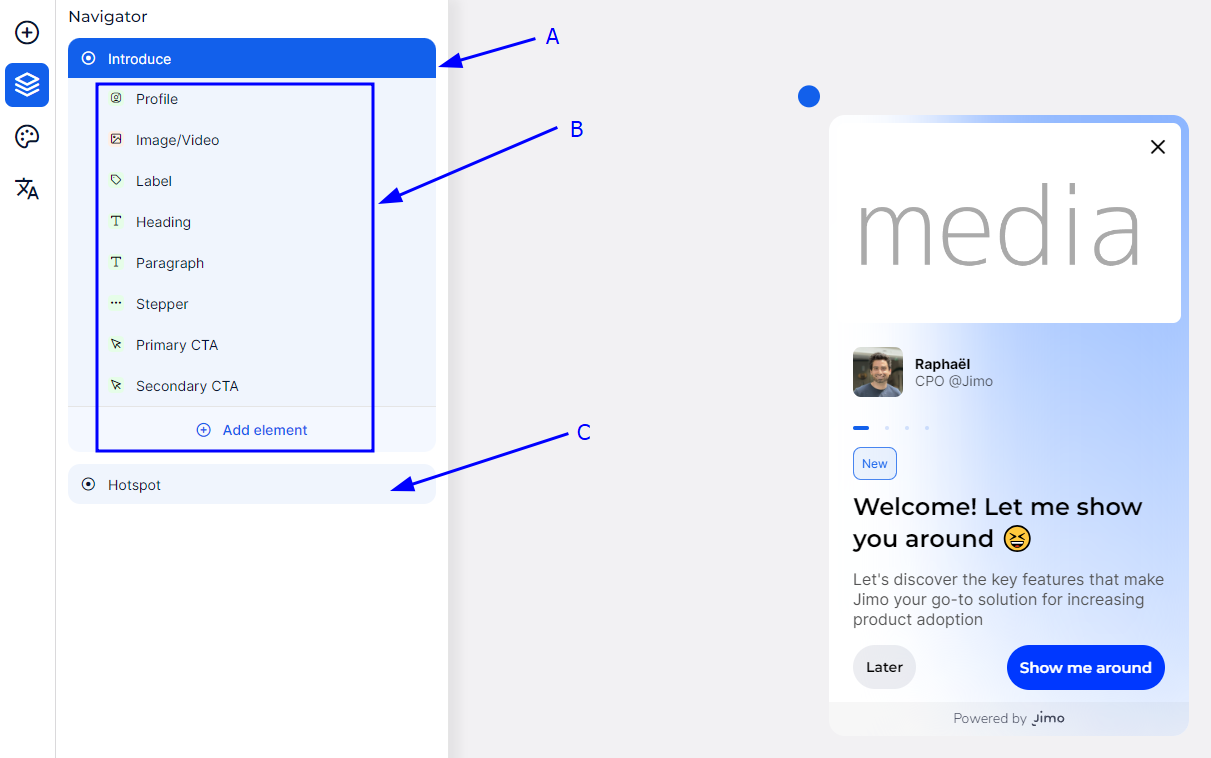
The Navigator within Jimo's Builder is a powerful tool designed to streamline the creation and organization of elements in a hint.
Hint Full Navigator
It functions as a centralized interface for managing and navigating between different components of a step and adjusting their specific parameters.
Navigator elements
* **A (Main or Parent Element)**: This is the central control for the step. It provides access to settings that determine how the step behaves and is positioned on the page. Here, you can adjust progression behaviors, like how a user moves to the next step, and how the step is visually placed.
* **B (Components of the Current Step)**: This section lists all active components within the step, such as text, images, or call-to-action buttons. It's designed for quick editing and the addition of new elements, allowing for real-time customization of step content.
* **C (Special Elements)**: Located below the main components, this area is for adding and configuring unique elements like hotspots, which focus user attention on particular aspects of the page. These elements include specialized settings for enhanced interaction.
Access element parameters
In the Jimo Builder interface, managing element-specific parameters is made straightforward:
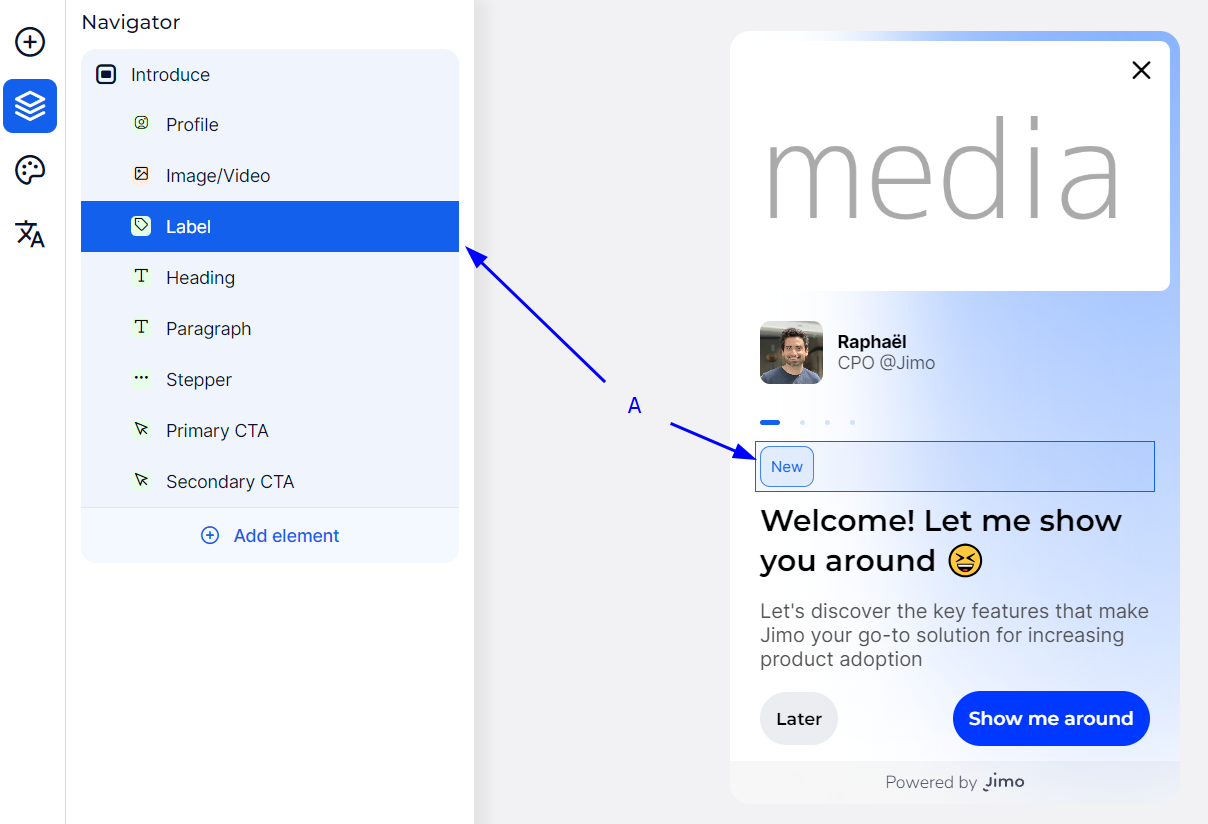
* **Navigator Selection**: You can select an element directly from the Navigator menu. When selected, the element is highlighted in a blue box (A), indicating it's ready for parameter adjustments.
* **Preview Interaction**: Alternatively, clicking an element in the live preview pane automatically highlights and selects it in the Navigator. This feature allows for immediate access to the element's settings, facilitating quick edits.