> For the complete documentation index, see [llms.txt](https://help.usejimo.com/docs/llms.txt). Markdown versions of documentation pages are available by appending `.md` to page URLs; this page is available as [Markdown](https://help.usejimo.com/docs/experiences/changelog/posts/post-navigation.md).
# Post Navigation
The Post Builder provides a streamlined interface for creating and managing your changelog posts. This guide will walk you through the main elements of the Post Builder and how to access them
## **Navbar**
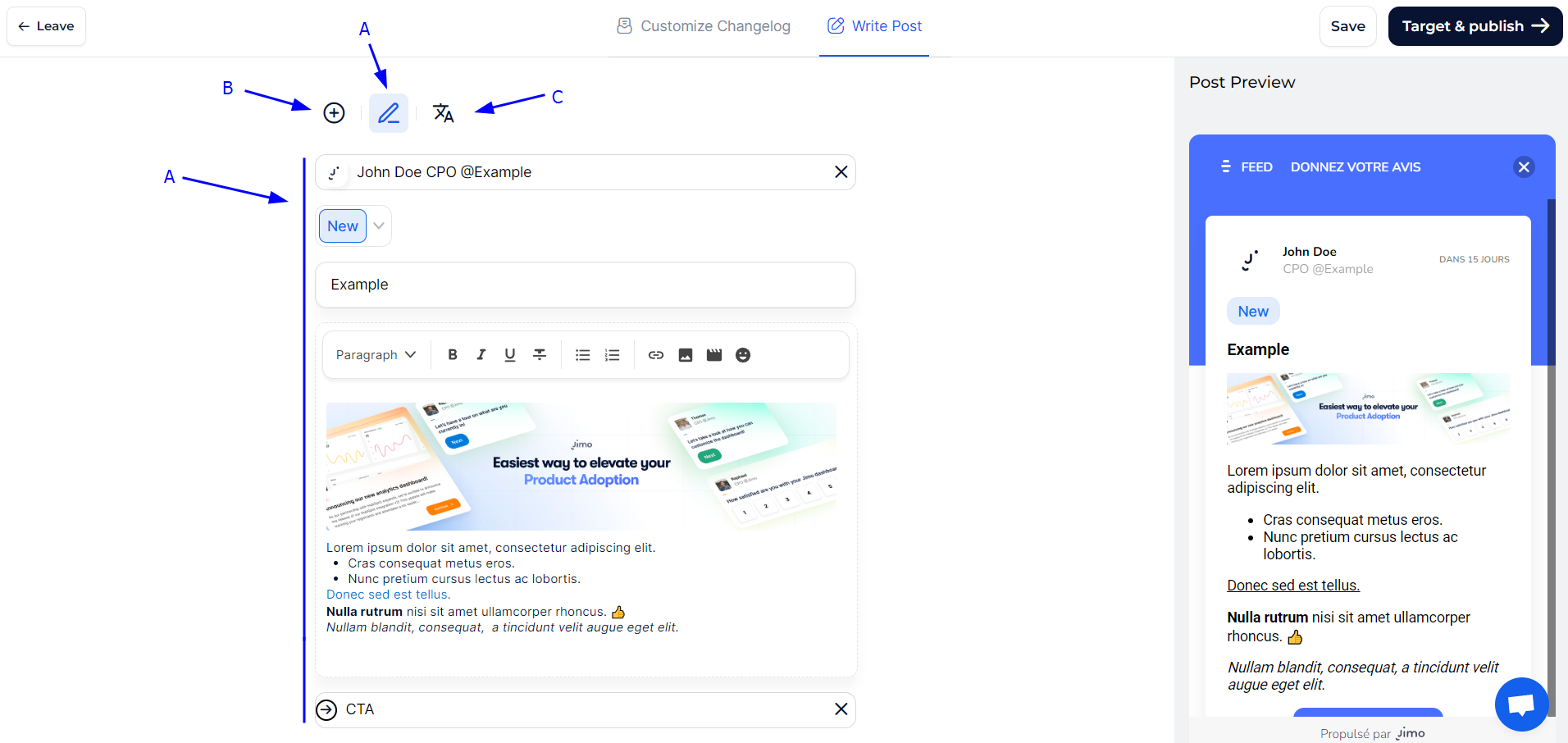
The Post Builder features a navbar that allows you to access its three main elements. Here's how to navigate through each section:
Navbar
**Navbar Elements**:
1. **Post Edition (A)**: Access this section to edit the content of your post. It is the default display when you enter the Post Builder.
2. **Add Elements (B)**: Use this tab to add various blocks to your post, enhancing its content.
3. **Manage Translations (C)**: This tab allows you to add and manage translations for your post, ensuring it reaches a wider audience.
***
### [**Post Edition**](/docs/experiences/changelog/posts/post-builder.md) **(A)**
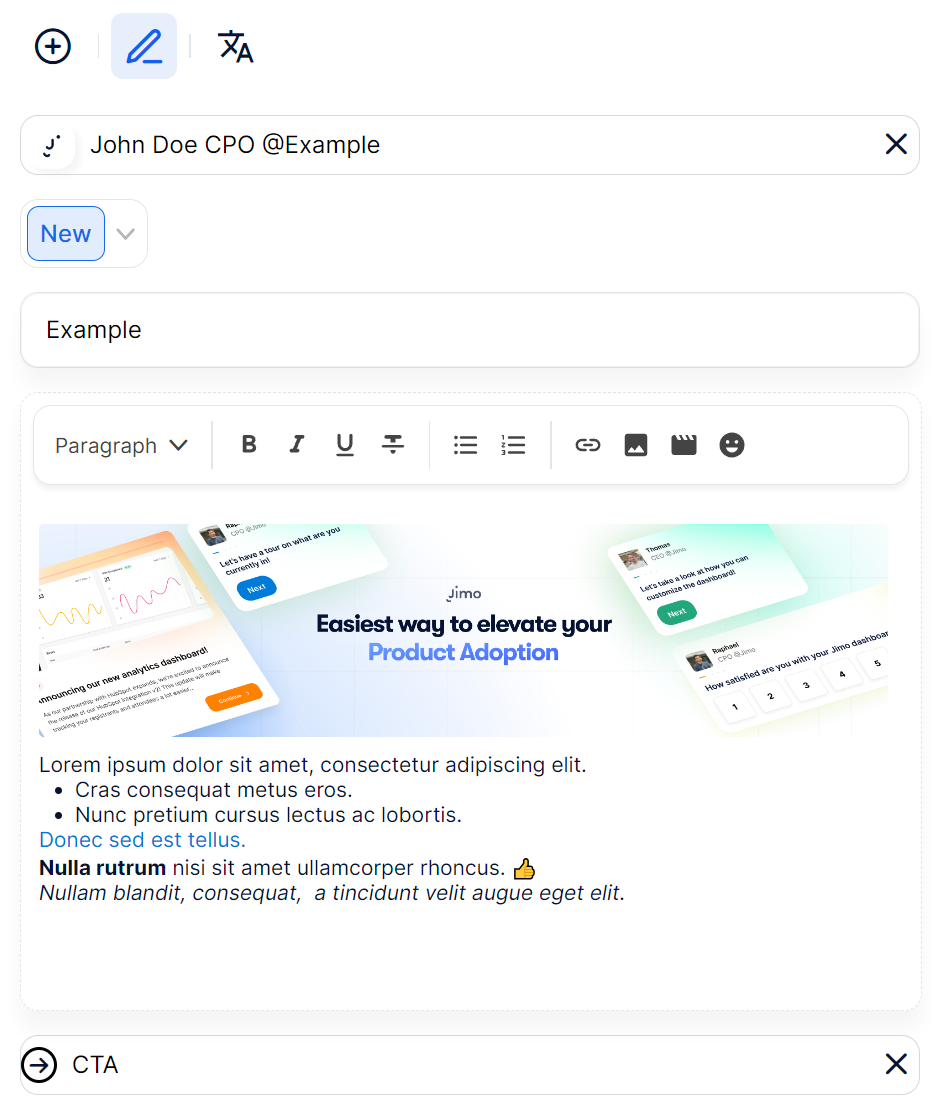
The Post Edition section is where you craft and format the main content of your post.
1. **Post Status**:
* **Purpose**: Define the status of your post, such as "New" or "Updated".
* **Steps to Customize**:
1. Click on the status dropdown and select the appropriate status for your post.
2. **Formatting Toolbar**:
* **Purpose**: Use various text formatting options to enhance your post.
* **Features**:
* **Text Styling**: Bold, italic, underline, strikethrough.
* **Lists**: Bulleted and numbered lists.
* **Alignment**: Left, center, and right alignment.
* **Insert Link**: Add hyperlinks.
* **Media Embedding**: Insert images and videos.
* **Steps to Customize**:
1. Select the text you want to format.
2. Use the toolbar to apply desired styles and insert media.
3. **Content Area**:
* **Purpose**: Write and format your content within the text area.
* **Features**:
* Add paragraphs, images, videos, and other media.
* **Steps to Customize**:
1. Click inside the content area.
2. Use the toolbar to format text and embed media.
4. **Post Preview**:
* **Purpose**: See a real-time preview of your post to ensure it looks perfect before publishing.
* **Steps to Use**:
1. As you make changes, observe the preview panel to see real-time updates.
2. Scroll through the preview to review the entire post.
5. **Save and Publish**:
* **Purpose**: Save your progress and publish the post when ready.
* **Steps to Save**:
1. Click the **Save** button to save your draft.
2. Click **Target & Publish** to set targeting options and publish your post.
***
### [**Adding Elements**](/docs/experiences/changelog/posts/post-components.md) **(B)**
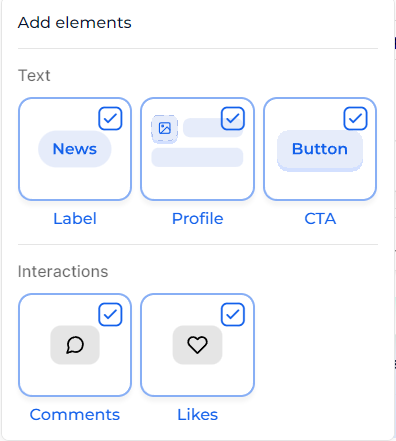
Enhance your posts with various blocks like labels, profiles, CTAs, comments, and likes.
1. **Types of Blocks**:
* **Label**: Tag and categorize information.
* **Profile**: Add a team member profile to personalize your post.
* **CTA (Call to Action)**: Prompt users to take specific actions.
* **Comments**: Allow users to leave comments.
* **Likes**: Enable a liking mechanism.
2. **Steps to Add a Block**:
1. Click the **Add Elements (B)** icon in the navbar.
2. Select the type of block you want to add.
3. Customize the block as needed.
***
### [**Managing Translations**](/docs/experiences/changelog/posts/multiple-languages.md) **(C)**
Ensure your posts are accessible to a wider audience by adding translations.
1. **Purpose**: Adapt your post content to different languages based on users' browser settings.
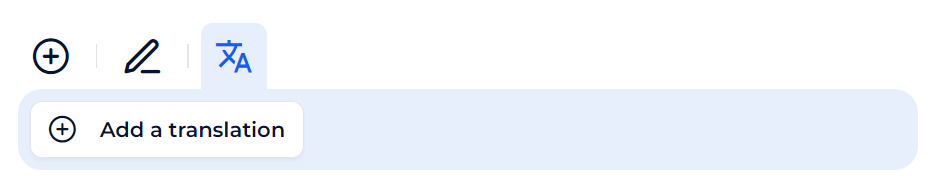
2. **Steps to Add a Translation**:
1. Click the **Manage Translations (C)** icon in the navbar.
2. Click on "+ Add a translation".
3. Start translating your content.
3. **Best Practices**:
* Use clear and accurate translations to maintain the quality and consistency of your posts.
* Regularly update translations to match any changes in the original post content.