> For the complete documentation index, see [llms.txt](https://help.usejimo.com/docs/llms.txt). Markdown versions of documentation pages are available by appending `.md` to page URLs; this page is available as [Markdown](https://help.usejimo.com/docs/experiences/agent/chat/agent-builder.md).
# Agent Builder
Customize the visual appearance and layout of the Agent chat widget. Every element of the chat interface can be styled to match your product's design.
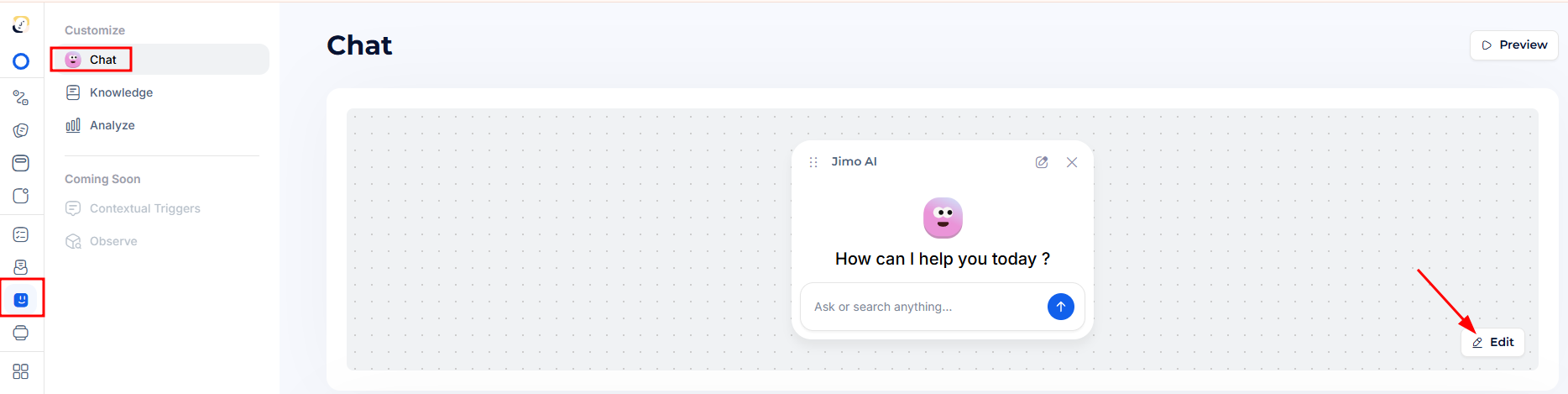
**Access:** [Agent > Chat > click the **Edit**](https://i.usejimo.com/agent-builder) button on the chat preview area.
***
## Element Tree
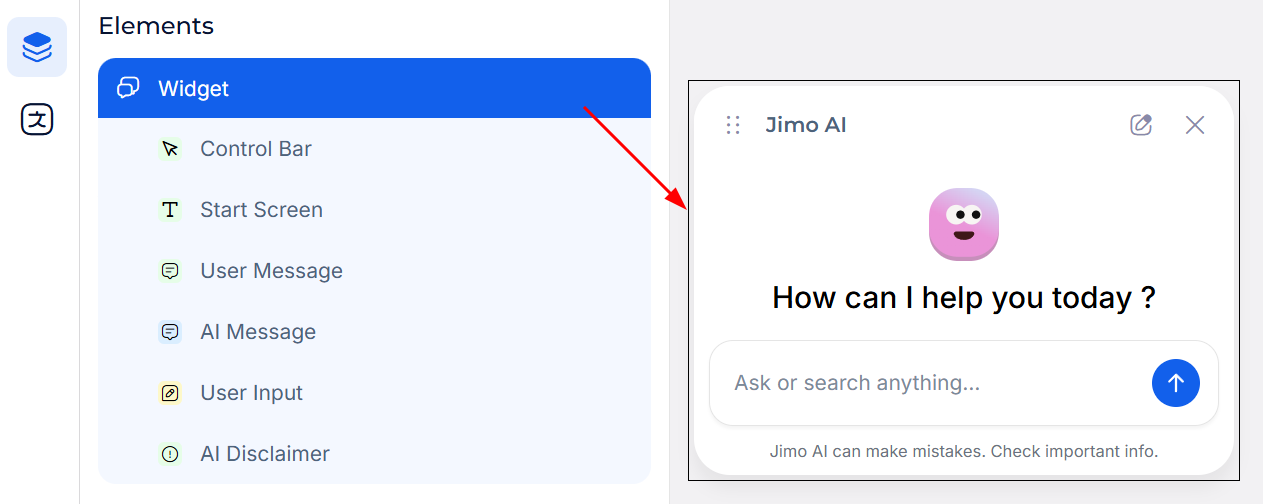
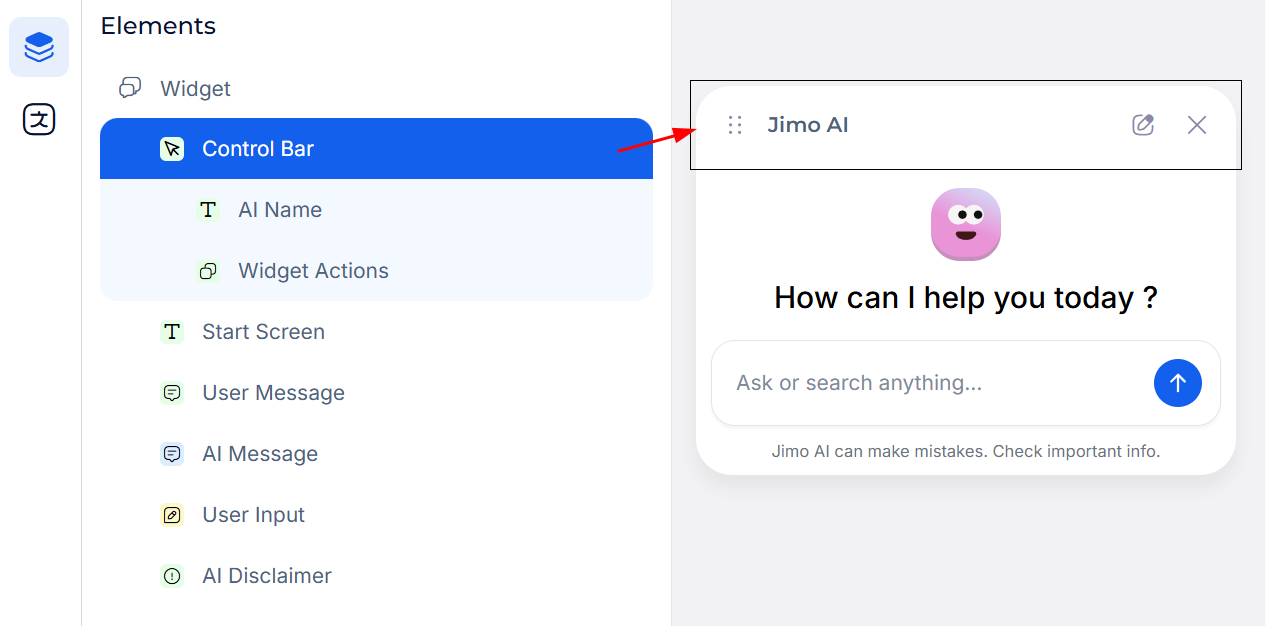
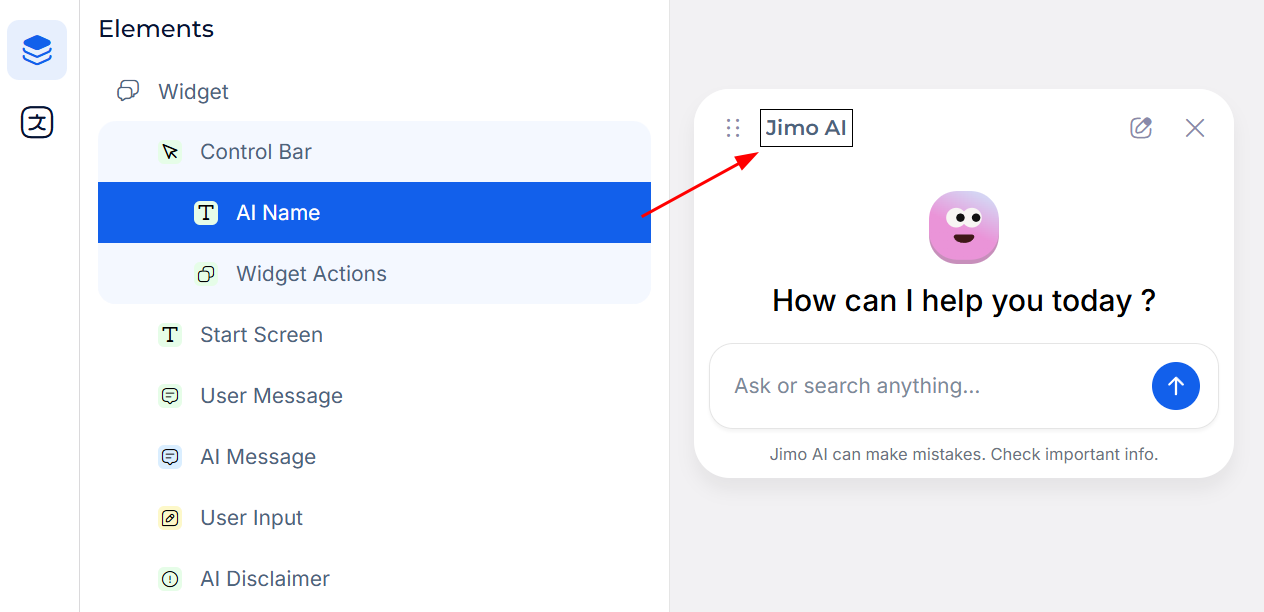
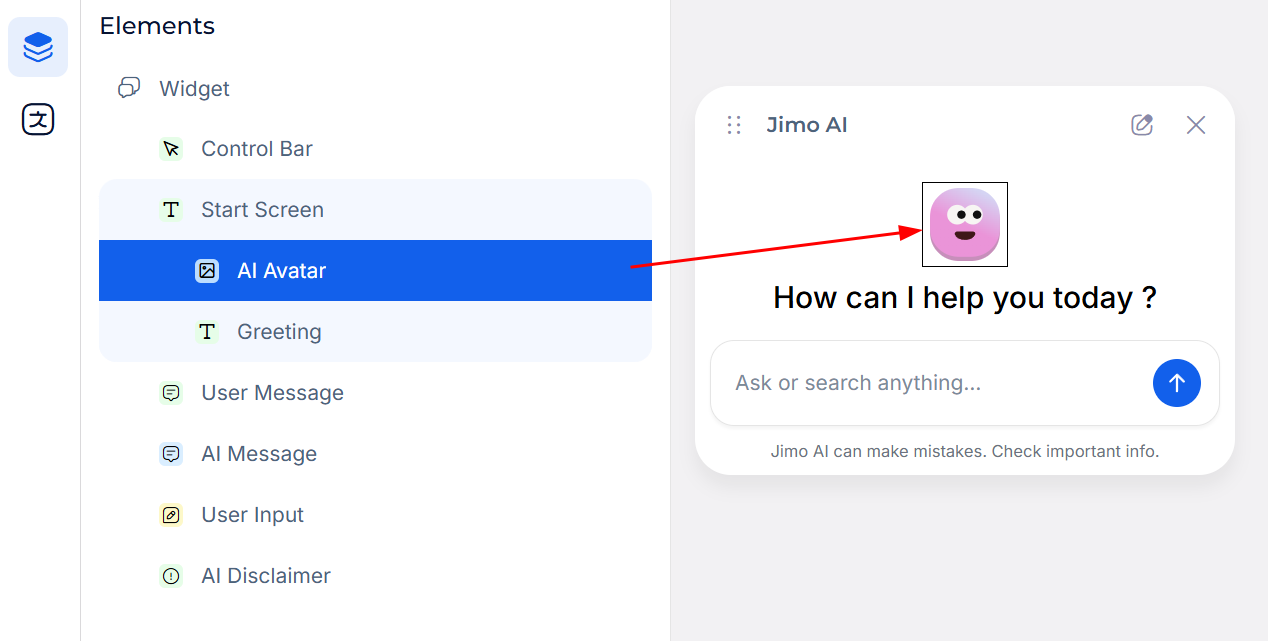
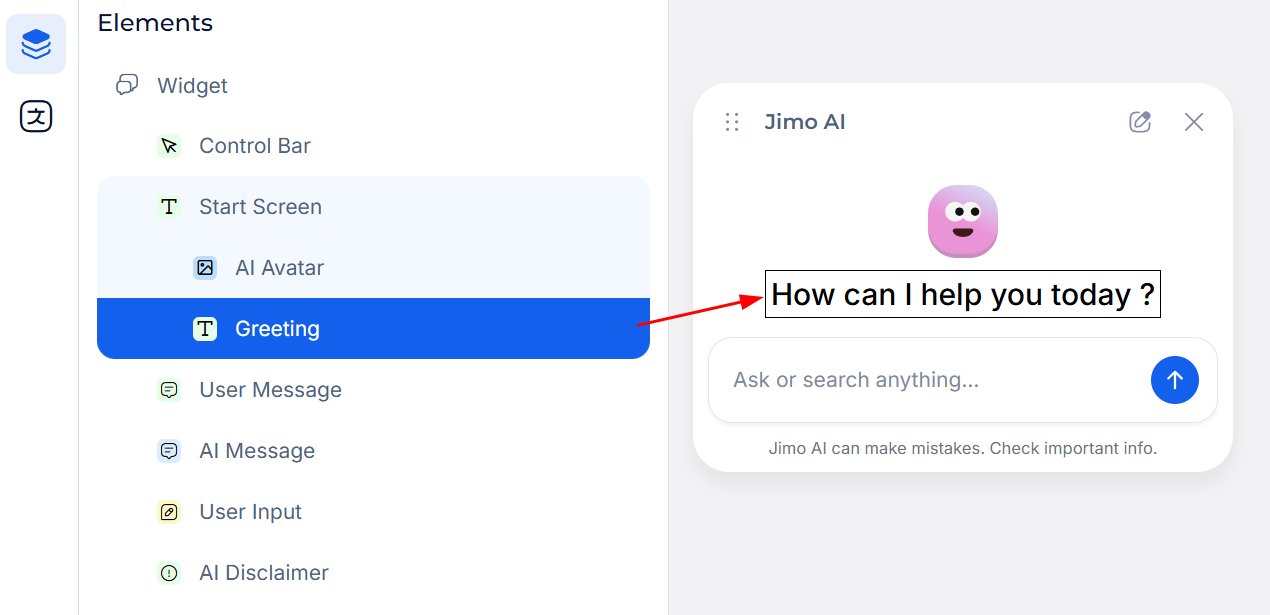
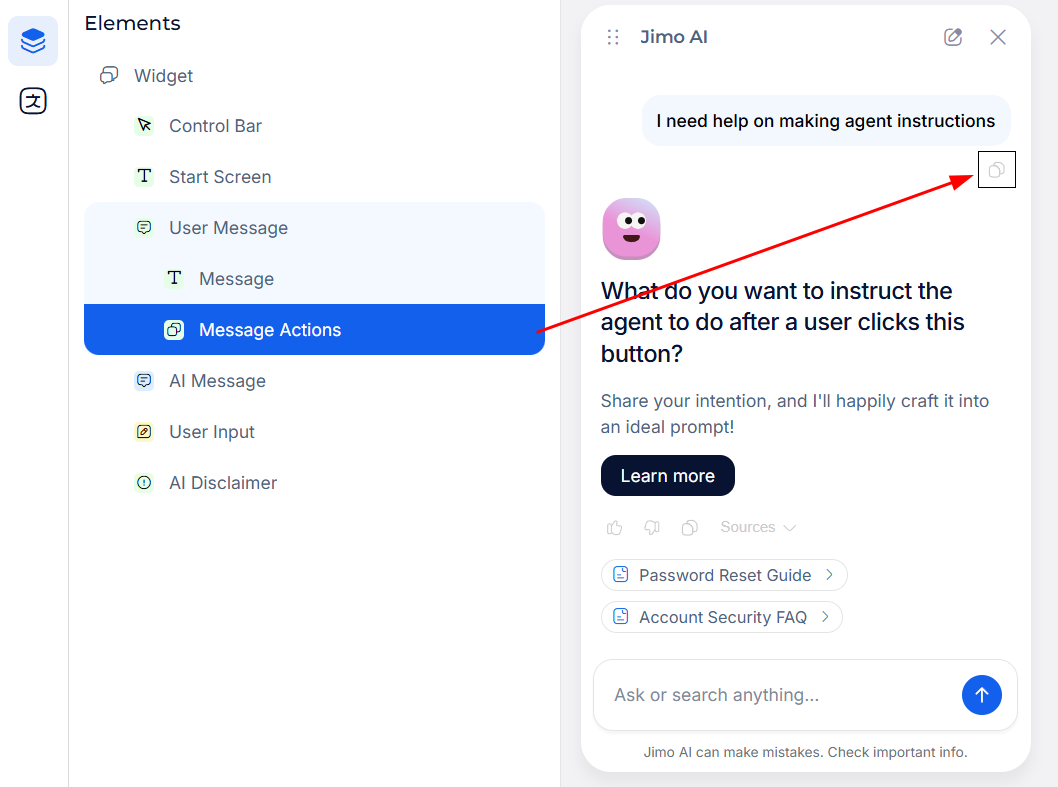
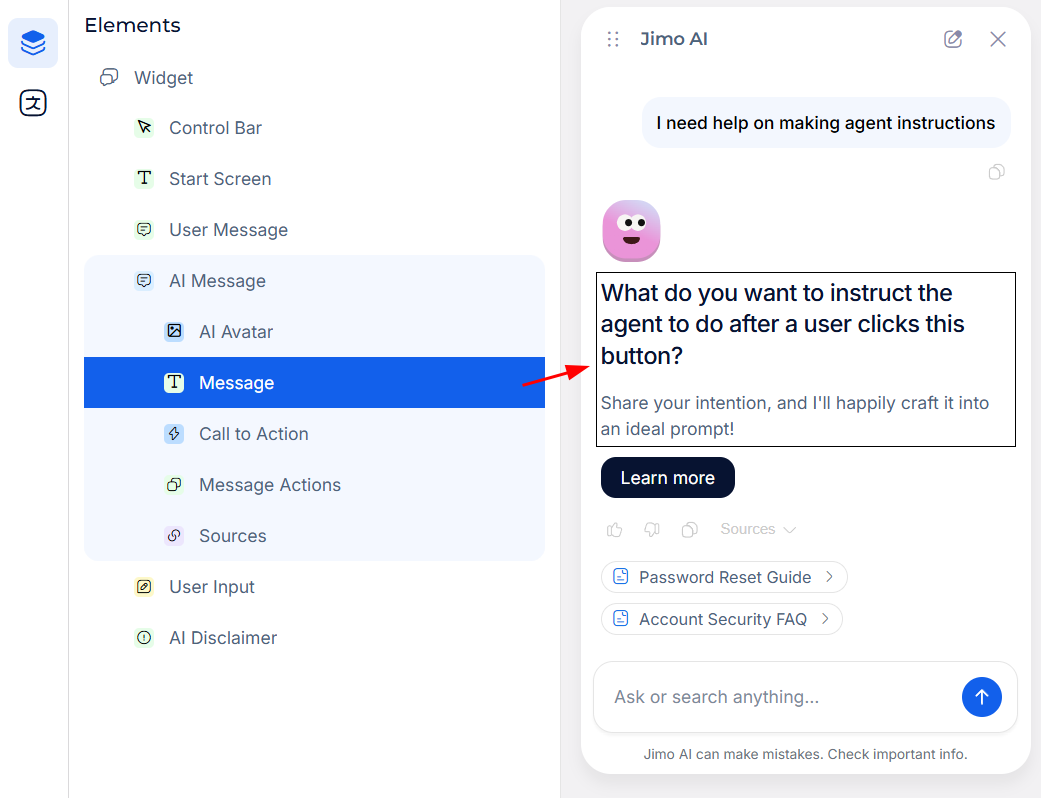
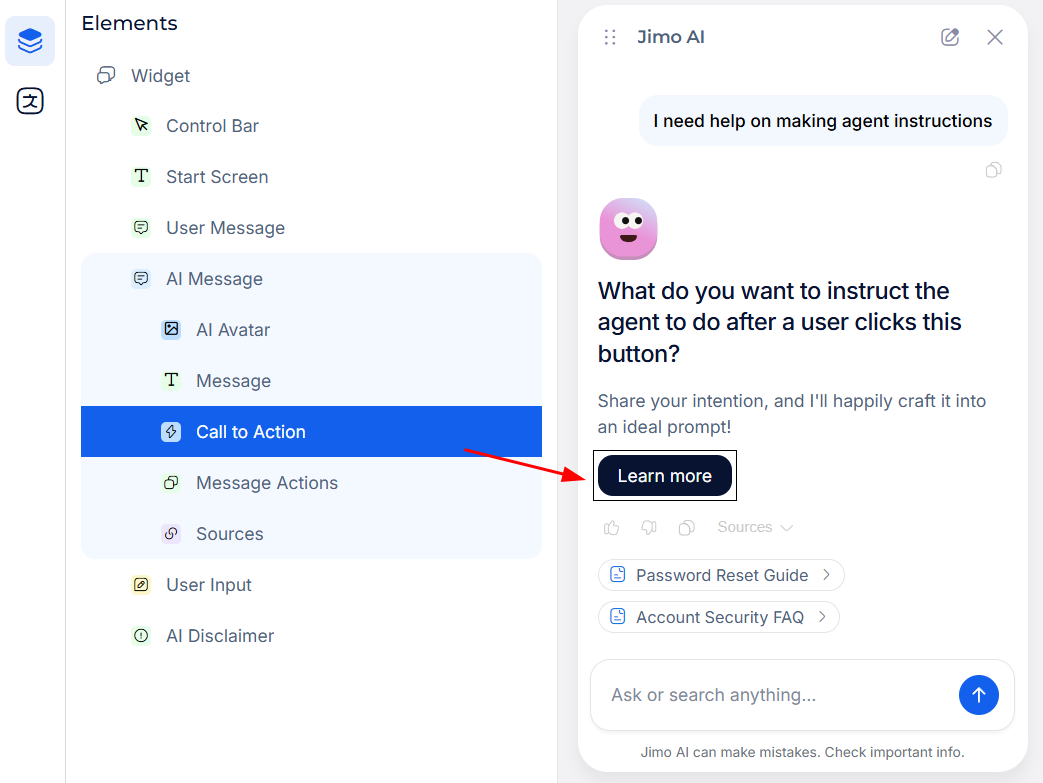
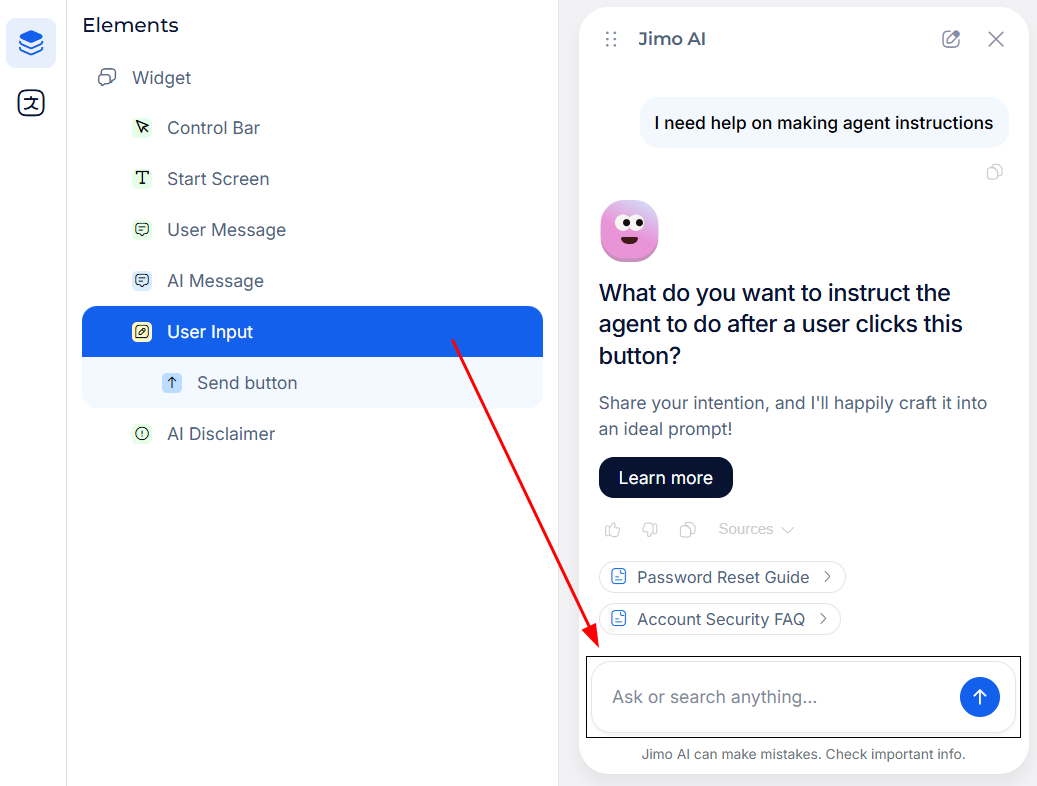
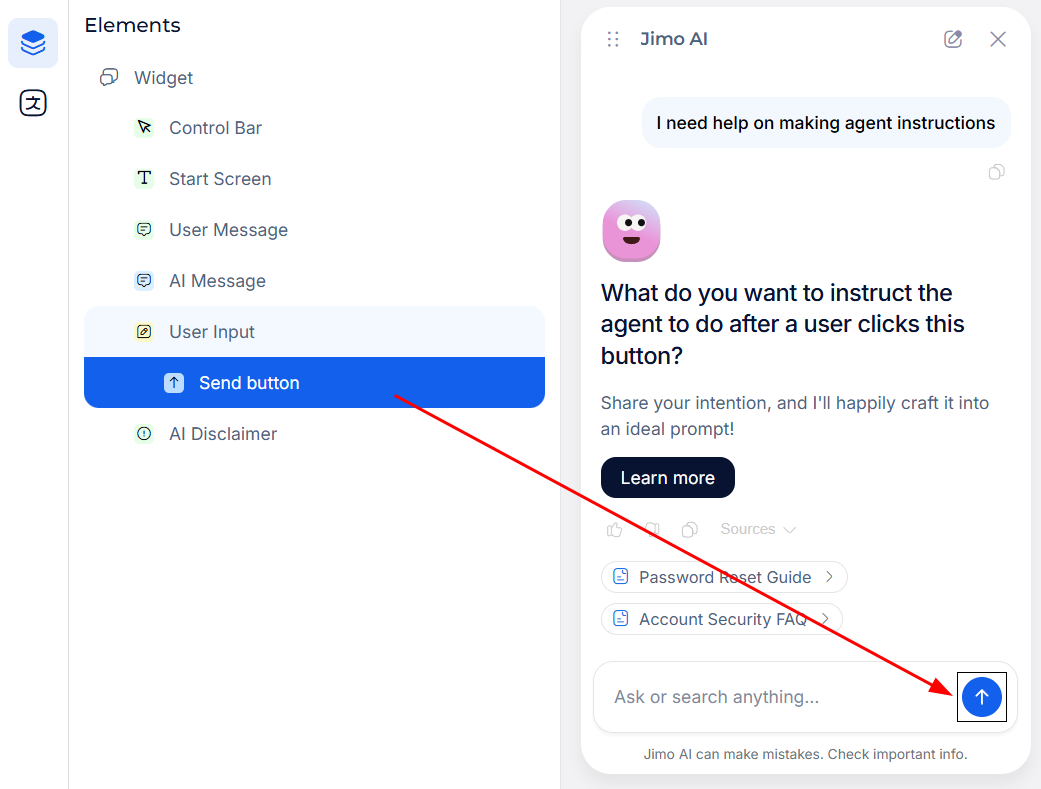
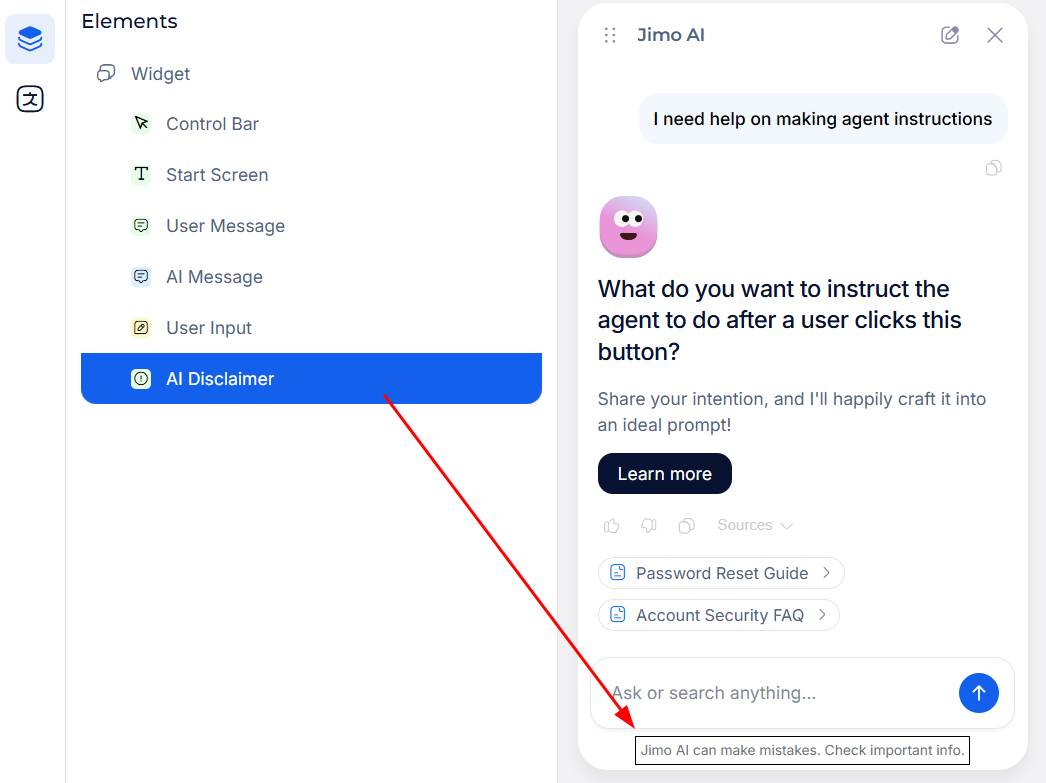
The Agent Widget consists of the following elements. Click any element in the left panel to select it and view its properties on the right.
```
Widget
├── Control Bar
│ ├── AI Name
│ └── Widget Actions
├── Start Screen
│ ├── AI Avatar
│ └── Greeting
├── User Message
│ ├── Message
│ └── Message Actions
├── AI Message
│ ├── AI Avatar
│ ├── Message
│ ├── Call to Action
│ ├── Message Actions
│ └── Sources
├── User Input
│ └── Send Button
└── AI Disclaimer
```
***
### Widget
The root element that defines the overall chat window type, position, and appearance.
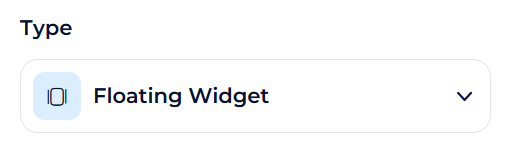
Type
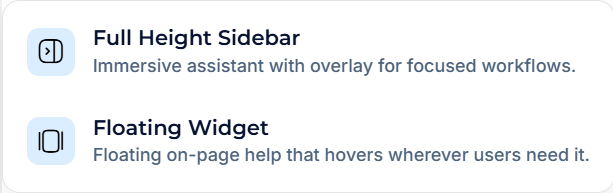
Choose the widget layout mode from the dropdown:
* **Floating Widget**: A compact chat window floating over the page. Can be repositioned by the user if Draggable is enabled.
* **Full Height Sidebar**: A sidebar that takes the full height of the viewport, anchored to one side of the screen.
The Type you choose determines which properties are available below (e.g. Height and Offset only exist for Floating Widget).
Behavior
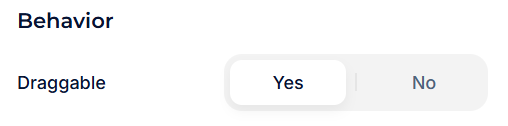
* **Draggable** (Yes / No): When enabled, end-users can click and drag the chat widget to reposition it on screen. Only available in Floating Widget mode.
Position
**Or**
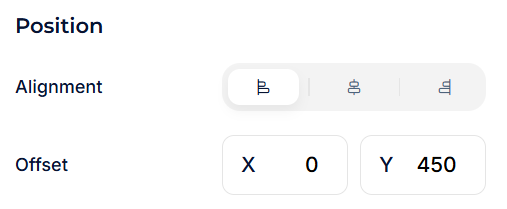
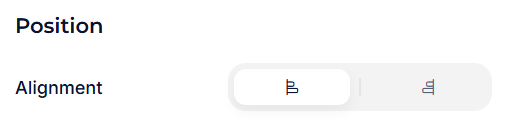
* **Alignment**: Left, Center *(Floating Widget only)*, or Right alignment of the widget on screen.
* **Offset** *(Floating Widget only)*: Fine-tune the exact position with X and Y pixel values.
* *X*: Horizontal offset in pixels (e.g. `200`).
* *Y*: Vertical offset in pixels (e.g. `450`).
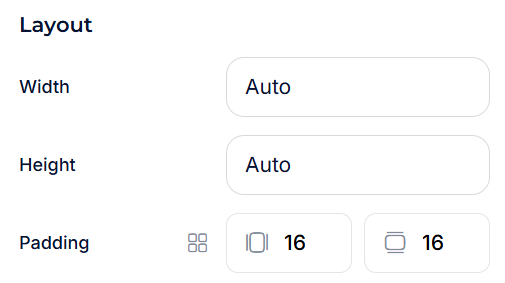
Layout
* **Width**: Auto (adjusts to content) or a fixed pixel value.
* **Height** *(Floating Widget only)*: Auto or a fixed pixel value.
* **Padding**: Internal spacing around the widget content.
* Four independent values (top, right, bottom, left) or linked toggle for uniform padding.
* *Direct Input*: Enter pixel values (e.g. `16`, `16`).
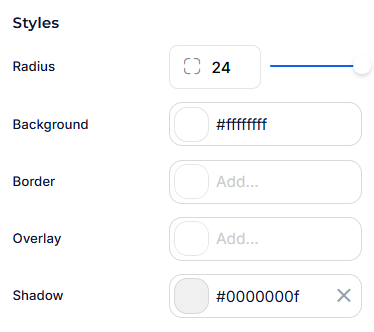
Styles
* **Radius** *(Floating Widget only)*: Border roundness of the widget window.
* *Slider Input*: Increase or decrease corner rounding.
* *Direct Input*: Enter a pixel value (e.g. `8`).
* **Background**: Background color of the widget.
* *Color Picker*: Select any color using the visual picker.
* *Hex Input*: Enter a hex code (e.g. `#ffffffff`).
* *RGBA*: Fine-tune with individual R, G, B, A values.
* *Presets*: Select from a grid of preset colors.
* **Border**: Border color around the widget.
* Same color controls as above (e.g. `#0000003d`).
* Click X to remove.
* **Overlay**: Background overlay color when the chat is open. Darkens the page behind the widget.
* Same color controls as above (e.g. `#505050ff`).
* Click X to remove.
* **Shadow**: Drop shadow on the widget.
* *Color*: Set the shadow color using the color picker (Hex, RGBA, or presets). E.g. `#0000000f`.
* *X*: Horizontal offset in pixels.
* *Y*: Vertical offset in pixels.
* *Blur*: Blur radius in pixels.
* Click X to remove.
***
### Control Bar
The top bar of the chat widget containing the agent name and action buttons.
Layout
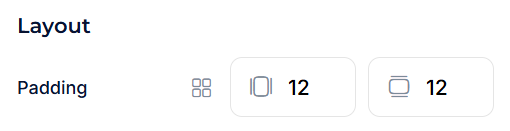
**Padding**: Internal spacing of the control bar.
* *Direct Input*: Enter pixel values (e.g. `12`, `12`). Linked/unlinked toggle.
Styles
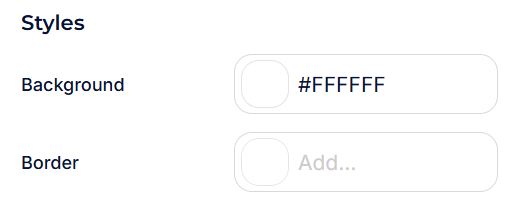
* **Background**: Background color of the control bar.
* *Color Picker*: Visual picker, Hex input (e.g. `#FFFFFF`), RGBA, presets.
* **Border**: Bottom border of the control bar.
* Click "Add..." to define a color, or leave empty for no border.
#### AI Name
The display name shown in the control bar header (e.g. "Jimo AI").
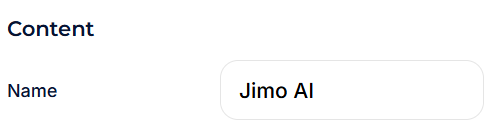
Content
* **Name**: The text displayed as the agent name (e.g. "Jimo AI"). This is what users see at the top of the chat.
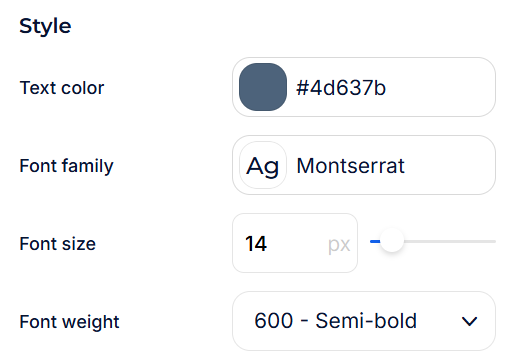
Style
* **Text color**: Color of the name text.
* *Color Picker*: Visual picker, Hex input (e.g. `#4d637b`), RGBA, presets.
* **Font family**: Font used for the name.
* *Dropdown*: Choose from available fonts (e.g. `Montserrat`).
* **Font size**: Size in pixels.
* *Direct Input*: Enter a value (e.g. `14`).
* **Font weight**: Text boldness.
* *Dropdown*: Choose from available weights (e.g. `600 - Semi-bold`).
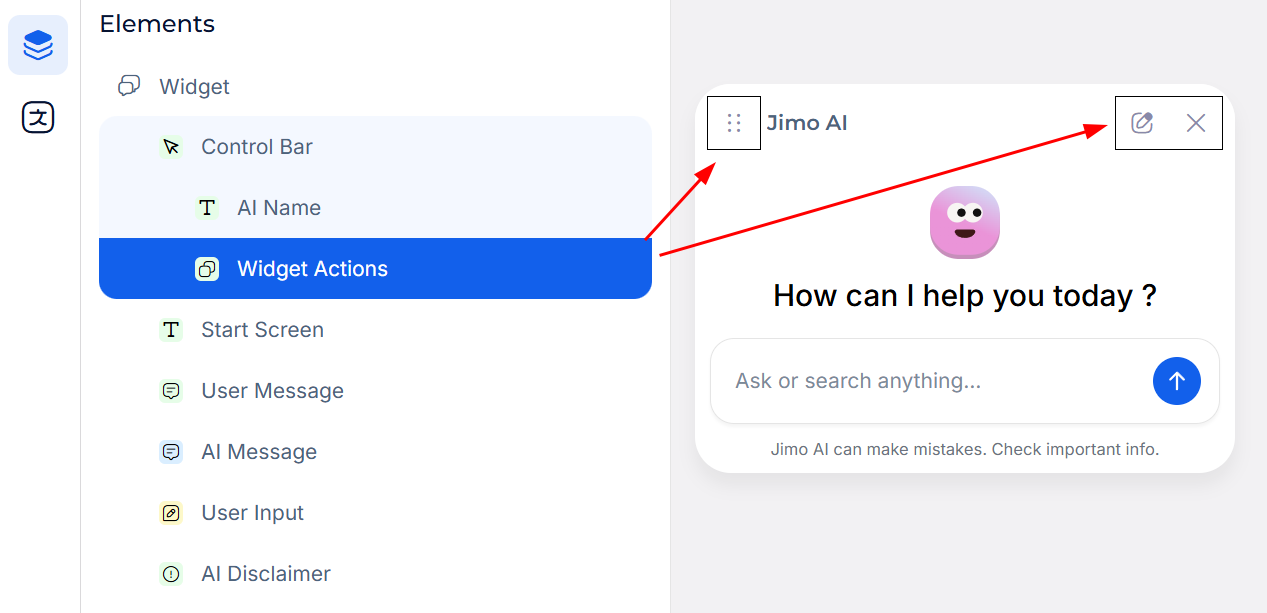
#### Widget Actions
The action icons in the control bar (edit prompt icon, close X button).
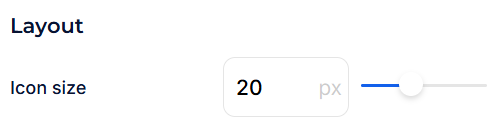
Layout
**Icon size**: Size of the action icons in pixels.
* *Direct Input*: Enter a value (e.g. `20`).
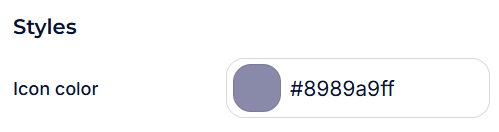
Styles
**Icon color**: Color of the action icons.
* *Color Picker*: Visual picker, Hex input (e.g. `#8989a9ff`), RGBA, presets.
***
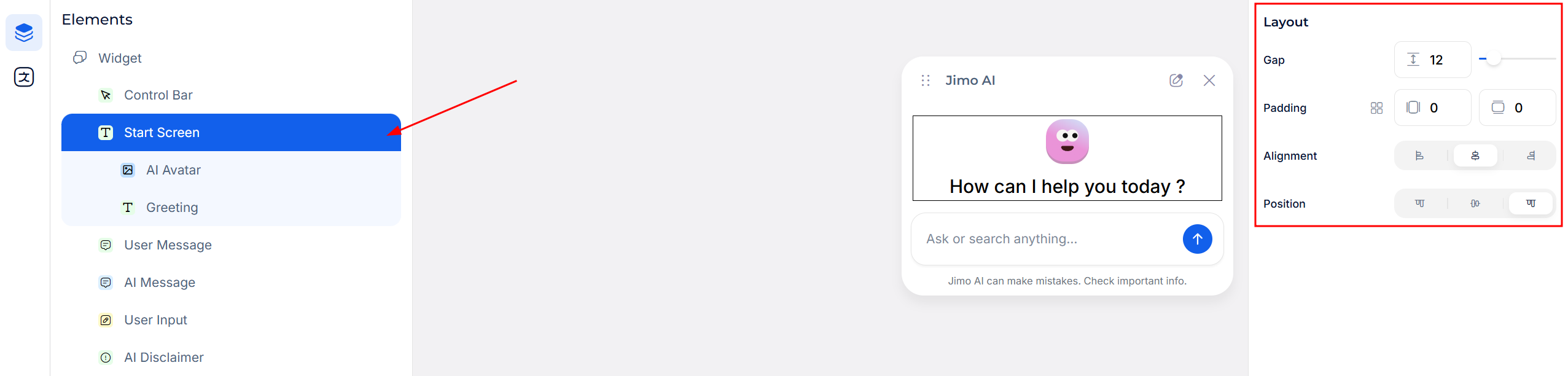
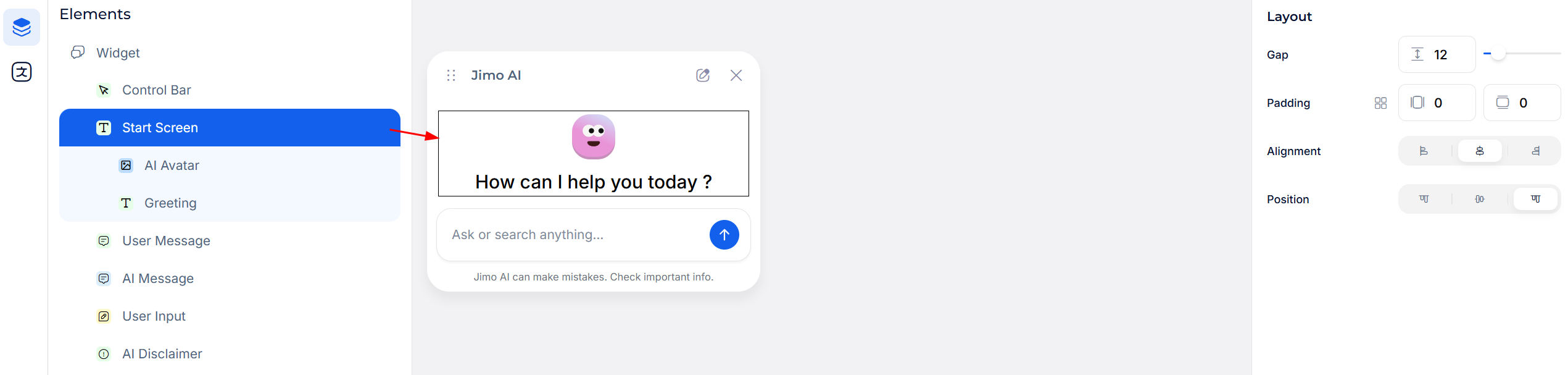
### Start Screen
The initial view displayed when the chat opens, before the user sends a message. Contains the avatar and a greeting.
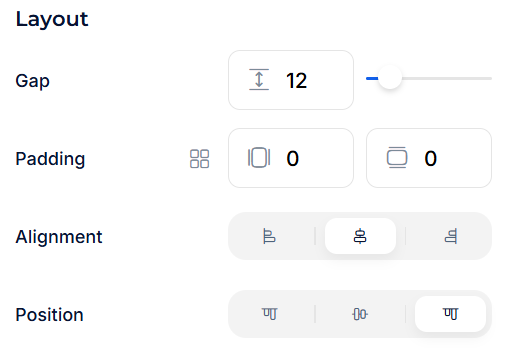
Layout
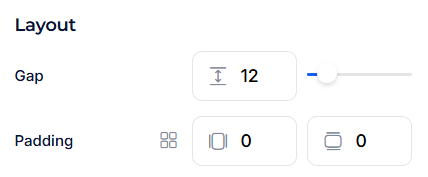
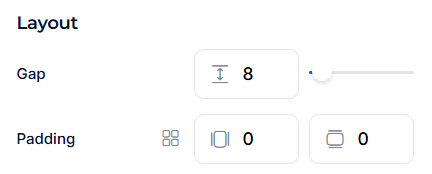
* **Gap**: Spacing between the avatar and the greeting text.
* *Direct Input*: Enter a pixel value (e.g. `12`).
* **Padding**: Internal spacing around the start screen content.
* *Direct Input*: Four values (e.g. `0`, `0`). Linked/unlinked toggle.
* **Alignment**: Horizontal alignment of the start screen content.
* Left, Center, or Right.
* **Position**: Vertical positioning within the widget.
* Top, Center, or Bottom.
#### AI Avatar
The avatar image displayed on the start screen above the greeting.
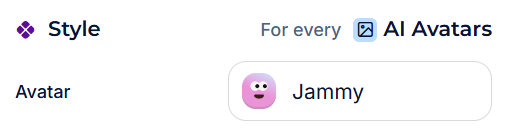
Style
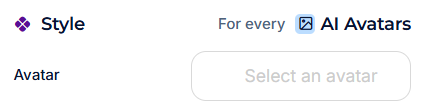
Applied globally ("For every AI Avatars"). This setting also affects the AI Avatar in AI Message responses.
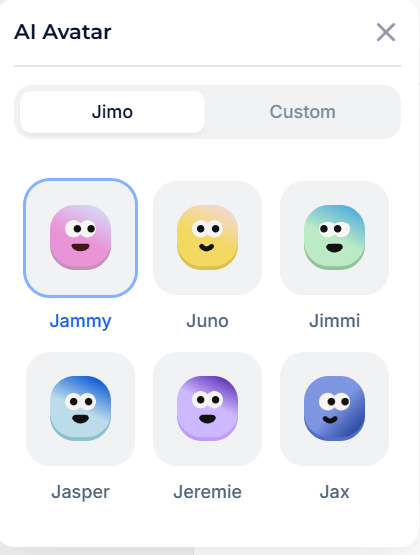
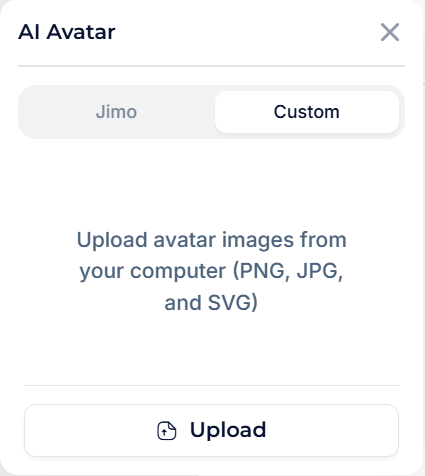
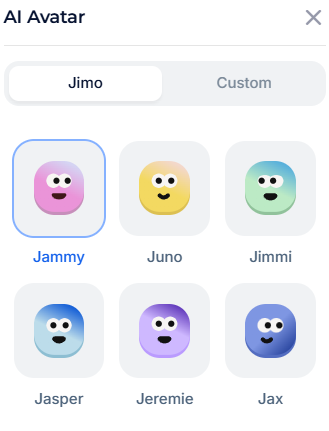
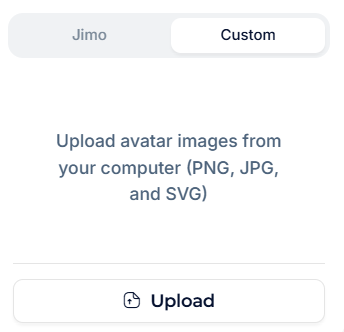
* **Avatar**: Upload a custom avatar image (click to browse), or use the default Jimo avatar. Displays as "Custom Avatar" when a custom image is set.
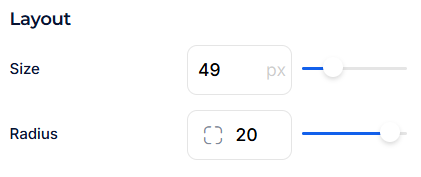
Layout
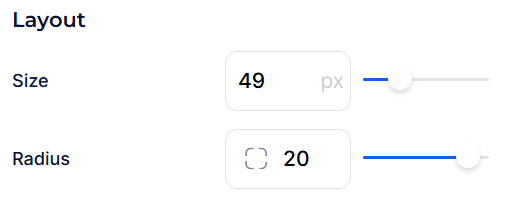
* **Size**: Avatar dimensions in pixels.
* *Direct Input*: Enter a value (e.g. `49`).
* **Radius**: Border roundness of the avatar.
* *Slider Input*: Increase or decrease rounding.
* *Direct Input*: Enter a pixel value (e.g. `20`).
#### Greeting
The welcome text displayed below the avatar on the start screen.
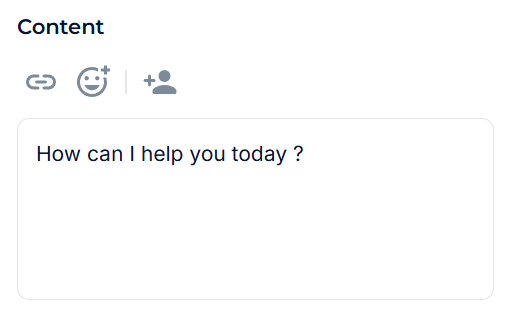
Content
A text editor for the greeting message. Supports:
* Plain text (e.g. "How can I help you today?")
* **Links** (chain icon): Insert clickable links in the greeting.
* **Emojis** (smiley icon): Add emojis for a friendlier tone.
* **Attributes** (person icon): Insert dynamic user attributes for personalized greetings (e.g. "Hi {user\_name}, how can I help?").
Style
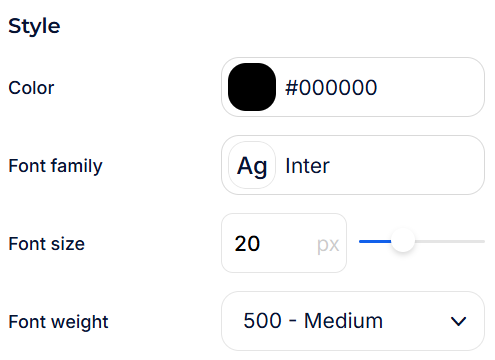
* **Color**: Text color of the greeting.
* *Color Picker*: Visual picker, Hex input (e.g. `#000000`), RGBA, presets.
* **Font family**: Font used for the greeting.
* *Dropdown*: Choose from available fonts (e.g. `Inter`).
* **Font size**: Size in pixels.
* *Direct Input*: Enter a value (e.g. `20`).
* **Font weight**: Text boldness.
* *Dropdown*: Choose from available weights (e.g. `500 - Medium`).
***
### User Message
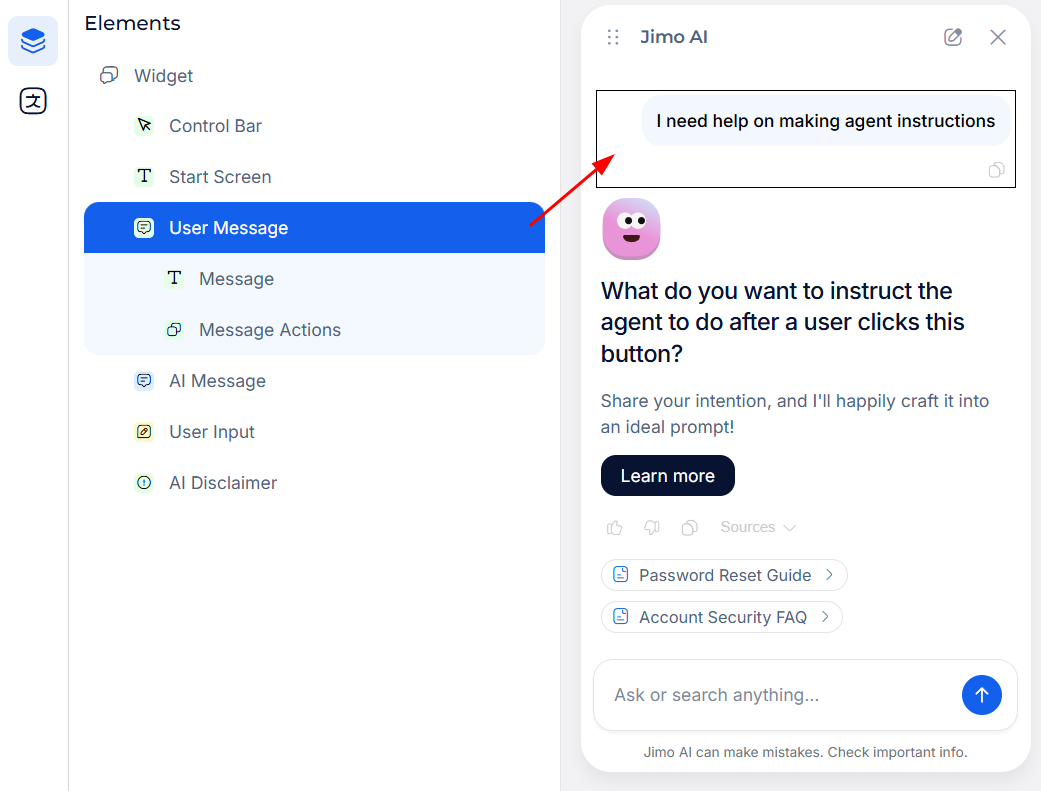
Controls the appearance of messages sent by the user. Contains the message bubble and action icons.
Layout
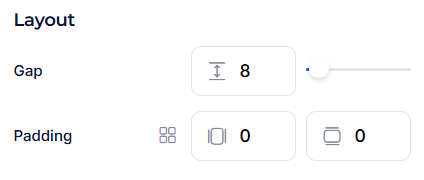
* **Gap**: Spacing between the message bubble and the action icons below.
* *Direct Input*: Enter a pixel value (e.g. `8`).
* **Padding**: External spacing around the user message block.
* *Direct Input*: Four values (e.g. `0`, `0`). Linked/unlinked toggle.
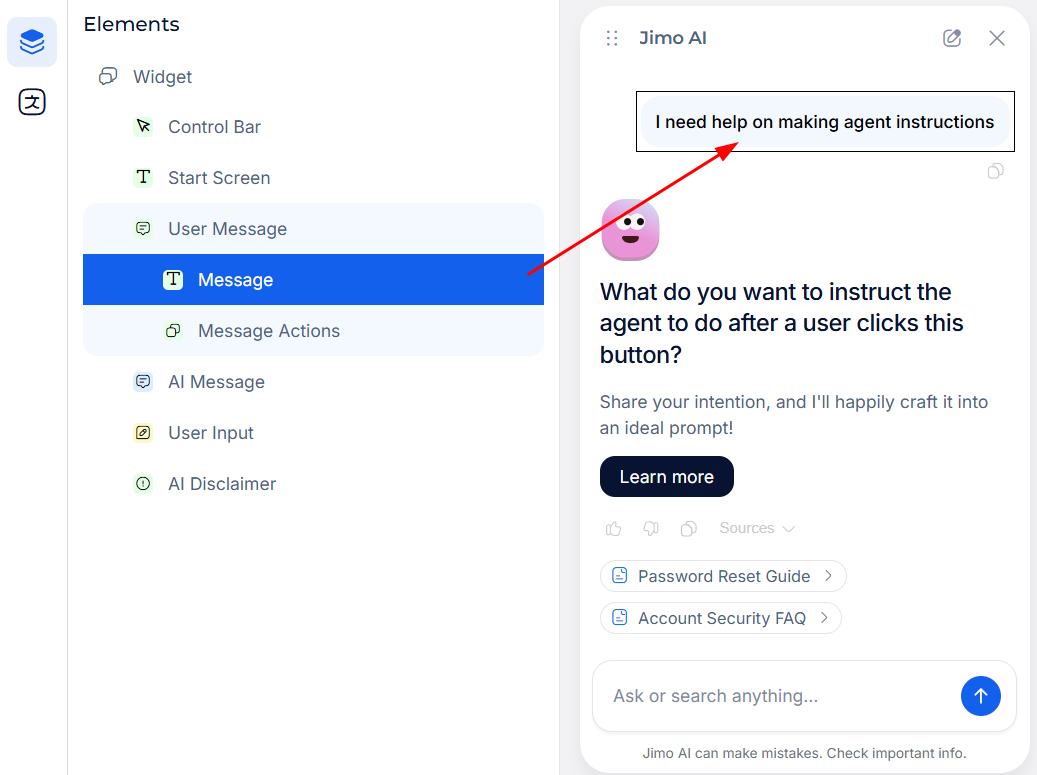
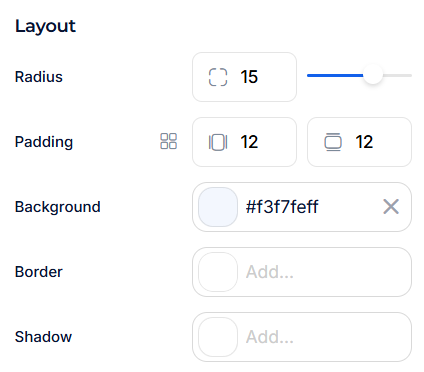
#### Message
The user's message bubble.
Layout
* **Radius**: Border roundness of the message bubble.
* *Slider Input*: Increase or decrease rounding.
* *Direct Input*: Enter a pixel value (e.g. `15`).
* **Padding**: Internal spacing inside the bubble.
* *Direct Input*: Four values (e.g. `12`, `12`). Linked/unlinked toggle.
* **Background**: Bubble background color.
* *Color Picker*: Visual picker, Hex input (e.g. `#f3f7feff`), RGBA, presets.
* Click X to remove.
* **Border**: Border color around the bubble.
* Click "Add..." to define a color, or leave empty for no border.
* **Shadow**: Drop shadow on the bubble.
* *Color*: Set shadow color (Hex, RGBA, or presets).
* *X*: Horizontal offset in pixels.
* *Y*: Vertical offset in pixels.
* *Blur*: Blur radius in pixels.
* Click "Add..." to define, or X to remove.
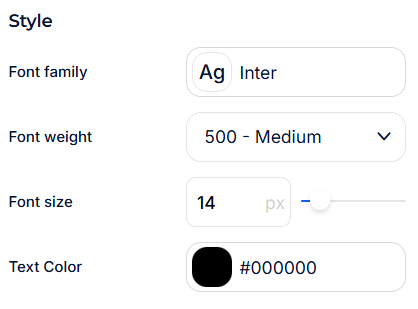
Style
* **Font family**: Font used for user messages.
* *Dropdown*: Choose from available fonts (e.g. `Inter`).
* **Font weight**: Text boldness.
* *Dropdown*: Choose from available weights (e.g. `500 - Medium`).
* **Font size**: Size in pixels.
* *Direct Input*: Enter a value (e.g. `14`).
* **Text Color**: Color of the user's message text.
* *Color Picker*: Visual picker, Hex input (e.g. `#000000`), RGBA, presets.
#### Message Actions
The action icons next to user messages (copy button).
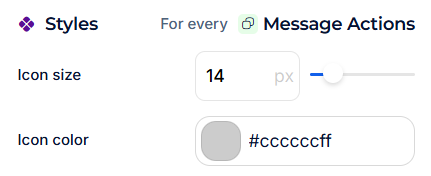
Styles
Applied globally ("For every Message Actions"). This setting also affects Message Actions in AI Message.
* **Icon size**: Size of the action icons in pixels.
* *Direct Input*: Enter a value (e.g. `14`).
* **Icon color**: Color of the action icons.
* *Color Picker*: Visual picker, Hex input (e.g. `#ccccccff`), RGBA, presets.
***
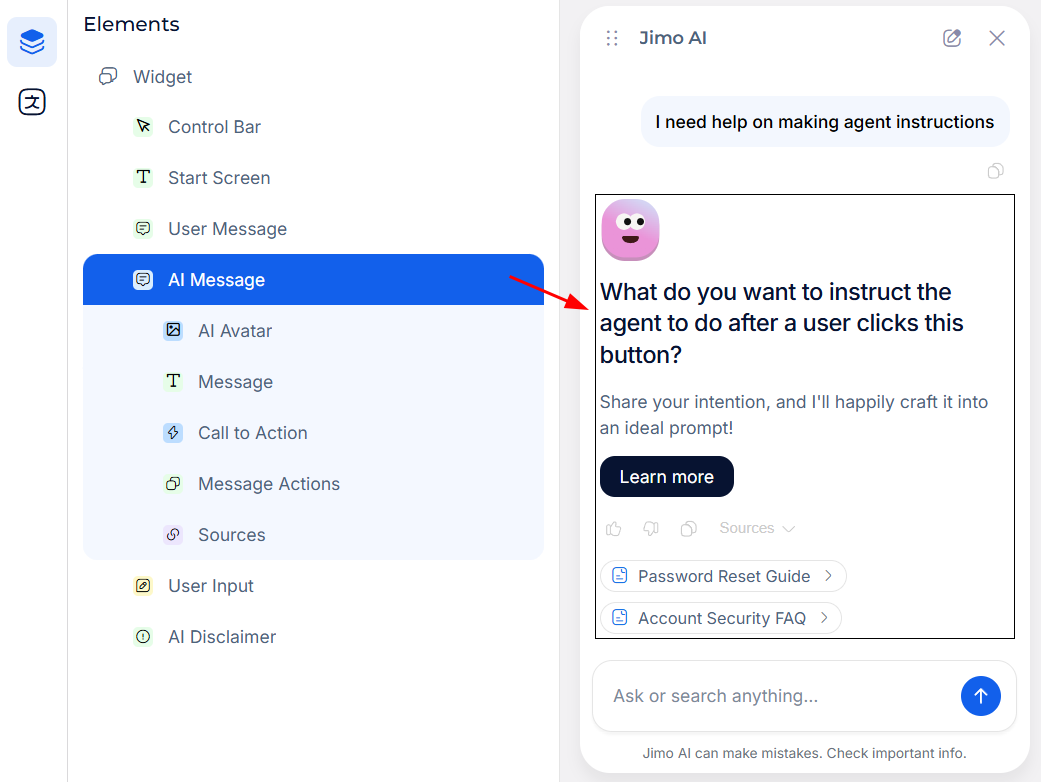
### AI Message
Controls the appearance of the Agent's responses. Contains the avatar, message text, call to action buttons, feedback icons, and source links.
Layout
* **Gap**: Spacing between elements inside the AI message block (avatar, message, CTA, actions, sources).
* *Direct Input*: Enter a pixel value (e.g. `12`).
* **Padding**: External spacing around the AI message block.
* *Direct Input*: Four values (e.g. `0`, `0`). Linked/unlinked toggle.
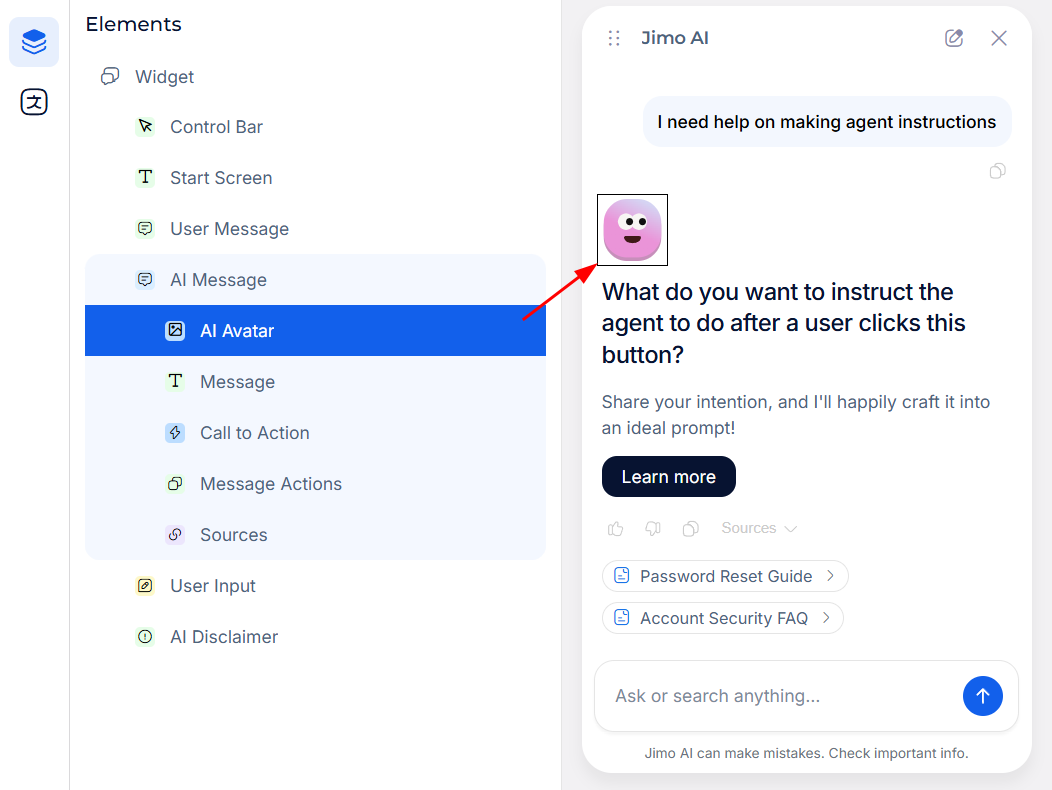
#### AI Avatar
The avatar displayed next to the Agent's responses.
Style
Applied globally ("For every AI Avatars"). Shared with the Start Screen avatar.
* **Avatar**: Upload a custom avatar image, or use the default. Changing it here updates the Start Screen avatar as well.
Layout
* **Size**: Avatar dimensions in pixels.
* *Direct Input*: Enter a value (e.g. `49`).
* **Radius**: Border roundness.
* *Slider Input*: Increase or decrease rounding.
* *Direct Input*: Enter a pixel value (e.g. `20`).
#### Message
The Agent's response content. Supports separate styling for the title (main answer heading) and body (detailed text).
Layout
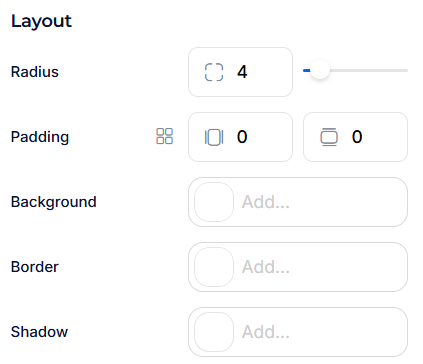
* **Radius**: Border roundness of the message area.
* *Slider Input*: Increase or decrease rounding.
* *Direct Input*: Enter a pixel value (e.g. `4`).
* **Padding**: Internal spacing.
* *Direct Input*: Four values (e.g. `0`, `0`). Linked/unlinked toggle.
* **Background**: Background color of the message area.
* Click "Add..." to define a color. Hex, RGBA, or presets.
* **Border**: Border color.
* Click "Add..." to define a color.
* **Shadow**: Drop shadow.
* *Color*: Hex, RGBA, or presets. *X/Y/Blur*: Pixel values.
* Click "Add..." to define, or X to remove.
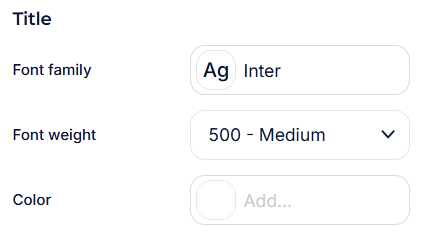
Title
Controls the main heading text of the Agent's response.
* **Font family**: Font used for the title.
* *Dropdown*: Choose from available fonts (e.g. `Inter`).
* **Font weight**: Title boldness.
* *Dropdown*: Choose from available weights (e.g. `500 - Medium`).
* **Color**: Title text color.
* Click "Add..." to define. Hex, RGBA, or presets.
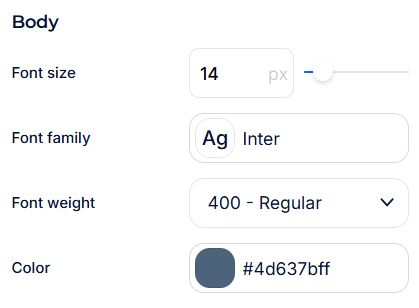
Body
Controls the detail/description text below the title.
* **Font size**: Size in pixels.
* *Direct Input*: Enter a value (e.g. `14`).
* **Font family**: Font used for the body.
* *Dropdown*: Choose from available fonts (e.g. `Inter`).
* **Font weight**: Body text boldness.
* *Dropdown*: Choose from available weights (e.g. `400 - Regular`).
* **Color**: Body text color.
* *Color Picker*: Visual picker, Hex input (e.g. `#4d637bff`), RGBA, presets.
#### Call to Action
The CTA button displayed in the Agent's response (e.g. "Learn more"). Appears when the Agent suggests an action or links to a resource.
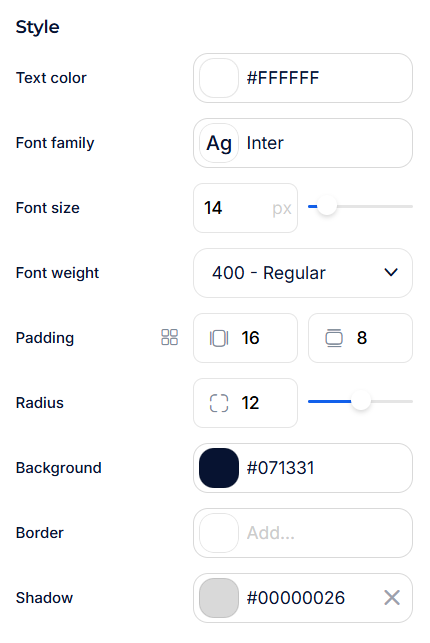
Style
* **Text color**: CTA button text color.
* *Color Picker*: Visual picker, Hex input (e.g. `#FFFFFF`), RGBA, presets.
* **Font family**: Font used for the CTA text.
* *Dropdown*: Choose from available fonts (e.g. `Inter`).
* **Font size**: Size in pixels.
* *Direct Input*: Enter a value (e.g. `14`).
* **Font weight**: CTA text boldness.
* *Dropdown*: Choose from available weights (e.g. `400 - Regular`).
* **Padding**: Internal spacing of the button.
* *Direct Input*: Four values (e.g. `16`, `8`). Linked/unlinked toggle.
* **Radius**: Border roundness of the button.
* *Slider Input*: Increase or decrease rounding.
* *Direct Input*: Enter a pixel value (e.g. `12`).
* **Background**: Button background color.
* *Color Picker*: Visual picker, Hex input (e.g. `#071331`), RGBA, presets.
* Click X to remove.
* **Border**: Button border color.
* Click "Add..." to define a color.
* **Shadow**: Drop shadow on the button.
* *Color*: Hex, RGBA, or presets (e.g. `#00000026`). *X/Y/Blur*: Pixel values.
* Click X to remove.
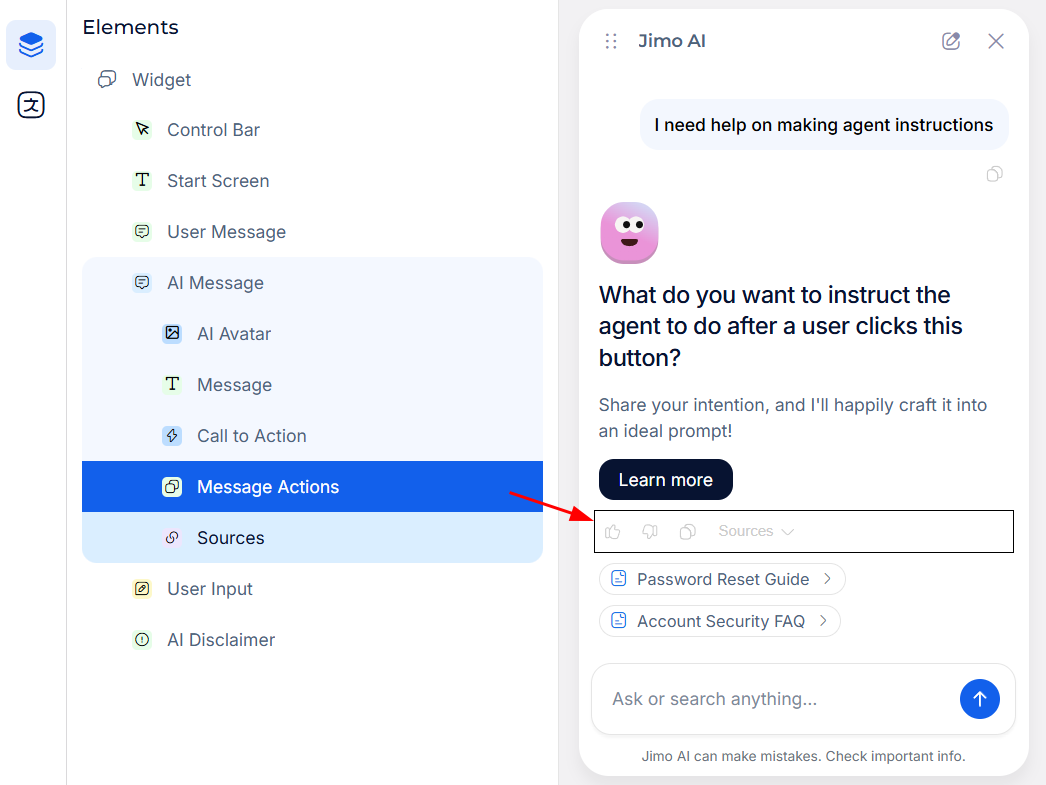
#### Message Actions
The feedback and action icons below the Agent's response (thumbs up, thumbs down, copy, etc.).
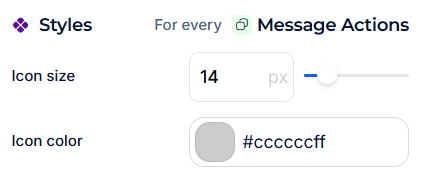
Styles
* **Icon size**: Size in pixels.
* *Direct Input*: Enter a value (e.g. `14`).
* **Icon color**: Color of the icons.
* *Color Picker*: Visual picker, Hex input (e.g. `#ccccccff`), RGBA, presets.
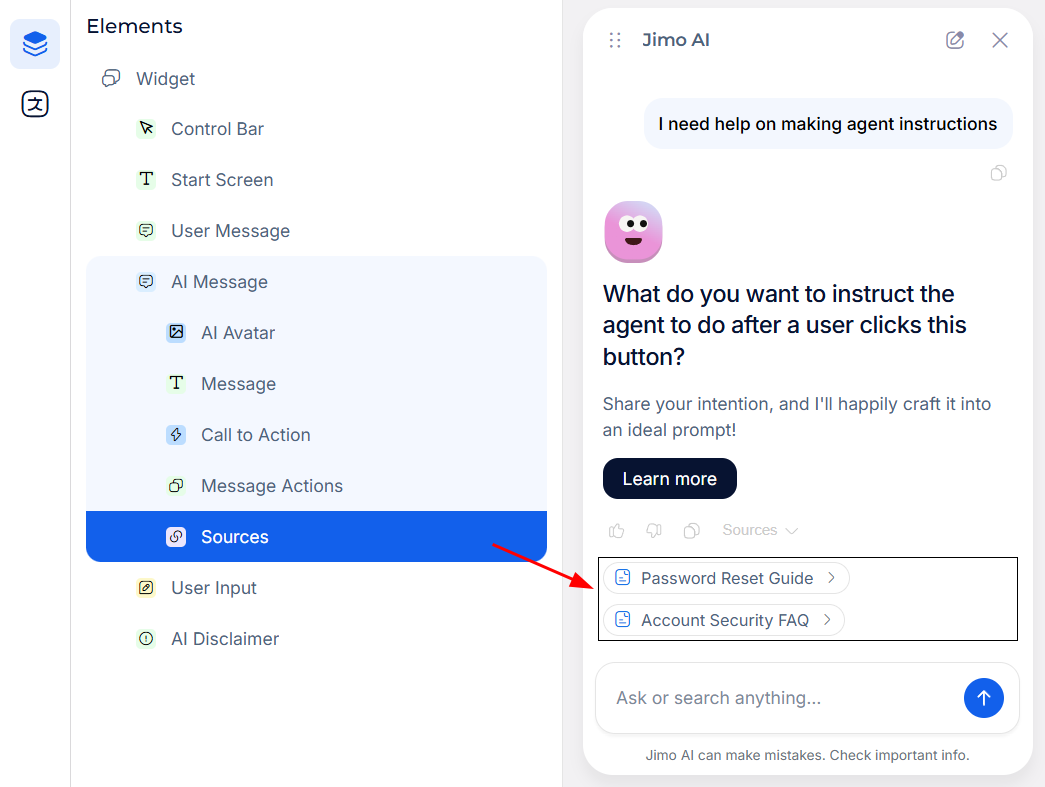
#### Sources
The source reference links displayed below the Agent's response, showing which knowledge sources were used to generate the answer (e.g. "Password Reset Guide", "Account Security FAQ").
Layout
* **Gap**: Spacing between source items.
* *Direct Input*: Enter a pixel value (e.g. `8`).
* **Padding**: External spacing around the sources block.
* *Direct Input*: Four values (e.g. `0`, `0`). Linked/unlinked toggle.
Styles
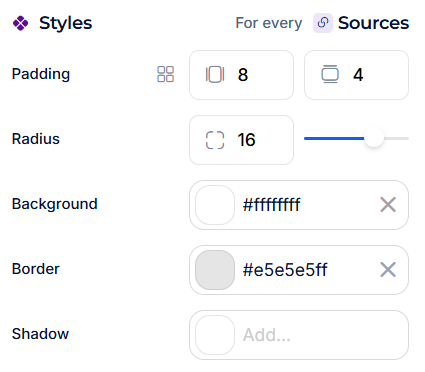
Applied globally ("For every Sources").
* **Padding**: Internal spacing of each source pill.
* *Direct Input*: Four values (e.g. `8`, `4`). Linked/unlinked toggle.
* **Radius**: Border roundness of source pills.
* *Slider Input*: Increase or decrease rounding.
* *Direct Input*: Enter a pixel value (e.g. `16`).
* **Background**: Background color of source pills.
* *Color Picker*: Visual picker, Hex input (e.g. `#ffffffff`), RGBA, presets.
* Click X to remove.
* **Border**: Border color of source pills.
* *Color Picker*: Visual picker, Hex input (e.g. `#e5e5e5ff`), RGBA, presets.
* Click X to remove.
* **Shadow**: Drop shadow on source pills.
* *Color*: Hex, RGBA, or presets. *X/Y/Blur*: Pixel values.
* Click "Add..." to define, or X to remove.
Text
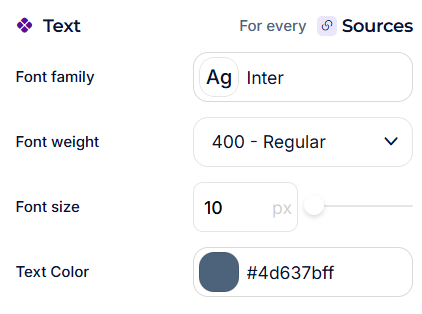
Applied globally ("For every Sources").
* **Font family**: Font used for source text.
* *Dropdown*: Choose from available fonts (e.g. `Inter`).
* **Font weight**: Source text boldness.
* *Dropdown*: Choose from available weights (e.g. `400 - Regular`).
* **Font size**: Size in pixels.
* *Direct Input*: Enter a value (e.g. `10`).
* **Text Color**: Color of the source link text.
* *Color Picker*: Visual picker, Hex input (e.g. `#4d637bff`), RGBA, presets.
***
### User Input
The input field at the bottom of the chat where users type their messages.
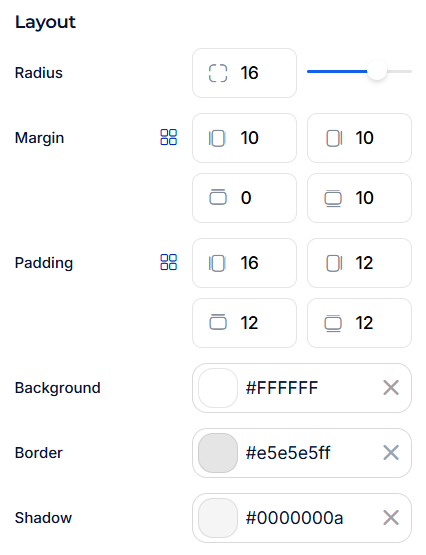
Layout
* **Radius**: Border roundness of the input area.
* *Slider Input*: Increase or decrease rounding.
* *Direct Input*: Enter a pixel value (e.g. `16`).
* **Margin**: External spacing around the input field. This is specific to User Input and controls the gap between the input and the widget edges.
* *Direct Input*: Four independent values (top, right, bottom, left), e.g. `10`, `10`, `0`, `10`. Linked/unlinked toggle.
* **Padding**: Internal spacing inside the input field.
* *Direct Input*: Four values (e.g. `16`, `12`, `12`, `12`). Linked/unlinked toggle.
* **Background**: Background color of the input area.
* *Color Picker*: Visual picker, Hex input (e.g. `#FFFFFF`), RGBA, presets.
* Click X to remove.
* **Border**: Border color around the input area.
* *Color Picker*: Visual picker, Hex input (e.g. `#e5e5e5ff`), RGBA, presets.
* Click X to remove.
* **Shadow**: Drop shadow on the input area.
* *Color*: Hex, RGBA, or presets (e.g. `#0000000a`). *X/Y/Blur*: Pixel values.
* Click X to remove.
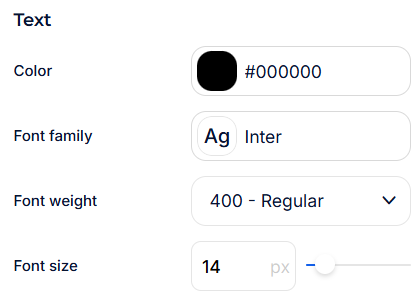
Text
Controls the typography of the user's typed text.
* **Color**: Text color.
* *Color Picker*: Visual picker, Hex input (e.g. `#000000`), RGBA, presets.
* **Font family**: Font used.
* *Dropdown*: Choose from available fonts (e.g. `Inter`).
* **Font weight**: Text boldness.
* *Dropdown*: Choose from available weights (e.g. `400 - Regular`).
* **Font size**: Size in pixels.
* *Direct Input*: Enter a value (e.g. `14`).
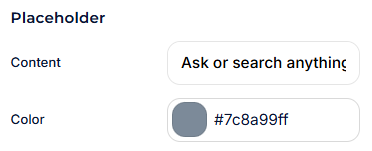
Placeholder
Controls the ghost text displayed before the user starts typing.
* **Content**: The placeholder text shown in the empty input field.
* *Text Input*: Enter custom text (e.g. "Ask or search anything...").
* **Color**: Color of the placeholder text.
* *Color Picker*: Visual picker, Hex input (e.g. `#7c8a99ff`), RGBA, presets.
#### Send Button
The submit button inside the input field that sends the user's message.
Layout
**Or**
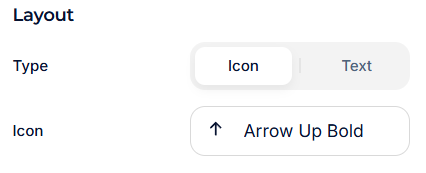
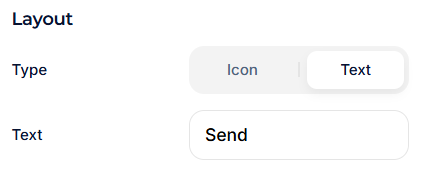
* **Type**: Toggle between **Icon** and **Text** modes.
* *Icon*: Compact button showing only an icon. Additional Icon property appears below.
* *Text*: Wider button showing a text label. Additional text styling properties appear in Style.
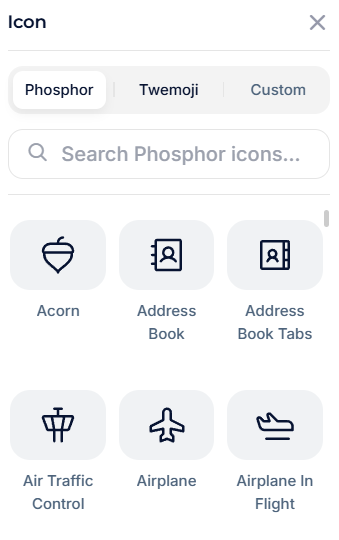
* **Icon** *(Icon mode only)*: Choose the glyph displayed on the button.
* *Dropdown*: Select from available icons (e.g. `Arrow Up Bold`).
* **Text** *(text mode only)*: Choose the text displayed on the button.
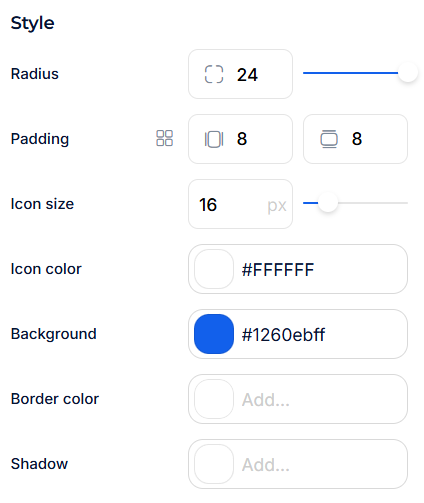
Style (Icon type)
Visible when Type is set to **Icon**.
* **Radius**: Corner rounding of the button.
* *Slider Input*: Increase or decrease rounding.
* *Direct Input*: Enter a pixel value (e.g. `24`).
* **Padding**: Internal spacing inside the button.
* *Direct Input*: Two values (e.g. `8`, `8`). Linked/unlinked toggle.
* **Icon size**: Size of the icon in pixels.
* *Direct Input*: Enter a value (e.g. `16`).
* **Icon color**: Color of the icon.
* *Color Picker*: Visual picker, Hex input (e.g. `#FFFFFF`), RGBA, presets.
* **Background**: Button background color.
* *Color Picker*: Visual picker, Hex input (e.g. `#1260ebff`), RGBA, presets.
* **Border color**: Border around the button.
* Click "Add..." to define a color.
* **Shadow**: Drop shadow on the button.
* *Color*: Hex, RGBA, or presets. *X/Y/Blur*: Pixel values.
* Click "Add..." to define, or X to remove.
Style (Text type)
Visible when Type is set to **Text**.
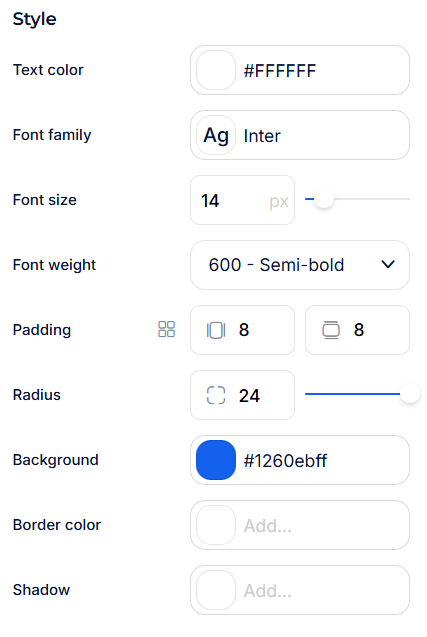
* **Text color**: Color of the button label.
* *Color Picker*: Visual picker, Hex input (e.g. `#FFFFFF`), RGBA, presets.
* **Font family**: Font used for the button label.
* *Dropdown*: Choose from available fonts (e.g. `Inter`).
* **Font size**: Size in pixels.
* *Direct Input*: Enter a value (e.g. `14`).
* **Font weight**: Text boldness.
* *Dropdown*: Choose from available weights (e.g. `600 - Semi-bold`).
* **Padding**: Internal spacing inside the button.
* *Direct Input*: Two values (e.g. `8`, `8`). Linked/unlinked toggle.
* **Radius**: Corner rounding of the button.
* *Slider Input*: Increase or decrease rounding.
* *Direct Input*: Enter a pixel value (e.g. `24`).
* **Background**: Button background color.
* *Color Picker*: Visual picker, Hex input (e.g. `#1260ebff`), RGBA, presets.
* **Border color**: Border around the button.
* Click "Add..." to define a color.
* **Shadow**: Drop shadow on the button.
* *Color*: Hex, RGBA, or presets. *X/Y/Blur*: Pixel values.
* Click "Add..." to define, or X to remove.
***
### AI Disclaimer
A small text line displayed at the very bottom of the chat widget, below the User Input. This disclaimer informs users that the AI can make mistakes and encourages them to verify important information.
This element helps you stay compliant with the **EU AI Act** and other transparency regulations that require AI-generated content to be clearly labeled as such.
Style
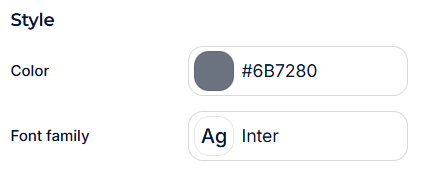
* **Color**: Text color of the disclaimer.
* *Color Picker*: Visual picker, Hex input (e.g. `#6B7280`), RGBA, presets.
* **Font family**: Font used for the disclaimer text.
* *Dropdown*: Choose from available fonts (e.g. `Inter`).