> For the complete documentation index, see [llms.txt](https://help.usejimo.com/docs/llms.txt). Markdown versions of documentation pages are available by appending `.md` to page URLs; this page is available as [Markdown](https://help.usejimo.com/docs/build/builders/content-builder.md).
# Content Builder
The central hub for customizing individual steps in your experiences, it provides everything you need to create engaging and effective steps.
## Understanding the Content Builder
The **Content Builder** simplifies how you manage step design. Unlike the **Flow Builder**, which manages the order and connections between steps, the **Content Builder** focuses on **step-by-step customization**, offering **real-time previews** and direct interaction with elements.
When you create or edit a step, the **Content Builder**, you’ll find an intuitive layout to structure and customize your step. **Each step is independent**, allowing precise control over its configuration. The builder ensures that all elements can be adjusted in a few clicks, giving you full creative control.
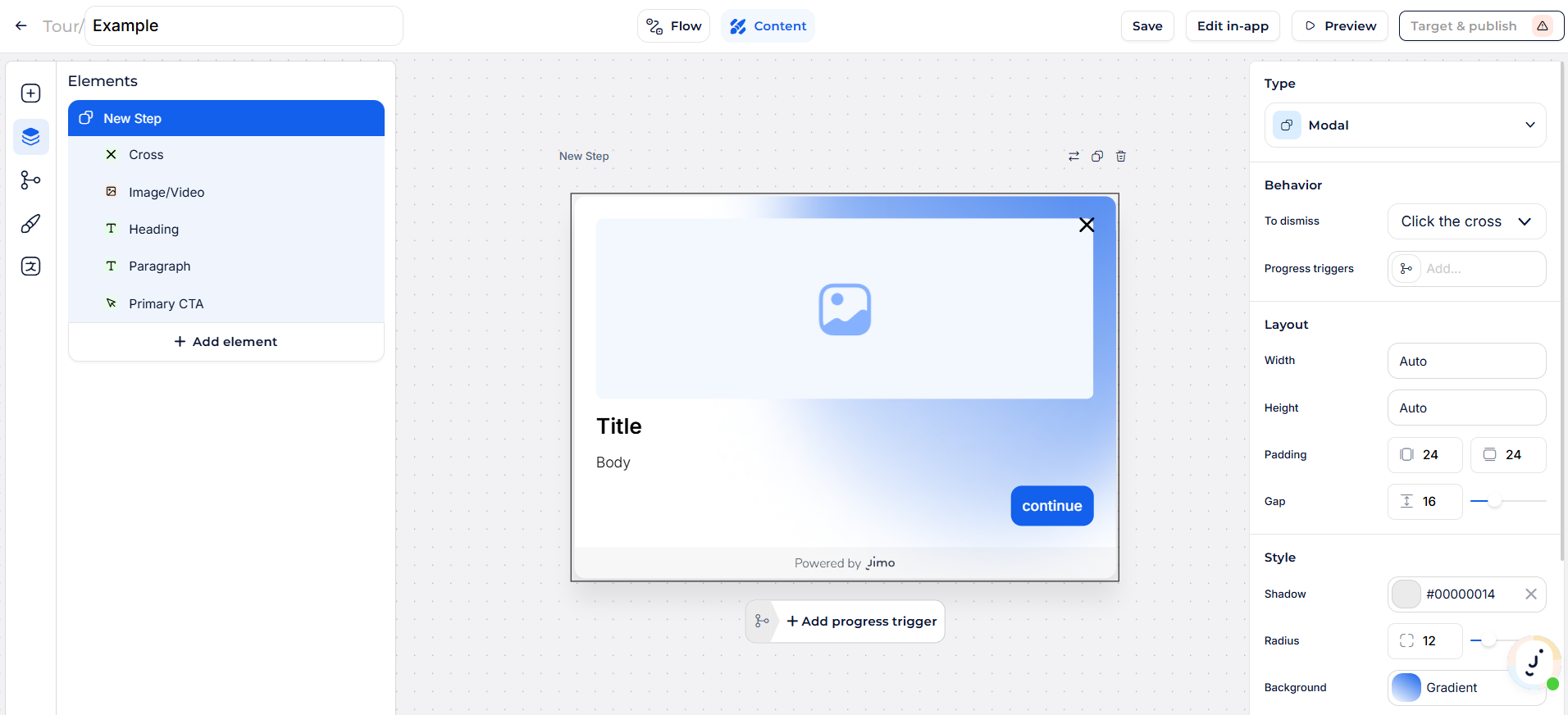
* **Tours & Surveys**: Once you add your first step in the Flow Builder, you're directed to the Content Builder to edit it.
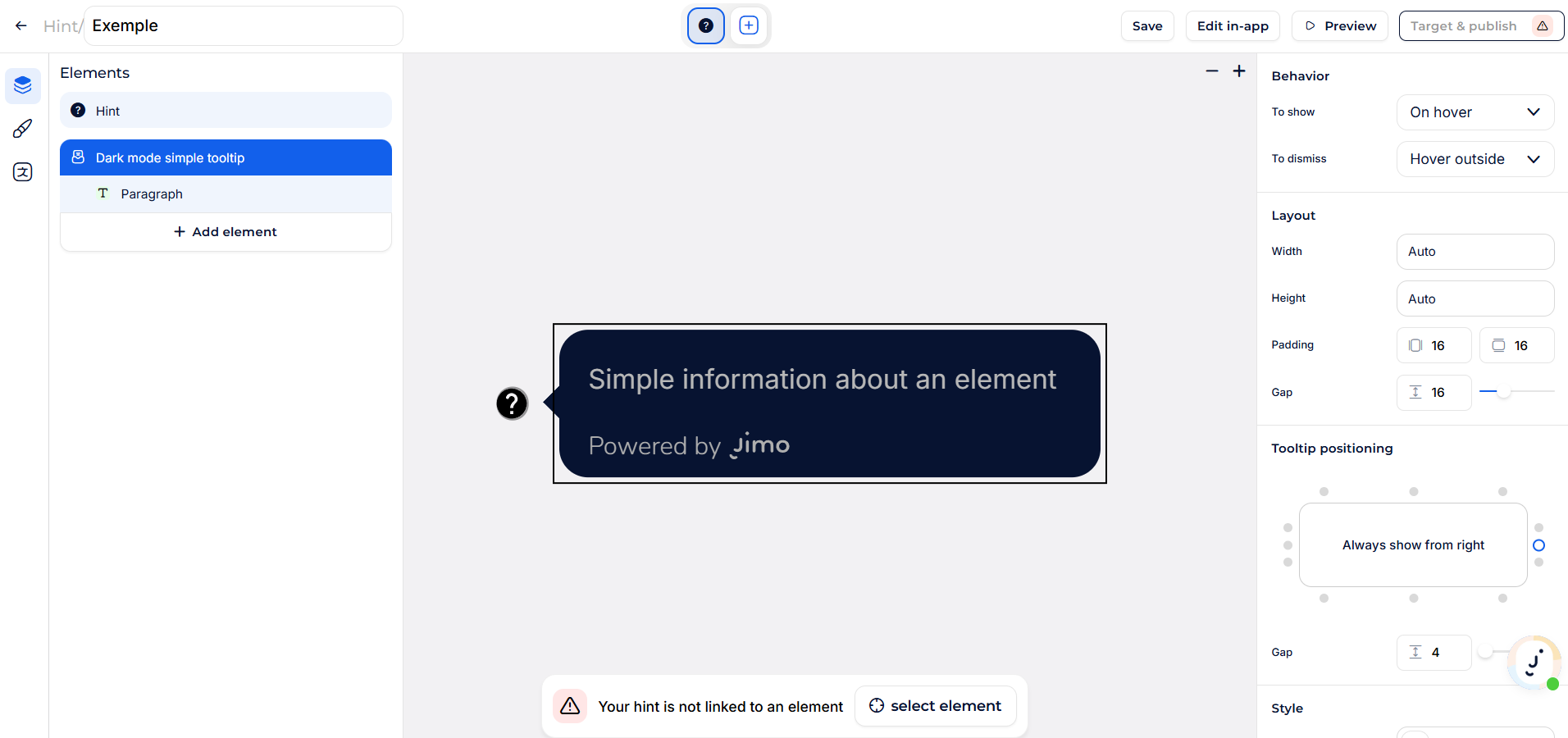
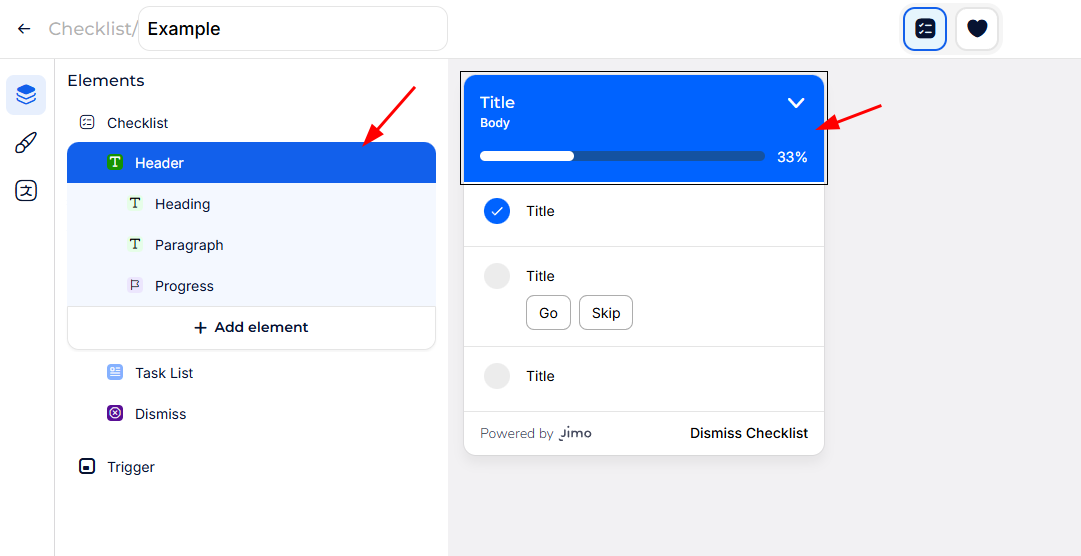
* **Banners, Checklists, and Hints**: These experiences don’t have step sequences, so you enter the Content Builder immediately after clicking **Enter Builder** during creation.
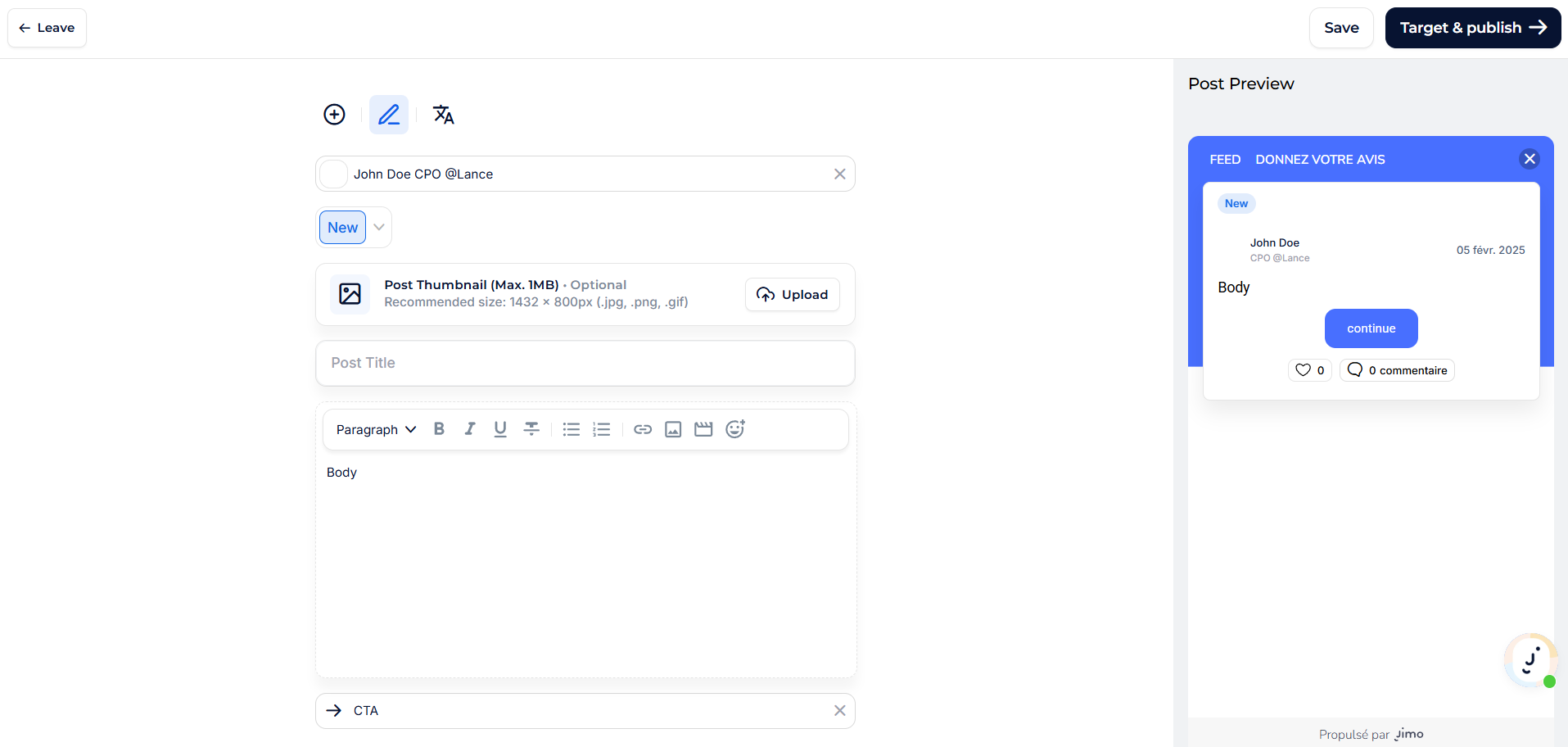
* **Changelog, Banners & Checklists**: These follow the same logic but have fixed step structures and the changelog posts have their own builder UI.
> 📝 Use the **Content tab** (if available) or click any step/element in the preview to open the Content Builder.
***
## First Time in the Content Builder
How to access the Content Builder:
1. **Sequential Experiences (Tours & Surveys)**:
* When you create a new experience, the Flow Builder opens first. After adding the first step, you're automatically taken to the Content Builder to customize it.
* Use the **Content tab** in the top bar or click on a step in the Flow Builder to return to step editing at any time.
2. **Non-Sequential Experiences (Banners, Hints, Checklists, Changelog Posts)**:
* Clicking **Enter Builder** immediately opens the Content Builder since these experiences don’t require step flows.
> 📝 **Click any step or element** directly in the preview to open its settings in the Content Builder.
***
## **Builder Menu**
The **Builder Menu** (left sidebar) is your main navigation tool within the **Content Builder**. It provides access to essential features that allow you to edit, style, and structure your experience efficiently.
Each section of the menu gives you different levels of control, from managing individual elements to applying global settings across the entire experience.
{% tabs %}
{% tab title="Tours & Surveys" %}
{% endtab %}
{% tab title="Banners, Hints & Checklists" %}
{% endtab %}
{% tab title="Changelog Posts" %}
{% endtab %}
{% tab title="In-app" %}
{% endtab %}
{% endtabs %}
***
### **Switch to Flow Builder (Optional)**
For **sequential experiences** like **Tours & Surveys**, the **Flow Builder** helps structure your experience by managing step order and user progression.
* To switch back to the [**Flow Builder**](/docs/build/builders/flow-builder.md), click the **Flow tab** in the **top bar**.
* Alternatively, use the **"+" button** in the sidebar to **add new steps** directly from the Flow Builder.
* If your experience doesn’t have a **Flow Builder** (e.g., **Banners, Checklists, Hints**), this option won’t be visible.
> 📌 If you're designing a Tour or Survey and need to modify step order or triggers, switch back to the **Flow Builder**.
***
### **Navigate & Access Step Elements**
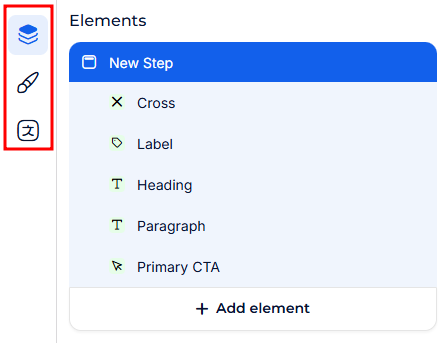
The [**Navigator**](/docs/build/navigator.md) is the **structural view** of your step, showing all elements within it.
* Click the **Navigator** icon in the menu to see a **tree view** of all elements in your step.
* Select an element to **access its specific settings** in the **Properties Sidebar**.
* Use the Navigator to **add, remove, or rearrange elements** within the step.
> 📌 You can also **click elements directly** in the preview to edit them—no need to use the Navigator every time.
***
### **Advanced Customization Options**
For greater control over your experience, use these additional **feature settings** available in the **Builder Menu**:
#### **Triggers & Conditions (Optional)**
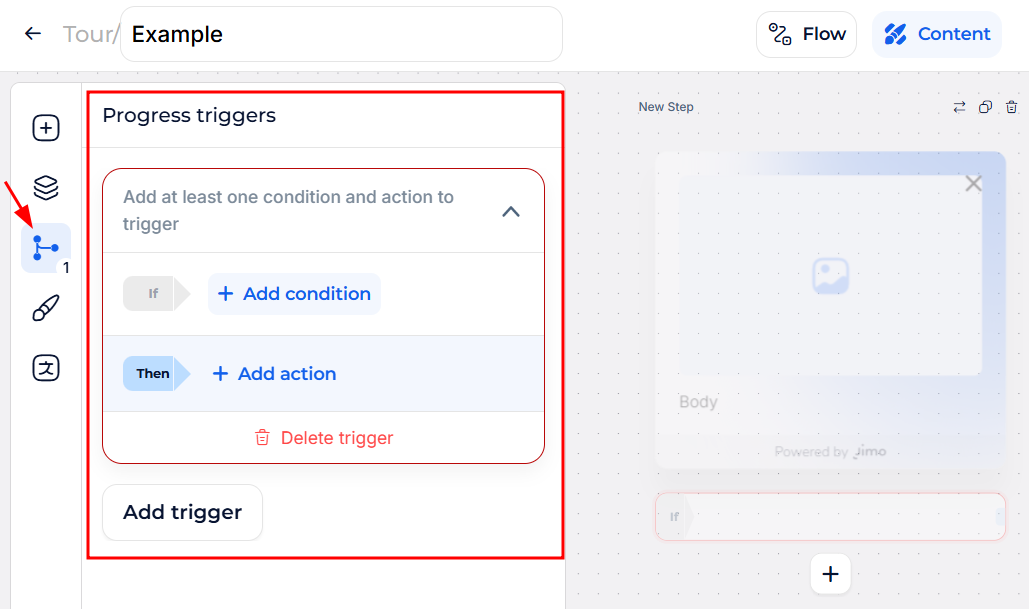
Triggers and conditions allow you to define **if/then logic** for your experience:
* **Progress Triggers**: Manage custom flows between steps.
* **Survey Conditions**: Customize paths based on user responses.
> 📌 For more details on using advanced logic, visit the [**Triggers & Conditions**](/docs/build/triggers-and-conditions.md) page.
#### **Theme: Uniform Styling & Design**
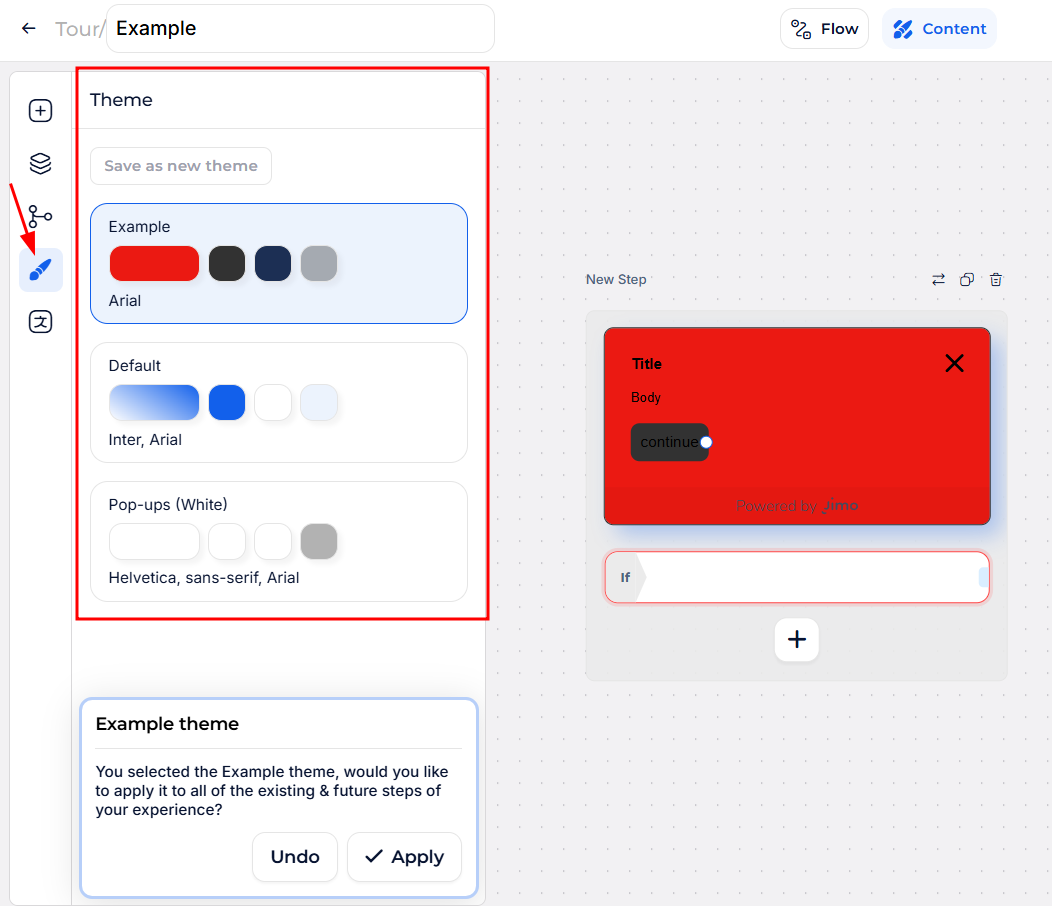
Themes allow you to **save and apply** consistent styling across your experience.
* Set **default fonts, colors, and layouts** for all steps.
* Ensure a **consistent look and feel** without editing each step individually.
> 📌 To define and apply themes, check the [**Theme Page**](/docs/build/theme.md).
#### **Translations: Multi-Language Management**
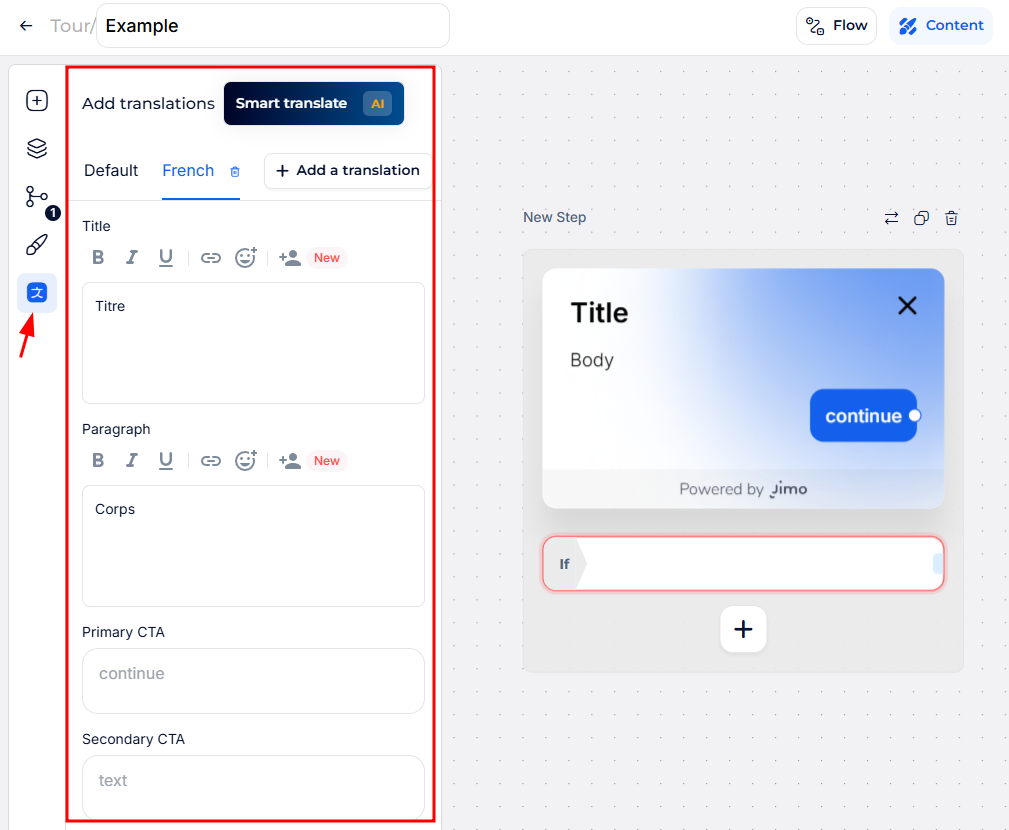
The **Translations** menu lets you manage **language variations** for your experience.
* Add and edit alternative text for different languages.
* Automatically adjust content based on user preferences.
> 📌 Learn more about translations on the [**Multiple Languages Page**](/docs/build/multiple-languages.md).
***
## **Editing a Step**
The **Content Builder** is where you design and configure each step of your experience. Every step consists of **customizable elements**, such as text, media, buttons, and interactive components.
To edit a step, you can:
* Click directly on an element in the **preview area** to open its settings.
* Use the **Navigator (left panel)** to browse and select elements.
* Adjust **parameters** via the **Properties Sidebar (right panel)**.
***
### **Selecting Elements**
When working on a step, you need to **select an element** before customizing it. There are two ways to do this:
* **Click Any Element in the Preview**: The quickest way to edit an element—just click on it to open its settings in the **Properties Sidebar (right panel)**.
* **Use the Navigator (Left Panel)**: This structured list helps you browse and organize all elements within the step. Click any entry to open its settings.
> 📌 The preview highlights the currently selected element, making it easy to identify what you’re working on.
***
### **Properties Sidebar**
The **Properties Sidebar (Right Panel)** is where you configure each selected element. It dynamically updates based on what you're editing.
* **When no element is selected**: Displays general step parameters (e.g., background, layout, animations).
* **When an element is selected**: Displays settings specific to that element (e.g., text, size, positioning, interactions).
Each element's settings are grouped into **sections**, such as:\
🔹 **Behavior** – Controls interactivity, such as button actions or dismiss rules.\
🔹 **Content** – Edits text, images, media, and input fields.\
🔹 **Style** – Customizes colors, fonts, sizes, and visual effects.\
🔹 **Positioning** – Adjusts placement for elements and step positioning (for targeted steps).\
🔹 Etc...
> 📌 To learn more about each sections and available parameters get a look at the components page:\
> \
> ⇒ [Tours & Modals](/docs/experiences/tours-and-modals/components.md) - [Surveys](/docs/experiences/surveys/components.md) - [Banners](/docs/experiences/banners/components.md) - [Hints](/docs/experiences/hints/components.md) - [Checklists](/docs/experiences/checklists/components.md) - [Changelog](/docs/experiences/changelog/changelog/changelog-components.md) - [Changelog posts](/docs/experiences/changelog/posts/post-components.md)
***
### **Adding & Managing Elements**
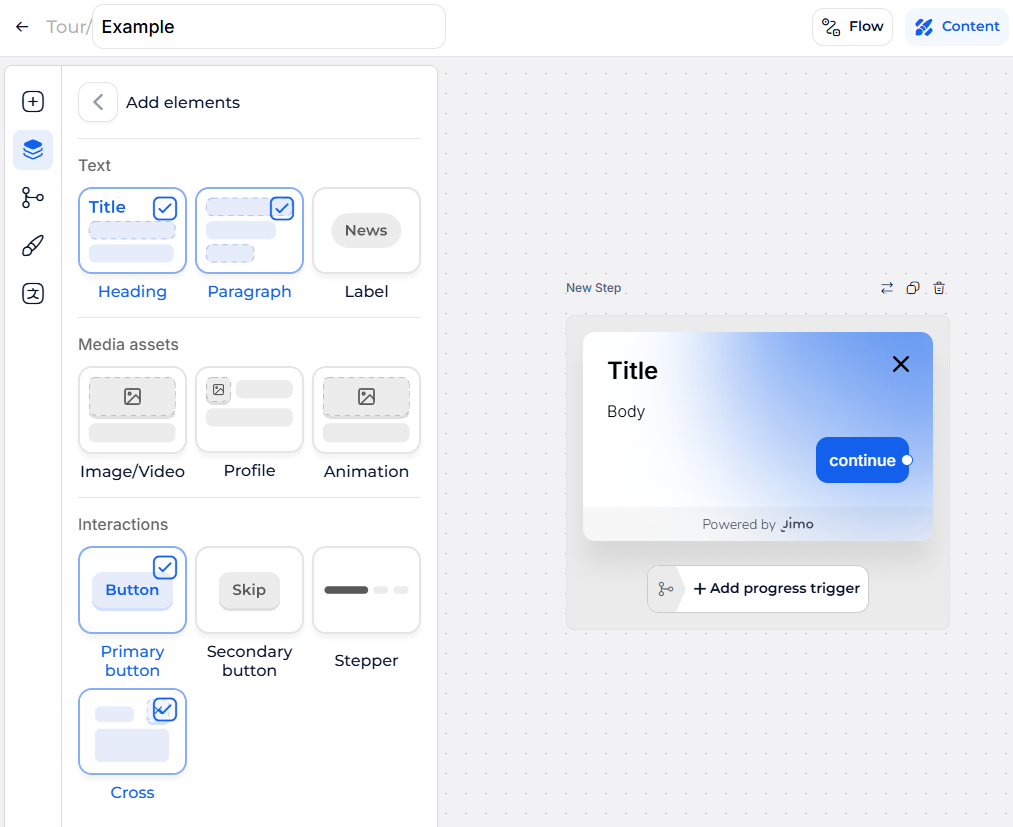
To **add an element**, click **“+ Add Element”** in the **Navigator** or use the floating **“+” button** in the preview.
{% hint style="warning" %}
For **Changelog Posts**, as there's no navigator, the "Add elements" is replaced by a **“+” button** directly in the Builder Menu and all elements are directly displayed in the post builder main view.
 ⇒ \
\
Note that the **Changelog** itself only have a navigator but no **“+ Add Element”** because its layout is fixed, you can't remove/add elements only customize them.

{% endhint %}
Each step follows a **structured layout**, with a mix of **common elements** (used across all experiences) and **experience-specific elements**.
* **Common Elements**: Available in all experiences, including:
* **Text Blocks** (Headings, Paragraphs, Labels)
* **Media** (Images, Videos, Profiles)
* **Buttons** (Primary CTA, Secondary CTA)
* **Experience-Specific Elements**:
* **Surveys**: Multiple choice, NPS, sliders, input fields.
* **Hints**: Tooltip, Badge, Label, Icon, Button.
* **Banners**: Single card with a mix of text, buttons, and media.
> 📌 To learn more about each elements available get a look at the components page:\
> \
> ⇒ [Tours & Modals](/docs/experiences/tours-and-modals/components.md) - [Surveys](/docs/experiences/surveys/components.md) - [Banners](/docs/experiences/banners/components.md) - [Hints](/docs/experiences/hints/components.md) - [Checklists](/docs/experiences/checklists/components.md) - [Changelog](/docs/experiences/changelog/changelog/changelog-components.md) - [Changelog posts](/docs/experiences/changelog/posts/post-components.md)
***
### **Positioning Targeted Steps**
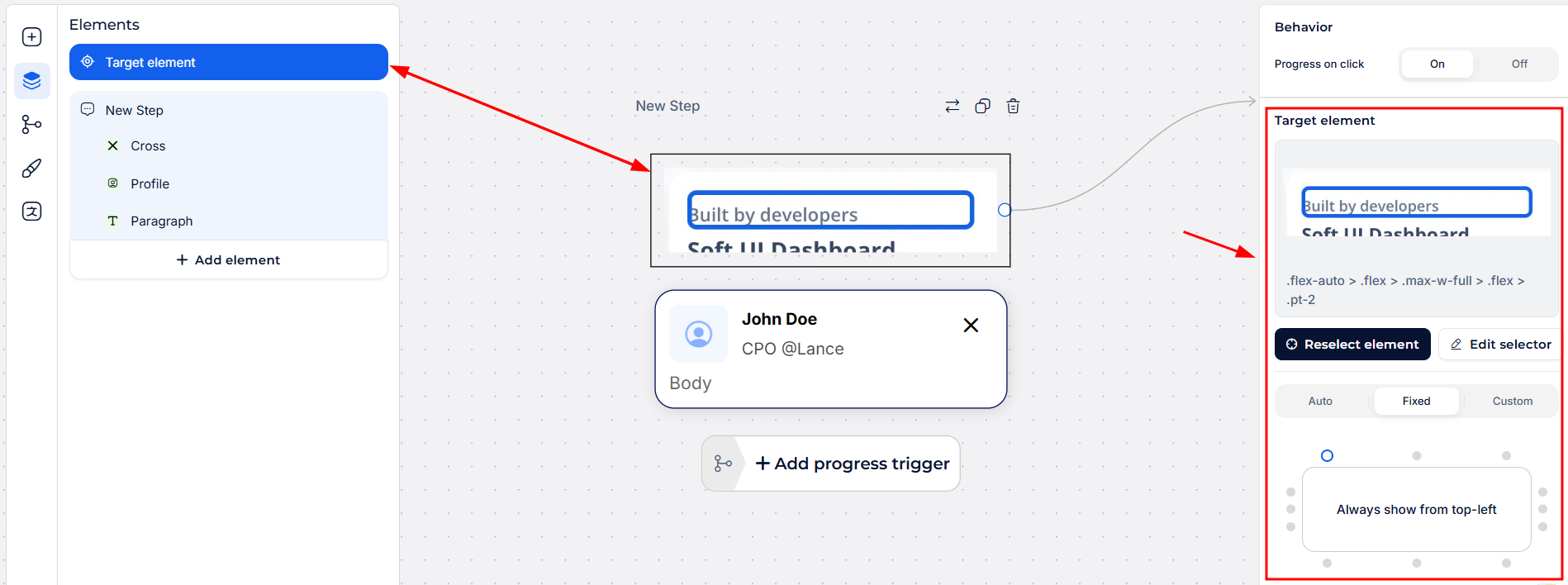
Some step types—like **Tooltips, Badges, and Targeted Hints**—must be attached to a UI element in your product.
* When adding a **targeted step**, a **popup alert** appears, prompting you to position the step correctly.
* Use the **CSS selector tool** or manual settings to define its placement.
* Targeting options include **specific UI elements, relative placement, and auto-positioning**.
> 📌 If you need advanced positioning, check out the [**Positioning Page**](/docs/build/positioning.md) for in-depth customization options.
***
{% hint style="warning" %}
If the [in-app builder](/docs/build/builders/in-app-builder.md) reloads each time you change steps or if the next button doesn't work, it may be caused by the initial URL where the builder was opened.
To avoid this issue, open the builder out-app and build each step individually by opening the builder in-app on the exact URL where the steps need to appear.
{% endhint %}
{% hint style="info" %}
The "Powered by Jimo" footnote is part of the trial and stays on **Essential plan**, upgrade your plan in the [billing settings](https://i.usejimo.com/settings/plan) to remove it.

{% endhint %}